By using the UBC for caching, AdvFS can maintain file data in memory as long as memory is available. If other system resources require some of the memory in use by the file system cache, the UBC can reclaim some of the memory used by the file system and reissue the needed memory to the resource requiring it.
Because AdvFS uses the UBC to control caching, the cache is tuned with the UBC tunable parameters. These include the following:
Variables that modify the maximum percentage of physical memory that the UBC can use at one time
The percentage of pages that must be dirty before the UBC starts writing them to disk
The maximum amount of memory allocated to the UBC that can be used to cache a single file
See the System Configuration and Tuning manual for guidelines for modifying these parameters.
Although caching data is the default and generally improves file system
performance, in some situations an application can increase throughput by
bypassing the data cache.
(See
Section 5.6.)
5.5 Improving Data Consistency
The method you choose to write data to a file can affect what is saved if a machine fails. You can make two independent choices:
Whether or not I/O is synchronous
Whether or not, in addition to the metadata that is written, file data is also written to the transaction log (atomic-write data logging)
Write requests, by default, are cached; that is, data is written to
the
If a crash occurs, the next time a fileset in the domain is mounted,
the completed log transactions are replayed and incomplete transactions are
backed out so that the original metadata on disk is restored.
These log transactions,
by default, save only metadata, not the data written to a file.
File sizes
and locations on disk are consistent, but if the crash occurred before data
was written to disk, the user data from recent writes might be out of date.
The risk of old data is a trade-off for the increased throughput gained by
using asynchronous I/O.
Synchronous I/O
is similar to asynchronous I/O,
but the data is written both to the cache and to the disk before the write
request returns to the calling application.
If a write is successful, the
data is guaranteed to be on disk.
Synchronous I/O reduces throughput because the write does not return
until after the I/O is complete.
Also, because the application, not the file
system, determines when the data is flushed to disk, the likelihood of consolidating
I/Os might be reduced if synchronous write requests are small.
Asynchronous I/O is the default caching method.
To turn synchronous
I/O on and off for a file, use the
To force all files within a fileset to employ synchronous I/O, use the
To force all applications accessing a file to employ synchronous I/O,
use the
To turn off synchronous processing and return the file to asynchronous
I/O, execute the
Atomic-write data logging writes user data (in addition to the normally
logged metadata) to the log file so data is consistent in the event of system
failure.
Either metadata and file data are written disk or they are not.
The
I/O method that atomic-write data logging uses depends on whether your I/O
has been set to asynchronous (Section 5.5.1.1) or synchronous (Section 5.5.1.2).
Two types of atomic-write data logging are available: persistent (Section 5.5.2.3) and temporary (Section 5.5.2.4).
Persistent
data logging remains in effect across mounts and unmounts.
Temporary data
logging is activated for the duration of the mount.
You can check the logging
status of a file by using the
Data logging incurs a performance cost because data as well as metadata
is written to the transaction log file.
This increases the amount of traffic
to the log and doubles the I/O for each user write.
Grouping files or filesets
for which you plan atomic-write data logging into a single or a few domains
reduces the burden on other more performance-sensitive domains.
Asynchronous atomic-write data logging I/O is similar to asynchronous
I/O except that the user data written to the buffer cache is also written
to the log file for each write request.
This is done in 8K byte increments.
The extra write of the data to the log file ensures data consistency in the
event of a crash but can degrade throughput compared with only using asynchronous
I/O.
If you are using asynchronous I/O and set atomic-write data logging,
your I/O is asynchronous atomic-write data logging.
If a crash occurs, the data is recovered from the log file when the
fileset is remounted.
As in asynchronous I/O, all completed log transactions
are replayed and incomplete transactions are backed out.
Unlike asynchronous
I/O, however, the user's data has been written to the log, so both the metadata
and the data intended for the file can be restored.
This guarantees that each
8K byte increment of a write is atomic.
It is either completely written to
disk or is not written to disk.
Because only completed write requests are processed, obsolete, possibly
sensitive data located where the system was about to write at the time of
the crash can never be accessed.
Out-of-order disk writes, which might cause
inconsistencies in the event of a crash, can never occur.
Synchronous atomic-write data logging I/O is similar to asynchronous
atomic-write data logging I/O except that the logged data is flushed from
the buffer cache to disk before the write request returns to the calling application.
Throughput might be degraded compared with using asynchronous atomic-write
data logging I/O, because the write does not return until after the log-flushing
I/O is complete.
If you are using synchronous I/O and set atomic-write data
logging, your I/O is synchronous atomic-write data logging.
If a crash occurs while a write is in progress, the data is recovered
from the log file when the fileset is remounted.
Like asynchronous atomic-write
data logging I/O, the user's data has been written to the log, so both the
metadata and the data intended for the file can be restored.
This guarantees
that each 8K byte increment of a write is either completely written to disk
or is not written to disk.
The benefit of synchronous atomic-write data logging is the guarantee
of data consistency when a crash occurs after a write call returns to the
application.
On reboot, the log file is replayed and the user's entire write
request is written to the appropriate user data file.
In contrast, asynchronous
atomic-write data logging guarantees the consistency of only 8K byte increments
of data after the write call returns.
Persistent atomic-write data logging sets an on-disk flag so that the
logging persists for the file across mounts and unmounts of the fileset.
The
choice of whether logging is asynchronous (Section 5.5.1.1) or synchronous
(Section 5.5.1.2) depends on how you have set your I/O.
To turn persistent atomic-write data logging I/O on and off, use the
If a file has a frag, persistent atomic-write data logging cannot be
activated.
To activate data logging on a file that has a frag, do one of the
following:
Activate temporary atomic-write data logging.
It operates
on files with frags.
See
Section 5.5.2.4.
Choose the
If you disable frag files by using the
You cannot use the
Files that use persistent atomic-write data logging cannot be memory
mapped through the
Temporary atomic-write data logging sets an in-memory flag for a fileset
so that logging persists for the duration of the mount.
The choice of whether
the data logging is asynchronous or synchronous depends on how you have set
your I/O.
See
Section 5.5.1
for instructions on how to control
I/O mode.
Use the
Any application that has the file open can call the
Files using temporary atomic-write data logging can be memory mapped.
Temporary atomic-write data logging is suspended until the last thread using
the memory-mapped file unmaps it.
Whether the data logging is asynchronous (Section 5.5.1.1)
or synchronous (Section 5.5.1.2) depends on your I/O setting.
Table 5-1
summarizes the options for turning atomic-write
data logging on.
Table 5-2
summarizes the options for turning atomic-write
data logging off.
Although direct I/O handles requests of any byte size, you get the best
performance when the requested transfer size is aligned on a disk sector boundary
and the transfer size is an even multiple of the underlying sector size (currently
512 bytes).
Direct I/O is particularly suited for files that are used exclusively
by a database.
However, if an application tends to access data multiple times,
direct I/O can adversely impact performance because caching does not occur.
When you specify direct I/O, it takes precedence, and any data already in
the buffer cache for that file is automatically flushed to disk.
You can only open a file for direct I/O if it is not opened for atomic-write
data logging (Section 5.5.2) or it is not memory mapped (Section 6.4.10).
To open a file for direct I/O, use the
Regardless of its previous mode, once you initiate direct I/O for a
file, its mode is direct I/O and remains so until the last close of the file.
You can use the
You can change a number of attributes to improve system performance.
The
System Configuration and Tuning
manual details the significance of each attribute
and the trade-offs engendered when they are changed.
See
Increase the dirty-data caching threshold.
Dirty or modified data is data that was written by an application and
cached but has not yet been written to disk.
You can modify the amount of
Modifying this variable by using the
Promote continuous I/O by using the
The
Change the I/O transfer size.
To form an I/O of the preferred transfer size of the device, AdvFS coalesces
cache pages in memory that are physically contiguous on the disk.
The preferred
size is determined by the device driver and depends on the underlying storage
configuration but is typically 128 or 256 blocks.
If you are using LSM, you
can change the stripe width, which can result in a larger transfer size .
You can adjust the preferred transfer size by using the
Flush modified memory-mapped pages.
The
Increase the memory available for access structures.
AdvFS allocates file access structures until the percentage of pageable
memory used for the access structures reaches the value of
The
Reducing file fragmentation
Balancing volume free space
Equalizing the I/O load
You must have root user privilege to run the
Most
Some utilities, such as
Because
The
Only files that are opening and closing are added to the
To defragment a complete domain, you must open and close all the files
in the domain.
For each fileset in the domain, do the following:
Mount the fileset and change to its directory.
Execute the following command:
Because the
You cannot control the placement of files when
You can stop defragmenting at any time by setting
-o defragment=disable.
Discontinuing the process does not damage the file system.
Files
that have been defragmented remain in their new locations.
If files are enabled for direct I/O (Section 5.6), the
If you have enabled the
-o defragment=
option, activating
-o balance=
as well causes the
Only files in need of defragmentation are balanced to equalize the free
space across volumes.
If there are no fragmented files in the domain, then
Enabling the
-o topIObalance=
option causes
If your domain is striped in any way (hardware RAID, LSM striping, AdvFS
file striping), do not use the
-o topIObalance=
option.
The
utility cannot effectively distribute the I/O load in this configuration.
If a system node is a cluster member, some files may not be processed
initially because the cluster file system (CFS) caches files and processing
cannot occur until the cache is flushed.
To start
To identify the amount of fragmentation in your domain without enabling
To determine the layout of your domain, execute the
Use the
The examples in this section use the
The following example initiates selected
The following example uses the
The following example uses the
-l extents
option to
display the volumes queued for defragmentation and the volume free space balancing
in the domain
The following example uses the
-L extents
option to
display fragmentation summaries by volume for the domain
The following example uses the
-l hotfiles
option to
look at the most actively paging files and the volumes on which they reside
in the domain
If you are not running the
The
You can stop defragmenting at any time.
Aborting the process does not
damage the file system.
Files that have been defragmented remain in their
new locations.
You cannot control the placement of files during defragmentation of
a multivolume domain.
Use the
To defragment a domain, all filesets in the domain must be mounted.
A minimum free space of 1% of the total space or 5 MB per volume (whichever
is less) must be available to defragment each volume.
Use the SysMan Menu
utility called Manage an AdvFS Domain (see
Appendix A), a graphical
user interface (see
Appendix E), or enter the
You must have root user privileges to defragment a domain.
The
It is difficult to specify the load that defragmenting places on a system.
The time it takes to defragment a domain depends on the following:
The size of the volumes
The amount of free space available
The activity of the system
The configuration of your domain
Because the
To determine the amount of fragmentation in your domain without starting
the utility, run the
If you find that one file shows high fragmentation, you can defragment
that file individually.
See
Section 5.10
for a discussion
of how to defragment a file.
If your file system has been untouched for a month or two, that is,
if you did not run full periodic backups nor regularly reference your whole
file system, it is a good idea to run the
Running the
If you have a system, such as a mail server, that contains files that
are mostly smaller than 8K bytes, the AdvFS page size, you need only run the
If you have the hardware resources and AdvFS Utilities, you can add
a volume by using the
The following example displays the fragmentation of the
Information displayed before each pass and at the conclusion of the
defragmentation process indicates the amount of improvement made to the domain.
A decrease in the
See
You can defragment a file without defragmenting the entire domain.
You
can defragment a single file while the
To determine if a file is a good candidate for defragmentation, that
is, the file has a large number of extents, run the
Use the
Back up and restore a file.
Back up the file by using the
Delete or rename the file.
Restore the data by using the
If you are not running the
The utility moves files from one volume to another until the percentage
of used space on each volume in the domain is as equal as possible.
See
Figure 5-1.
This process is the same as that used by the
To redistribute files across volumes, all filesets in the domain must
be mounted.
Use the SysMan Menu utility called Manage an AdvFS Domain
(see
Appendix A), a graphical user interface (see
Appendix E),
or enter the
If you interrupt the balance process, all relocated files remain at
their new locations.
The rest of the files remain in their original locations.
You must have root user privileges to balance a domain.
The
To determine if your files are evenly distributed, execute the
Use the
In the following example, the multivolume domain
See
If you have the optional AdvFS Utilities, you can use the
The
To move an entire file to a specific volume, execute the
A file that is migrated is defragmented in the process if possible.
You can use the
You must have root user privileges to migrate a file.
You can perform
only one migrate operation at a time on the same file and you can migrate
from only one volume at a time.
The following example uses the
You can
Use AdvFS striping only on directly attached storage that does not include
LSM, RAID, or a SAN volumes.
Combining AdvFS striping with system striping
might degrade performance.
The AdvFS
The form of the AdvFS stripe command is:
You cannot use the AdvFS stripe utility on the
You can remove AdvFS striping in your domain by doing one of the following:
Removing striping from a file
Copy the striped file to a file that is not striped.
Delete the original.
Removing the striped volume
If you remove a volume that contains an AdvFS stripe segment, the
If all remaining volumes contain stripe segments, the system requests
confirmation before the segment is moved to a volume that already contains
a stripe segment of the file.
To retain the full benefit of striping when no volume is free of stripes,
stripe a new file across the existing volumes and copy the file with the doubled-up
segments to the new file.
For more information, see
If you have added a new volume, or if you believe that a fileset or
domain is straining system resources, you can move a domain to a different
volume.
To determine whether to move a domain, look at I/O performance on
the device on which it is located.
Run the
If you want to move an entire domain and its fileset to a new volume,
do the following:
Make a new domain on the new device.
It must have a temporary
new name.
Create a fileset with the same name as the old.
Create a temporary mount-point directory for the fileset.
Mount the new fileset on the temporary mount point.
Use the
Unmount the old and new filesets.
Rename the new domain to the old name.
Since you have not
changed the domain and fileset names, it is not necessary to edit the
Mount the new fileset using the mount point of the old fileset.
The directory tree is then unchanged.
Delete the temporary mount-point directory.
If you have more than one fileset in your domain, follow steps two through
eight for each fileset.
The new domain is created with the new domain version number (DVN) of
4.
(See
Section 2.3.3.1
for an explanation of domain version
numbers.) If you must retain the DVN of 3 to use on earlier versions of the
operating system, see
The following example moves the domain
Use the
To force a crash dump, set the value of the attribute as follows:
0 - Do not create crash dumps.
1 - Create crash dumps only for domains with mounted
filesets (default).
2 - Create crash dumps for all domains.
3 - Promote the domain panic to a system panic.
The
system crashes.
See
5.5.1.1 Asynchronous I/O
5.5.1.2 Synchronous I/O
5.5.1.3 Turning Synchronous I/O On and Off
chfile
command with
the
-l
option or the
O_SYNC
or
O_DSYNC
flag to the
open()
system call.
(See
the
Programmer's Guide
and
open(2)chfile
command together, if you plan to use the
chfile
command
to control atomic-write data logging, use the system call to activate synchronous
I/O.
See
Section 5.5.2.5
for information on turning atomic-write data
logging on and off.
mount
command with the
-o sync
option:
mount -o sync
filename
chfile
command with the
-l on
option:
chfile -l on
filename
chfile
command with the
-l off
option:
chfile -l off
filename
5.5.2 Enabling Atomic-Write Data Logging I/O
chfile
command with no options.
5.5.2.1 Asynchronous Atomic-Write Data Logging I/O
5.5.2.2 Synchronous Atomic-Write Data Logging I/O
5.5.2.3 Persistent Atomic-Write Data Logging
fcntl()
function or enter the
chfile
command
with the
-L
option:
chfile -L on
filename
chfile -L off
filename
nofrag
option for the fileset
when you access it by using the
mkfset
or
chfsets
command.
chfsets
command
with the
-o nofrag
option, files with existing frags still
contain frags.
To remove a frag from a file, see
Section 5.2.
-l
and
-L
options
of the
chfile
command together to set synchronous I/O and
atomic-write data logging.
However, if you activate persistent atomic-write
data logging on a file by using the
chfile
command with
the
-L on
option, you can then open the file for synchronous
I/O by using the
O_SYNC
or
O_DSYNC
flag
to the
open()
system call.
(See the
Programmer's Guide.)
mmap
system call.
See
Section 6.4.10
for information on conflicting file usage.
5.5.2.4 Temporary Atomic-Write Data Logging
mount
command with the
-o adl,sync
option to set an in-memory flag that activates temporary atomic-write
data logging in a fileset for the duration of the mount.
Files that have frags
can use temporary atomic-write data logging.
Persistent atomic-write data
logging commands take precedence over temporary commands while the file is
open.
fcntl()
function to turn off temporary atomic-write data logging or use
the
chfile
command with the
-L off
option
to turn off persistent atomic-write data logging.
All applications that have
the file open are affected.
5.5.2.5 Turning Atomic-Write Data Logging On and Off
Table 5-1: Turning Atomic-Write Data Logging On
Type of Data Logging
Command
Notes
Persistent (file)
chfile
command with the
-L on
option or
fcntl()
functionCannot be activated on files with frags.
Cannot use
chfile
command if
chfile
command used to control
synchronous I/O.
See
Section 5.5.2.3.
Temporary (fileset)
mount
command with the
-o adl
option for asynchronous or the
-o adl, sync
option
for synchronousCan activate on files with frags.
Persistent atomic-write
data logging takes precedence.
See
Section 5.5.2.4.
Table 5-2: Turning Atomic- Write Data Logging Off
Type of Data Logging
Command
Notes
Persistent (file)
chfile
command with the
-L off
option or
fcntl()
functionCannot use
chfile
command if
chfile
command used to control synchronous I/O.
See
Section 5.5.2.3.
Temporary (fileset)
Automatically turns off on fileset unmount or
fcntl()
functionAny open file can call
fcntl()
function.
See
Section 5.5.2.4.
5.6 Improving Data Transfer Rate with Direct I/O
open()
function and specify the
O_DIRECTIO
flag.
For example, for
file_x
enter:
open (file_x, O_DIRECTIO|O_RDWR, 0644)
fcntl()
function to determine if
a file is open in cached or in direct I/O mode.
See
fcntl(2)open(2)5.7 Changing Attributes to Improve System Performance
sysconfig(8)
chvol
command with the
-t
option or, for all new volumes of a file system, by using the
AdvfsReadyQLim
attribute.
(See
chvol(8)chvol
command
is most effective if smooth sync is disabled.
If your system is using smooth
sync (the default), then the rate at which the dirty data is flushed to disk
is best tuned by using the
smoothsync_age
attribute.
smoothsync_age
attribute.
smoothsync_age
attribute specifies the number
of seconds that a modified page stays in the buffer cache before being flushed
to disk.
This allows the file system to balance the need to flush modified
pages to disk in a timely manner with the benefits of keeping the page in
memory while all modifications are being made.
chvol
command with the
-r
(read) or
-w
(write) options.
(See
chvol(8)AdvfsSyncMmapPages
attribute controls whether
modified memory-mapped pages are flushed to disk during a
sync
system call.
AdvfsAccessMaxPercent.
Increasing the value of the
AdvfsAccessMaxPercent
attribute might improve AdvFS performance on systems that open and reuse many
files, but this decreases the memory available for the virtual memory subsystem
and the Unified Buffer Cache (UBC).
Decreasing the value of the attribute
frees pageable memory but might degrade AdvFS performance on systems that
open and reuse many files.
5.8 Improving Operating System Throughput with the vfast Utility
vfast
utility is a background process that operates
on the files in a domain that are actively opening and closing.
The utility
performs a number of optimizing functions, such as:
vfast
utility.
You can turn
vfast
processing on or off with the
activate
and
deactivate
options.
With the
suspend
option you can turn off
vfast
processing
but continue to gather internal statistics.
Using the
status
option, you can display the current
vfast
configuration,
operational statistics, and processing options for the domain.
vfast
processing occurs when devices have no
other system I/O, so running
vfast
does not generally degrade
performance.
You can limit the share of system I/O that the utility uses with
the
-o percent_ios_when_busy=
option.
The default is 1% of
the known storage device I/O bandwidth.
umount,
rmvol,
and
rmfset, suspend
vfast
operations
temporarily while they run.
When the utilities finish,
vfast
is returned to its prior state.
vfast
defragments and balances domains, the
traditional AdvFS
defragment
and
balance
utilities cannot be used if
vfast
is activated with the
-o defragment=,
-o balance=, or
-o topIObalance=
operations enabled.
vfast
command with the
-o defragment=enable
option dynamically consolidates free space, reduces file fragmentation,
and makes files more contiguous.
Although the AdvFS file system attempts to
store file data in contiguous blocks on disk, if contiguous blocks are not
available to accommodate the new data, the system spreads data over non-contiguous
blocks.
This fragmentation degrades the read/write performance because many
disk addresses must be examined to access a file.
The
vfast
utility operates to minimize this degradation by moving fragmented files to
contiguous disk blocks.
Files might be relocated during consolidation.
vfast
cache of fragmented files.
To defragment files with
vfast, at least one fileset in the domain must be mounted read/write.
If other filesets in the domain are not mounted for writing, then the fragmented
files in these filesets are not defragmented unless the filesets were previously
mounted as writable and there are still files from these filesets in the
vfast
cache waiting to be processed.
Run the
vfast
command with the
-l extents
option to display files queued
for defragmentation.
If there are no files in the
vfast
cache, no defragmentation or free-space balancing takes place.
# find ./ -name \* >/dev/null
vfast
cache can fill up, all
the files may not be defragmented in a single pass.
To completely defragment
a domain, you might need to open and close the files more than once.
To check
progress of the defragmentation, enter the following:
# vfast -L extents domain_name
vfast
defragments a multivolume domain.
To identify where a file is stored, execute
the
showfile
command.
If you want to move a particular
file to a different volume, use the
migrate
command.
(See
Section 5.12.)
vfast
utility defragments these files unless the
-o direct_io=
option is set to
disable.
vfast
utility to
distribute files between volumes of a multivolume domain to equalize the I/O
load.
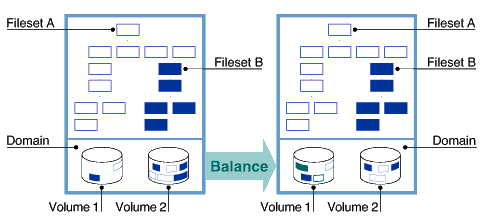
The utility moves files from one volume to another, as illustrated in
Figure 5-1, until the percentage of used space on each volume
in the domain is as equal as possible.
Only files queued for defragmentation
are used to balance domains.
Figure 5-1: Balancing a Domain
vfast
does not perform any balancing.
Furthermore, only files actively
being closed are checked for fragmentation, so files are ignored if they have
not been accessed since the last mount of the fileset.
vfast
to first monitor I/O (for an interval set by the
-o ss_steady_state=
option) to determine which volumes are experiencing
the heaviest I/O load.
The utility then continuously distributes files with
high I/O among the volumes of the domain to balance the load.
However, if
files are enabled for direct I/O,
topIObalance
ignores
these files because I/O to these files bypasses
vfast
statistics
collection.
5.8.1 Choosing to Run the vfast Utility
vfast
processing for a domain, execute the
vfast
command with the
activate
option.
Once
you have initiated processing, you can choose the types of activities the
utility performs by executing additional
vfast
commands.
vfast, use the
-L extents
option.
If the average
number of extents or the number of extents per file that have extents is high,
running the utility might be helpful.
If you think the domain has excessive
fragmentation, run
vfast
with the
-o defragment=
option.
showfdmn
command.
Look at the % Used field to determine if the files are
evenly distributed among volumes.
If they are not, and you have enabled defragmenting,
run the
-o balance=
option on the domain.
vfast
command with the
-l hotfiles
option to identify the most actively paging files by volume and
domain.
The
-L hotfiles
option displays a volume distribution
summary by domain.
5.8.2 Examples of the vfast Utility
vfast
options
to control the functionality of the utility.
vfast
functionality:
# vfast activate user_dmn
# vfast -o defragment=enable user_dmn
# vfast -o balance=enable user_dmn
# vfast -o topIObalance=enable user_dmn
# vfast -o percent_ios_when_busy=20 user_dmn
status
option to determine
the amount of defragmentation done to the domain
user_dmn.
# vfast status user_dmn
vfast is currently running
vfast is activated on user_dmn
vfast defragment:     enabled
vfast balance:        enabled
vfast top IO balance: enabled
Options:
  Direct IO File Processing: enabled
  Percent IOs Allocated to vfast When System Busy: 20%
  Default Hours Until Steady State: 24; Hours remaining: 0
  Total Files Defragmented:  3331
  Total Pages Moved for Defragment:  278440
  Total Extents Combined for Defragment:  21
  Total Pages Moved for Balance:  0
  Total Files Moved for Volume IO Balance:  0
  Total Pages Moved for Volume Free Space Consolidation:  50607
user_dmn:
# vfast -l extents user_dmn
user_dmn: Volume 1
extent
count    fileset/file
 2 user: /u1/obj/BINARY/lp.o
 2 user: /u1/w17/obj/kernel/test_21.o
 3 user: /u1/obj/bs_bitfile_sets.o
 3 user: /u1/w4/itpsa.o
 4 user: /u1/w4/cms_utils.o
user_dmn.
# vfast -L extents user_dmn
user_dmn
    Extents:                    46003
    Files w/extents:            45694
    Avg exts per file w/exts:    1.01
    Free space fragments:       18858
                     <100K     <1M    <10M    >10M
      Free space:      21%     41%     31%      7%
      Fragments:     16119    2523     213       3
user_dmn.
# vfast -l hotfiles user_dmn |more
Past Week

 IO Count Volume File
  5487993    1   *** a reserved file, tag = -2,-10, BMT
   197088    1   *** a reserved file, tag = -2, -7, SBM
   147757    1   *** a reserved file, tag = -2, -9, LOG
     2814    1   user: /user1/crl/BINARY/makedep
     1206    1   user: /user1/crl/applications/sequoia.jar
     1005    1   user: /user1/sandboxes/advfs.mod
      402    1   user: /user1/alpha/arch.mod
vfast
utility (Section 5.8),
you can run the
defragment
utility to reduce the amount
of file fragmentation (Section 1.3.3) in your domain.
This
utility attempts to make the files more contiguous so that the number of file
extents is reduced.
Because many disk addresses must be examined to access
a fragmented file, defragmenting a domain improves the read/write performance.
In addition, defragmenting a domain often makes the free space on a disk more
contiguous so files that are created later are also less fragmented.
You can
defragment a domain if you have frag files turned on or off.
The activities
are not related.
vfast
utility is preferable for defragmenting
a domain because it is optimized for the operating system and runs in the
background.
You can improve the efficiency of running the
defragment
utility by deleting unneeded files in the domain before running
it.
Run the
defragment
utility on your domain when you
experience performance degradation and then only when file system activity
is low.
showfile
command to identify
where a file is stored.
If you want to move a file, execute the
migrate
command.
See
Section 5.12
for more
information about migrating files.
defragment
command from the command line:
defragment
domain_name
defragment
utility cannot be run while the
vfast,
addvol,
rmvol,
balance, or
rmfset
command is running in the same domain.
defragment
utility creates one thread
per volume (up to a maximum of 20 threads), a domain consisting of several
small volumes is faster to defragment than one consisting of a large volume.
However, multiple threads might exact a severe performance penalty for ongoing
I/O.
If you want to limit defragmentation to a single thread (similar to Version
4 operating system software behavior), execute the
defragment
command with the
-N 1
option.
defragment
command with the
-v
-n
options.
If the average number of extents or
the number of extents per file with extents is high or the aggregate I/O performance
is low, defragmentation might be helpful.
In many cases, even a large, fairly
fragmented file does not show a noticeable decrease in performance because
of fragmentation.
It is not necessary to run the
defragment
command on a system that is not experiencing performance-related problems
due to excessive file fragmentation.
/sbin/advfs/verify
command (Section 6.2.4) before you run the
defragment
command.
Run the
verify
command when there is
low file system activity.
balance
utility before you run
defragment
might speed up the defragmentation process.
defragment
command when the frag file for the fileset, called
/mount_point/.tags/1, is highly fragmented.
See
Section 5.2
for a discussion of disabling the frag file.
addvol
command then remove the original
volume by using the
rmvol
command.
Removing the volume
migrates the domain to the new volume, and the files in it are defragmented
as part of the migration.
accounts_domain
domain and then defragments the domain for a maximum of 15 minutes.
# defragment -v -n accounts_domain
defragment: Gathering data for 'accounts_domain'
Current domain data:
   Extents:                 263675
   Files w/ extents:        152693
   Avg exts per file w/exts:  1.73
   Aggregate I/O perf:         70%
   Free space fragments:     85574
                 <100K   <1M   <10M   >10M
    Free space:    34%   45%    19%     2%
    Fragments:   76197  8930    440      7
#  defragment -v -t 15 accounts_domain
defragment:  Defragmenting domain 'accounts_domain'

Pass 1;
  Volume 2: area at block      144 (  130800 blocks): 0% full
  Volume 1: area at block   468064 (  539008 blocks): 49% full
  Domain data as of the start of this pass:
    Extents:                   7717
    Files w/extents:           6436
    Avg exts per file w/exts:  1.20
    Aggregate I/O perf:         78%
    Free space fragments:       904
                    <100K    <1M    <10M    >10M
     Free space:       4%     5%     12%     79%
     Fragments:       825     60      13       6
Pass 2;
  Volume 1: area at block   924288 (  547504 blocks): 69% full
  Volume 2: area at block      144 (  130800 blocks):  0% full
  Domain data as of the start of this pass:
    Extents:                   6507
    Files w/extents:           6436
    Avg exts per file w/exts:  1.01
    Aggregate I/O perf:         86%
    Free space fragments:      1752
                    <100K    <1M    <10M    >10M
     Free space:       8%     13%     11%     67%
     Fragments:      1574     157      15       6
Pass 3;
  Domain data as of the start of this pass:
    Extents:                   6485
    Files w/extents:           6436
    Avg exts per file w/exts:  1.01
    Aggregate I/O perf:         99%
    Free space fragments:       710
                    <100K    <1M    <10M    >10M
     Free space:       3%    11%     21%     65%
     Fragments:       546    126      32       6

Defragment: Defragmented domain 'accounts_domain'
Extents
and
Avg exts per file
w/extents
values indicates a reduction in file fragmentation.
An
increase in the
Aggregate I/O perf
value indicates improvement
in the overall efficiency of file-extent allocation.
defragment(8)5.10 Defragmenting a File
vfast
utility is
running.
showfile
command with the
-x
option.
If the number of extents is large,
do one of the following to decrease fragmentation:
migrate
utility to move the file
to the same or a different volume containing adequate contiguous free space.
vdump
command.
vrestore
command.
5.11 Balancing a Multivolume Domain
vfast
utility (Section 5.8),
you can run the
balance
utility to distribute the percentage
of used space evenly between volumes in a multivolume domain.
This improves
performance and evens the distribution of future file allocations.
vfast
utility.
Because the
balance
utility does
not generally split files, domains with very large files might not balance
as evenly as domains with smaller files.
balance
command from the command line:
balance
domain_name
balance
utility cannot be run while the
vfast,
addvol,
rmvol,
defragment,
or
rmfset
command is running in the same domain.
showfdmn
command to display domain information.
Look at the
% Used
field to determine the files distribution.
balance
utility to even file distribution
after you have added a volume using the
addvol
command
or removed a volume using the
rmvol
command (if there are
multiple volumes remaining).
usr_domain
is not balanced.
Volume 1 has 63% used space while volume 2, a
smaller volume, has 0% used space (it has just been added).
After balancing,
both volumes have approximately the same percentage of used space.
# showfdmn usr_domain
            Id       Date Created      LogPgs Version Domain Name
3437d34d.000ca710 Wed Apr 3 10:50:05 2002 512       4 usr_domain

 Vol  512-Blks   Free % Used  Cmode Rblks  Wblks  Vol Name
  1L   1488716 549232    63%     on   128    128  /dev/disk/dsk0g
  2     262144 262000     0%     on   128    128  /dev/disk/dsk4a
     --------- -------  ------
       1750860 811232    54%
# balance usr_domain
 balance: Balancing domain 'usr_domain'
 balance: Balanced domain 'usr_domain'
# showfdmn usr_domain
            Id       Date Created      LogPgs Version Domain Name
3437d34d.000ca710 Wed Apr 3 10:50:05 2002 512       4 usr_domain

 Vol  512-Blks   Free % Used  Cmode Rblks  Wblks  Vol Name
  1L   1488716 689152    54%     on   128    128  /dev/disk/dsk0g
  2     262144 122064    53%     on   128    128  /dev/disk/dsk4a
     --------- -------  ------
       1750860 811216    54%
balance(8)5.12 Migrating Files to Different Volumes
balance
utility, the
defragment
utility, and the
vfast
utility with the
-o topIObalance=
option migrate files.
Only with the
migrate
utility
can you choose which files or pages to move and their destinations.
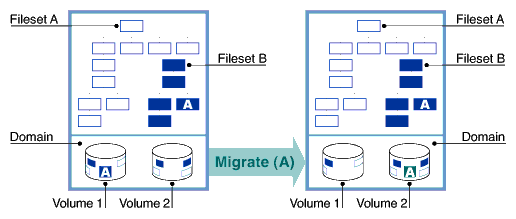
You can
migrate either the entire file or specific pages.
Figure 5-2
illustrates the migration process for file A, which moves from volume 1 to
volume 2.
migrate
command with the
-d
option:
migrate -d destination_vol_index filename
migrate
command to defragment selected
files.
The
migrate
utility does not evaluate your migration
decisions.
You can move a striped file segment to a disk where another segment
resides, defeating the purpose of striping.
showfile
command with
the
-x
option to look at the extent map (Section 1.3.3)
and the performance of a file called
src.
This file, which
belongs to a two-volume domain, is migrated to another volume.
It shows a
change from 11 file extents to one and a performance efficiency improvement
from 18% to 100%.
The first data line of the display lists the metadata.
The
metadata does not migrate to the new volume.
It remains in the original location.
The
extentMap
portion of the display lists the file's migrated
pages.
# showfile -x src
    Id Vol PgSz Pages XtntType  Segs  SegSz  I/O  Perf  File
8.8002   1   16    11   simple    **     ** async  18%  src
             extentMap: 1
        pageOff    pageCnt     vol    volBlock    blockCnt
              0          1       1      187296          16
              1          1       1      187328          16
              2          1       1      187264          16
              3          1       1      187184          16
              4          1       1      187216          16
              5          1       1      187312          16
              6          1       1      187280          16
              7          1       1      187248          16
              8          1       1      187344          16
              9          1       1      187200          16
             10          1       1      187232          16
        extentCnt: 11
# migrate -d 2 src
# showfile -x src
    Id Vol PgSz Pages XtntType Segs SegSz  I/O  Perf  File
8.8002   1   16    11   simple   **    ** async 100%  src
   extentMap: 1
      pageOff    pageCnt     vol    volBlock    blockCnt
            0         11       2       45536         176
      extentCnt: 1
Note
stripe
utility distributes
stripe -n volume_count
filename
/etc/fstab
file.
rmvol
utility moves the segment to another volume that does not
already contain a stripe segment of the same file.
stripe(8)5.14 Moving a Domain and its Filesets to a New Volume
iostat
utility
either from the SysMan Menu utility called Monitoring and Tuning —
View Input/Output (I/O) Statistics (see
Appendix A), or from
the command line (see
iostat(1)
vdump
command to copy the fileset
from the old device.
Use the
vrestore
command to restore
it to the newly mounted fileset.
/etc/fstab
file.
Remove the old domain.
mkfdmn(8)vdump
and
vrestore
utilities are not affected by the change of DVN.
accounts
with
the fileset
technical
to volume
dsk3c.
The domain
new_accounts
is the temporary domain and is
mounted initially at
/tmp_mnt.
Assume the fileset is mounted
on
/technical.
Assume that the
/etc/fstab
file has an entry instructing the system to mount
accounts#technical
on
/technical.
# mkfdmn /dev/disk/dsk3c new_accounts
# mkfset new_accounts technical
# mkdir /tmp_mnt
# mount new_accounts#technical /tmp_mnt
# vdump -dxf - /technical|vrestore -xf - -D /tmp_mnt
# umount /technical
# umount /tmp_mnt
# rmfdmn accounts
# rmdir /tmp_mnt
# mv /etc/fdmns/new_accounts/ /etc/fdmns/accounts/
# mount accounts#technical /technical
5.15 Controlling Domain Panic Information
AdvfsDomainPanicLevel
attribute to choose
whether to have crash dumps created when a domain panic occurs.
A common cause
for domain panics is I/O errors from a device.
AdvFS must panic a domain if
it cannot write metadata.
In the current implementation, an I/O error of this
type does not cause a crash dump to be created unless the system crashes.
sysconfig(8)