This chapter describes the management tasks that are associated with highly available applications and the cluster application availability (CAA) subsystem. The following sections discuss these and other topics:
Learning the status of a resource (Section 8.1)
Reporting resource availability measurements (Section 8.2)
Relocating applications (Section 8.3)
Starting and stopping application resources (Section 8.4)
Balancing applications (Section 8.5)
Registering and unregistering application resources (Section 8.6)
Managing network, tape, and media changer resources (Section 8.7)
Using SysMan to manage CAA (Section 8.8)
Understanding CAA considerations for startup and shutdown (Section 8.9)
Managing
caad, the CAA daemon (Section 8.10)
Using EVM to view CAA events (Section 8.11)
Troubleshooting with events (Section 8.12)
Troubleshooting with command-line messages (Section 8.13)
For detailed information on setting up applications with CAA, see the TruCluster Server Cluster Highly Available Applications manual. For a general discussion of CAA, see the TruCluster Server Cluster Technical Overview manual.
After an application has been made highly available and is running under the management of the CAA subsystem, it requires little intervention from you. However, the following situations can arise where you might want to actively manage a highly available application:
The planned shutdown or reboot of a cluster member.
You might want to learn which highly available applications are running
on the member to be shut down by using
caa_stat.
Optionally,
you might want to manually relocate one or more of those applications by using
caa_relocate.
Load balancing.
While the loads on various cluster members change, you might want to
manually relocate applications to members with lighter loads by using
caa_stat
and
caa_relocate.
You could run
caa_balance
to check the placement of an application and relocate
only if there is another more highly preferred cluster member available.
A new application resource profile has been created.
If the resource has not already been registered and started, you need
to do this with
caa_register
and
caa_start.
The resource profile for an application has been updated.
For the updates to become effective, you must update the resource using
caa_register
-u.
An existing application resource is being retired.
You will want to stop and unregister the resource by using
caa_stop
and
caa_unregister.
When you work with application resources, the actual names of the applications
that are associated with a resource are not necessarily the same as the resource
name.
The name of an application resource is the same as the root name of
its resource profile.
For example, the resource profile for the
cluster_lockd
resource is
/var/cluster/caa/profile/cluster_lockd.cap.
The applications that are associated with the
cluster_lockd
resource are
rpc.lockd
and
rpc.statd.
Because a resource and its associated application can have different
names, there are cases where it is futile to look for a resource name in a
list of processes running on the cluster.
When managing an application with
CAA, you must use its resource name.
8.1 Learning the Status of a Resource
Registered resources have an associated state. A resource can be in one of the following three states:
ONLINE
In the case of an application resource,
ONLINE
means
that the application that is associated with the resource is running normally.
In the case of a network, tape, or media changer resource,
ONLINE
means that the device that is associated with the resource
is available and functioning correctly.
The resource is not running.
It may be an application resource that
was registered but never started with
caa_start, or at
some earlier time it was successfully stopped with
caa_stop.
If the resource is a network, tape, or media changer resource, the device
that is associated with the resource is not functioning correctly.
This state
also happens when a resource has failed more times than the
FAILURE_THRESHOLD
value in its profile.
UNKNOWN
CAA cannot determine whether the application is running or not due to an unsuccessful execution of the stop entry point of the resource action script. This state applies only to application resources. Look at the stop entry point of the resource action script for why it is failing (returning a value other than 0).
CAA will always try to match the state of an application resource to
its target state.
The target state is set to
ONLINE
when
you use
caa_start, and set to
OFFLINE
when you use
caa_stop.
If the target state is not equal
to the state of the application resource, then CAA is either in the middle
of starting or stopping the application, or the application has failed to
run or start successfully.
If the target state for a nonapplication resource
is ever
OFFLINE, the resource has failed too many times
within the failure threshold.
See
Section 8.7
for
more information.
From the information given in the Target and State fields, you can ascertain
information about the resource.
Descriptions of what combinations of the two
fields can mean for the different types of resources are listed in
Table 8-1
(application),
Table 8-2
(network), and
Table 8-3
(tape, media changer).
If a resource has any combination of State and Target
other than both
ONLINE, all resources that require that
resource have a state of
OFFLINE.
Table 8-1: Target and State Combinations for Application Resources
| Target | State | Description |
ONLINE |
ONLINE | Application has started successfully |
| ONLINE | OFFLINE | Start command has been issued but execution of action script start entry point not yet complete. |
| Application stopped because of failure of required resource. | ||
| Application has active placement on and is being relocated due to the starting or addition of a new cluster member. | ||
| Application being relocated due to explicit relocation or failure of cluster member. | ||
| No suitable member to start the application is available. | ||
| OFFLINE | ONLINE | Stop command has been issued, but execution of action script stop entry point not yet complete. |
| OFFLINE | OFFLINE | Application has not been started yet. |
| Application stopped because Failure Threshold has been reached. | ||
| Application has been successfully stopped. | ||
| ONLINE | UNKNOWN | Action script stop entry point has returned failure. |
| OFFLINE | UNKNOWN | A command to stop the application was issued
on an application in state UNKNOWN.
Action script stop entry point still returns
failure.
To set application state to OFFLINE use
caa_stop
-f
. |
Table 8-2: Target and State Combinations for Network Resources
| Target | State | Description |
ONLINE |
ONLINE | Network is functioning correctly. |
| ONLINE | OFFLINE | There is no direct connectivity to the network from the cluster member. |
| OFFLINE | ONLINE | Network card is considered failed and no longer monitored by CAA because Failure Threshold has been reached. |
| OFFLINE | OFFLINE | Network is not directly accessible to machine. |
| Network card is considered failed and no longer monitored by CAA because Failure Threshold has been reached. |
Table 8-3: Target and State Combinations for Tape and Media Changer Resources
| Target | State | Description |
ONLINE |
ONLINE | Tape or media changer has a direct connection to the machine and is functioning correctly. |
| ONLINE | OFFLINE | Tape device or media changer associated with resource has sent out an Event Manager (EVM) event that it is no longer working correctly. Resource is considered failed. |
| OFFLINE | ONLINE | Tape device or media changer is considered failed and no longer monitored by CAA because Failure Threshold has been reached. |
| OFFLINE | OFFLINE | Tape device or media changer does not have a direct connection to the cluster member. |
8.1.1 Learning the State of a Resource
To learn the state of a resource, enter the
caa_stat
command as follows:
# caa_stat resource_name
The command returns the following values:
NAME
The name of the resource, as specified in the
NAME
field of the resource profile.
TYPE
The type of resource:
application,
tape,
changer, or
network.
TARGET
For an application resource, describes the state,
ONLINE
or
OFFLINE, in which CAA attempts to place the application.
For all other resource types, the target is always
ONLINE
unless the device that is associated with the resource has had its failure
count exceed the failure threshold.
If this occurs, the
TARGET
will be
OFFLINE.
STATE
For an application resource, whether the resource is
ONLINE
or
OFFLINE; and if the resource is on line,
the name of the cluster member where it is currently running.
The state for
an application can also be
UNKNOWN
if an action script
stop entry point returned failure.
The application resource cannot be acted
upon until it successfully stops.
For all other resource types, the
ONLINE
or
OFFLINE
state is shown for each cluster
member.
For example:
# caa_stat clock
NAME=clock
TYPE=application
TARGET=ONLINE
STATE=ONLINE on provolone
To use a script to learn whether a resource is on line, use the
-r
option for the
caa_stat
command as follows:
# caa_stat resource_name -r ; echo $?
A value of 0 (zero) is returned if the resource is in the
ONLINE
state.
With the
-g
option for the
caa_stat
command, you can use a script to learn whether an application resource is
registered as follows:
# caa_stat resource_name -g ; echo $?
A value of 0 (zero) is returned if the resource is
registered.
8.1.2 Learning Status of All Resources on One Cluster Member
The
caa_stat
-c
cluster_member
command returns the status of all resources on
cluster_member.
For example:
# caa_stat -c polishham
NAME=dhcp
TYPE=application
TARGET=ONLINE
STATE=ONLINE on polishham

NAME=named
TYPE=application
TARGET=ONLINE
STATE=ONLINE on polishham

NAME=xclock
TYPE=application
TARGET=ONLINE
STATE=ONLINE on polishham
This command is useful
when you need to shut down a cluster member and want to learn which applications
are candidates for failover or manual relocation.
8.1.3 Learning Status of All Resources on All Cluster Members
The
caa_stat
command returns the status of all resources
on all cluster members.
For example:
# caa_stat
NAME=dhcp
TYPE=application
TARGET=ONLINE
STATE=ONLINE on polishham

NAME=xclock
TYPE=application
TARGET=ONLINE
STATE=ONLINE on provolone

NAME=named
TYPE=application
TARGET=OFFLINE
STATE=OFFLINE

NAME=ln0
TYPE=network
TARGET=ONLINE on provolone
TARGET=ONLINE on polishham
TARGET=ONLINE on peppicelli
STATE=OFFLINE on provolone
STATE=ONLINE on polishham
STATE=ONLINE on peppicelli
When you use the -t option, the information is displayed in tabular form. For example:
# caa_stat  -t

Name           Type           Target    State     Host
---------------------------------------------------------
cluster_lockd  application    ONLINE    ONLINE    provolone
dhcp           application    OFFLINE   OFFLINE
named          application    OFFLINE   OFFLINE
ln0            network        ONLINE    ONLINE    provolone
ln0            network        ONLINE    OFFLINE   polishham
8.1.4 Getting Number of Failures and Restarts and Target States
The
caa_stat
-v
command returns the
status, including number of failures and restarts, of all resources on all
cluster members.
For example:
# caa_stat -v
NAME=cluster_lockd
TYPE=application
RESTART_COUNT=0
RESTART_ATTEMPTS=30
REBALANCE=
FAILURE_COUNT=0
FAILURE_THRESHOLD=0
TARGET=ONLINE
STATE=ONLINE on provolone

NAME=dhcp
TYPE=application
RESTART_COUNT=0
RESTART_ATTEMPTS=1
REBALANCE=
FAILURE_COUNT=1
FAILURE_THRESHOLD=3
TARGET=ONLINE
STATE=OFFLINE

NAME=ln0
TYPE=network
FAILURE_THRESHOLD=5
FAILURE_COUNT=1 on provolone
FAILURE_COUNT=0 on polishham
TARGET=ONLINE on provolone
TARGET=OFFLINE on polishham
STATE=ONLINE on provolone
STATE=OFFLINE on polishham
When you use the -t option, the information is displayed in tabular form. For example:
# caa_stat -v -t

Name           Type           R/RA   F/FT   Target    State     Host        Rebalance
-------------------------------------------------------------------------------------
cluster_lockd  application    0/30   0/0    ONLINE    ONLINE    provolone
dhcp           application    0/1    0/0    OFFLINE   OFFLINE
named          application    0/1    0/0    OFFLINE   OFFLINE
ln0            network               0/5    ONLINE    ONLINE    provolone
ln0            network               1/5    ONLINE    OFFLINE   polishham
This information can be useful for finding resources that frequently
fail or have been restarted many times.
8.2 Reporting Resource Availability Measurements
CAA maintains a history of each application resource from the time it
is first started.
The
caa_report
command can give
you a report summarizing
the percentage of time that all currently registered application resources
have been in the
ONLINE
state.
The data is obtained by
analyzing the Event Management events related to CAA.
The files tracking the application uptime history are updated automatically
at 0300 hours each day and each time that the
caa_report
command is executed by root.
The time and frequency of the periodic merge
is configurable by changing the
crontab
format specified
in
/var/cluster/caa/clustercron/caa_report.clustercronData.
The command shows the application, the starting time analyzed and a
percentage description of the amount of time that the application was in the
ONLINE
state.
An example output follows:
#/usr/bin/caa_report
        Application Availability Report for rubble
Applications        starting/ending             uptime
---------------------------------------------------------------
autofs              NEVER STARTED               0.00 %

cluster_lockd       Fri Jul 27 11:00:48 2001    99.80 %
                    Thu Oct  4 12:31:14 2001

clustercron         Fri Jul 27 11:01:08 2001   100.00 %
                    Thu Oct  4 12:31:14 2001

dmiller1            Tue Sep 25 13:57:51 2001    12.51 %
                    Thu Oct  4 12:31:14 2001
You can filter out all applications that have not been run during the time specified. For example:
#/usr/bin/caa_report -o
        Application Availability Report for rubble
Applications        starting/ending             uptime
---------------------------------------------------------------
cluster_lockd       Fri Jul 27 11:00:48 2001    99.80 %
                    Thu Oct  4 12:31:14 2001

clustercron         Fri Jul 27 11:01:08 2001   100.00 %
                    Thu Oct  4 12:31:14 2001

dmiller1            Tue Sep 25 13:57:51 2001    12.51 %
                    Thu Oct  4 12:31:14 2001
A user can specify a starting time and ending time to measure the percentage
uptime within that range.
The time for either value may be specified in the
formats used by the
date(1)
The following rules apply to time bounds:
The end time must be after the begin time
If no begin time is specified, the earliest time that the application was started will be used.
If no end time is specified, the current time will be used.
If a end time is entered which is after the current time, then the current time is used.
If a begin time is entered and an application had never been run at or before that time, then the first time that the application was started will be used.
If a begin time is entered which is during a period that the application was down, but the application had been running at some point before that period, the time entered is used.
The time displayed with the output is always the actual time used in the analysis.
An example with a begin time and end time follows:
#/usr/bin/caa_report -b 10/03/01 -e 10/04/01
        Application Availability Report for rubble
Applications        starting/ending             uptime
---------------------------------------------------------------
autofs              NEVER STARTED               0.00 %

cluster_lockd       Wed Oct  3 00:00:00 2001   100.00 %
                    Thu Oct  4 00:00:00 2001

clustercron         Wed Oct  3 00:00:00 2001   100.00 %
                    Thu Oct  4 00:00:00 2001

dmiller1            Wed Oct  3 00:00:00 2001    92.54 %
                    Thu Oct  4 00:00:00 2001
You may want to relocate applications from one cluster to another. For example:
Relocate all applications on a cluster member (Section 8.3.1)
Relocate a single application to another cluster member (Section 8.3.2)
Relocate dependent applications to another cluster member (Section 8.3.3)
You use the
caa_relocate
command to relocate applications.
Whenever you relocate applications, the system returns messages tracking the
relocation.
For example:
Attempting to stop `cluster_lockd` on member `provolone`
Stop of `cluster_lockd` on member `provolone` succeeded.
Attempting to start `cluster_lockd` on member `pepicelli`
Start of `cluster_lockd` on member `pepicelli` succeeded.
The following sections discuss relocating applications in more detail.
8.3.1 Manual Relocation of All Applications on a Cluster Member
When you shut down a cluster member, CAA automatically relocates all applications under its control running on that member, according to the placement policy for each application. However, you might want to manually relocate the applications before shutdown of a cluster member for the following reasons:
If you plan to shut down multiple members, use manual relocation to avoid situations where an application would automatically relocate to a member that you plan to shut down soon.
If a cluster member is experiencing problems or even failing, manual relocation can minimize performance hits to application resources that are running on that member.
If you want to do maintenance on a cluster member and want to minimize disruption to the work environment.
To relocate all applications from
member1
to
member2, enter the following command:
# caa_relocate -s member1 -c member2
To relocate all applications on
member1
according
to each application's placement policy, enter the following command:
# caa_relocate -s member1
Use the
caa_stat
command to verify that all application
resources were successfully relocated.
8.3.2 Manual Relocation of a Single Application
You may want to relocate a single application to a specific cluster member for one of the following reasons:
The cluster member that is currently running the application is overloaded and another member has a low load.
You are about to shut down the cluster member, and you want the application to run on a specific member that may not be chosen by the placement policy.
To relocate a single application to
member2, enter
the following command:
# caa_relocate resource_name -c member2
Use the
caa_stat
command to verify that the application
resource was successfully relocated.
8.3.3 Manual Relocation of Dependent Applications
You may want to relocate a group of applications that depend on each
other.
An application resource that has at least one other application resource
listed in the
REQUIRED_RESOURCE
field of its profile depends
on these applications.
If you want to relocate an application with dependencies
on other application resources, you must force the relocation by using the
-f
option with the
caa_relocate
command.
Forcing a relocation makes CAA relocate resources that the specified
resource depends on, as well as all
ONLINE
application
resources that depend on the resource specified.
The dependencies may be indirect:
one resource may depend on another through one or more intermediate resources.
To relocate a single application resource and its dependent application
resources to
member2, enter the following command:
# caa_relocate resource_name -f -c member2
Use the
caa_stat
command to verify that the application
resources were successfully relocated.
8.4 Starting and Stopping Application Resources
The following sections describe how to start and stop CAA application resources.
Note
Always use
caa_startandcaa_stopor the SysMan equivalents to start and stop applications that CAA manages. Never start or stop the applications manually after they are registered with CAA.
8.4.1 Starting Application Resources
To start an application resource, use the
caa_start
command followed by the name of the application resource to be
started.
A resource
must be registered using
caa_register
before it can be
started.
Immediately after the
caa_start
command is executed,
the target is set to
ONLINE.
CAA always attempts to match
the state to equal the target, so the CAA subsystem starts the application.
Any application required resources have their target states set to
ONLINE
as well and the CAA subsystem attempts to start them.
To start a resource named
clock
on the cluster member
determined by the resource's placement policy, enter the following command:
# /usr/sbin/caa_start clock
An example of the output of the previous command follows:
Attempting to start `clock` on member `polishham`
Start of `clock` on member `polishham` succeeded.
The command will wait up to the
SCRIPT_TIMEOUT
value
to receive notification of success or failure from the action script each
time the action script is called.
To start
clock
on a specific cluster member, assuming
that the placement policy allows it, enter the following command:
# /usr/sbin/caa_start clock -c member_name
If the specified member is not available, the resource will not start.
If required resources are not available and cannot be started on the
specified member,
caa_start
fails.
You will instead see
a response that the application resource could not be started because of dependencies.
To force a specific application resource and all its required application resources to start or relocate to the same cluster member, enter the following command:
#/usr/sbin/caa_start -f clock
Note
When attempting to start an application on a cluster member that undergoes a system crash, caa_start can give indeterminate results. In this scenario, the start section of the action script is executed but the cluster member crashes before notification of the start is displayed on the command line. The
caa_startcommand returns a failure with the errorRemote start for [resource_name] failed on member [member_name].The application resource is actuallyONLINEand fails over to another member making the application appear as though it was started on the wrong member.If a cluster member fails while you are starting an application resource on that member, you should check the state of the resource on the cluster with
caa_statto determine the state of that resource.
See
caa_start(8)8.4.2 Stopping Application Resources
To stop an application resource, use the
caa_stop
command followed by the name of the
application resource to be stopped.
As noted earlier, never use the
kill
command or
other methods to stop a resource that is under the control of the CAA subsystem.
Immediately after the
caa_stop
command is executed,
the target is set to
OFFLINE.
CAA always attempts to match
the state to equal the target, so the CAA subsystem stops the application.
The command in the following example stops the
clock
resource:
#/usr/sbin/caa_stop clock
If other application resources have dependencies on the application resource that is specified, the previous command will not stop the application. You will instead see a response that the application resource could not be stopped because of dependencies. To force the application to stop the specified resource and all the other resources that depend on it, enter the following command:
#/usr/sbin/caa_stop -f clock
See
caa_stop(8)8.4.3 No Multiple Instances of an Application Resource
If multiple
start
and/or
stop
operations on the same application resource are initiated simultaneously,
either on separate members or on a single member, it is uncertain which operation
will prevail.
However, multiple
start
operations do not
result in multiple instances of an application resource.
8.4.4 Using caa_stop to Reset UNKNOWN State
If an application resource state is set to
UNKNOWN,
first try to run
caa_stop.
If it does not reset the resource
to
OFFLINE, use the
caa_stop
-f
command.
The command will ignore any errors returned by the stop
script, set the resource to
OFFLINE, and set all applications
that depend on the application resource to
OFFLINE
as well.
Before you attempt to restart the application resource, look at the
stop entry point of the action to be sure that it successfully stops the application
and returns 0.
Also make sure that it returns 0 if the application is not
currently running.
8.5 Balancing Application Resources
Balancing application resources is the re-evaluation of application resource placement based on the current state of the resources on the cluster and the rules of placement for the resources. Balancing applications can be done on a cluster-wide basis, a member-wide basis, or with specified resources. Balancing decisions are made using the standard placement decision mechanism of CAA and are not based on any load considerations.
Balancing an application will restore it to its most favored member
(when either
favored
or
restricted
placement
policies are used) or more evenly distribute the number of CAA application
resources per cluster member (when
balanced
placement policy
is used).
You may want to relocate applications from one cluster to another, for the following reasons:
To balance all applications on a cluster (Section 8.5.1)
To balance all applications on a cluster member (Section 8.5.2)
To balance specified applications (Section 8.5.3)
To balance specified applications at a specific time (Section 8.5.4)
Use the
caa_balance
command only with application
resources.
You cannot balance network, tape, or changer resources.
Balancing on a per cluster basis re-evaluates all
ONLINE
application resources on a cluster and relocates the resource if it is not
running on the cluster member chosen by the placement decision mechanism.
See
caa_balance(8) for more information.
The following sections discuss balancing applications in more detail.
8.5.1 Balancing All Applications on a Cluster
To balance all applications on a cluster, enter the following command:
# /usr/sbin/caa_balance -all
Assuming that applications test and test2 are the only
two applications that are
ONLINE
and are running on member
rye with balanced placement policies, the following text is displayed:
Attempting to stop `test` on member `rye`
Stop of `test` on member `rye` succeeded.
Attempting to start `test` on member `swiss`
Start of `test` on member `swiss` succeeded.
Resource test2 is already well placed
test2 is placed optimally. No relocation is needed.
If more applications are
ONLINE
in the cluster, the
output will reflect any actions taken for each application resource.
8.5.2 Balancing All Applications on a Member
To reevaluate placement of the applications running on the cluster member rye, enter the following command:
# /usr/sbin/caa_balance -s rye
Assuming that applications test and test2 are the only two applications
that are
ONLINE
and are running on member rye with balanced
placement policies, the following text is displayed:
Attempting to stop `test` on member `rye`
Stop of `test` on member `rye` succeeded.
Attempting to start `test` on member `swiss`
Start of `test` on member `swiss` succeeded.
Resource test2 is already well placed
test2 is placed optimally. No relocation is needed.
If more applications are
ONLINE
in the cluster member,
the output will reflect any actions taken for each application resource.
8.5.3 Balancing Specific Applications
To balance specified applications only, enter the following command:
# /usr/sbin/caa_balance test test2
Assuming that applications test and test2 are running on member rye with balanced placement policies, the following text is displayed:
Attempting to stop `test` on member `rye`
Stop of `test` on member `rye` succeeded.
Attempting to start `test` on member `swiss`
Start of `test` on member `swiss` succeeded.
Resource test2 is already well placed
test2 is placed optimally. No relocation is needed.
8.5.4 Balancing an Application at Specific Time
You may also balance a single application at a particular time of day
by setting the
REBALANCE
attribute in the profile to a
time.
This feature is useful for causing application failback based on time
of day.
If the
REBALANCE
attribute is set to a specific
time of day for an application resource, that application will relocate itself
to its most favored member at that time.
Using the Active Placement attribute
can also create a failback to a most favored member, but the failback will
occur only when the favored cluster member rejoins the cluster.
This could
cause a relocation to occur during a period of time that you do not wish there
to be any interruption in the application availability.
Using the
REBALANCE
attribute instead of Active Placement insures that the
application only fails back to a preferred member at the time that you specify.
The time value in the profile must be specified in the following format:
t:day:hour:min, where
day
is the day of the week (0-6, where Sunday=0),
hour
is the hour of the day (0-23), and
min
is the minute of the hour (0-59) when the re-evaluation occurs.
An asterisk
may be used as a wildcard to specify every day, every hour, or every minute.
The
REBALANCE
attribute makes use of the
clustercron
resource.
This resource is a CAA specific implementation
of the cluster wide
cron
implementation discussed in the
Best Practice document
Using cron in a TruCluster Server Cluster
located at
http://www.tru64unix.compaq.com/docs/best_practices/BP_CRON/TITLE.HTM.
This specific implemenation is used internally by CAA to schedule rebalance
attempts and is not supported for any other use.
For examples on how to set up the
REBALANCE
attribute,
see
Cluster Highly Available Applications.
8.6 Registering and Unregistering Resources
A resource must be registered with the CAA subsystem before CAA can manage that resource. This task needs to be performed only once for each resource.
Before a resource can be registered, a valid resource profile for the
resource must exist in the
/var/cluster/caa/profile
directory.
The TruCluster Server
Cluster Highly Available Applications
manual describes the process for
creating resource profiles.
To learn which resources are registered on the cluster, enter the following
caa_stat
command:
# /usr/sbin/caa_stat
Use the
caa_register
command to register an application
resource as follows:
# caa_register resource_name
For example, to register an application resource named
dtcalc,
enter the following command:
# /usr/sbin/caa_stat dtcalc
If an application resource has resource dependencies defined in the
REQUIRED_RESOURCES
attribute of the profile, all resources listed
for this attribute must be registered first.
For more information, see
caa_register(8)8.6.2 Unregistering Resources
You might want to unregister a resource to remove it from being monitored
by the CAA subsystem.
To unregister an application resource, you must first
stop it, which changes the state of the resource to
OFFLINE.
See
Section 8.4.2
for instructions on how to stop an application.
To unregister a resource, use the
caa_unregister
command.
For example, to unregister the resource
dtcalc,
enter the following command:
# /usr/sbin/caa_unregister dtcalc
For more information, see
caa_unregister(8)
For information on registering or unregistering a resource with the SysMan Menu,
see the SysMan online help.
8.6.3 Updating Registration
You may need to update the registration of an application resource if you have modified its profile. For a detailed discussion of resource profiles, see the Cluster Highly Available Applications manual.
To update the registration of a resource, use the
caa_register
-u
command.
For example, to update the resource
dtcalc, enter the following command:
# /usr/sbin/caa_register -u dtcalc
Note
The
caa_register
-u
command and the SysMan Menu allow you to update theREQUIRED_RESOURCESfield in the profile of anONLINEresource with the name of a resource that isOFFLINE. This can cause the system to be out of synch with the profiles if you update theREQUIRED_RESOURCESfield with an application that isOFFLINE. If you do this, you must manually start the required resource or stop the updated resource.Similarly, a change to the
HOSTING_MEMBERSlist value of the profile only affects future relocations and starts. If you update theHOSTING_MEMBERSlist in the profile of anONLINEapplication resource with a restricted placement policy, make sure that the application is running on one of the cluster members in that list. If the application is not running on one of the allowed members, run thecaa_relocateon the application after running thecaa_register -ucommand.
8.7 Network, Tape, and Media Changer Resources
Only application resources can be stopped using
caa_stop.
However, nonapplication resources can be restarted using
caa_start
if they have had more failures than the resource failure threshold
within the failure interval.
Starting a nonapplication resource resets its
TARGET
value to
ONLINE.
This causes any applications
that are dependent on this resource to start as well.
Network, tape, and media changer resources may fail repeatedly due to
hardware problems.
If this happens, do not allow CAA on the failing cluster
member to use the device and, if possible, relocate or stop application resources.
Exceeding the failure threshold within the failure interval causes the resource
for the device to be disabled.
If a resource is disabled, the
TARGET
state for the resource on a particular cluster member is set equal
to
OFFLINE, as shown with
caa_stat
resource_name
.
For example:
# /usr/sbin/caa_stat network1
NAME=network1
TYPE=network
TARGET=OFFLINE on provolone
TARGET=ONLINE on polishham
STATE=ONLINE on provolone
STATE=ONLINE on polishham
If a network, tape, or changer resource has the
TARGET
state set to
OFFLINE
because the failure count exceeds
the failure threshold within the failure interval, the
STATE
for all resources that depend on that resource become
OFFLINE
though their
TARGET
remains
ONLINE.
These dependent applications will relocate to another machine where the resource
is
ONLINE.
If no cluster member is available with this
resource
ONLINE, the applications remain
OFFLINE
until both the
STATE
and
TARGET
are
ONLINE
for the resource on the current member.
You can reset the
TARGET
state for a nonapplication
resource to
ONLINE
by using the
caa_start
(for all members) or
caa_start
-c
cluster_member
command (for a particular member).
The failure count
is reset to zero (0) when this is done.
If the
TARGET
value is set to
OFFLINE
by a failure count that exceeds the failure threshold, the resource is treated
as if it were
OFFLINE
by CAA, even though the
STATE
value may be
ONLINE.
Note
If a tape or media changer resource is reconnected to a cluster after removal of the device while the cluster is running or a physical failure occurs, the cluster does not automatically detect the reconnection of the device. You must run the
drdmgr
-a
DRD_CHECK_PATH
device_name command.
8.8 Using SysMan to Manage CAA
This section describes how to use the SysMan suite of tools
to manage CAA.
For a general discussion of invoking SysMan and using
it in a cluster, see
Chapter 2.
8.8.1 Managing CAA with SysMan Menu
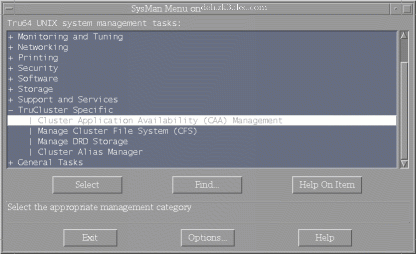
The Cluster Application Availability (CAA) Management branch of the SysMan Menu is located under the TruCluster Specific heading as shown in Figure 8-1. You can open the CAA Management dialog box by either selecting Cluster Application Availability (CAA) Management on the menu and clicking on the Select button, or by double-clicking on the text.
Figure 8-1: CAA Branch of SysMan Menu
8.8.1.1 CAA Management Dialog Box
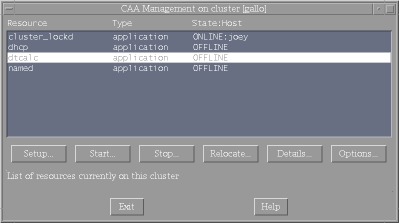
The CAA Management dialog box (Figure 8-2) allows you to start, stop, and relocate applications. If you start or relocate an application, a dialog box prompts you to decide placement for the application.
You can also open the Setup dialog box to create, modify, register,
and unregister resources.
Figure 8-2: CAA Management Dialog Box
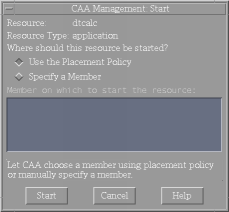
The Start dialog box (Figure 8-3) allows you to choose whether you want the application resource to be placed according to its placement policy or explicitly on another member.
You can place an application on a member explicitly only if it is allowed
by the hosting member list.
If the placement policy is
restricted, and you try to place the application on a member that is not included
in the hosting members list, the start attempt will fail.
Figure 8-3: Start Dialog Box
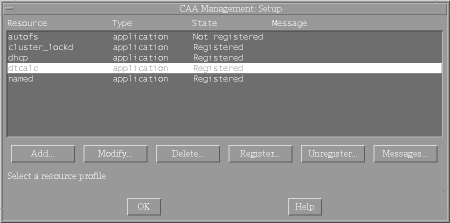
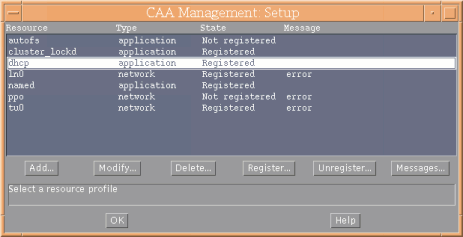
To add, modify, register, and unregister profiles of any type, use the
Setup dialog box, as shown in
Figure 8-4.
This dialog box can be reached from the Setup...
button on the CAA Management
dialog box.
For details on setting up resources with SysMan Menu, see
the online help.
Figure 8-4: Setup Dialog Box
8.8.2 Managing CAA with SysMan Station
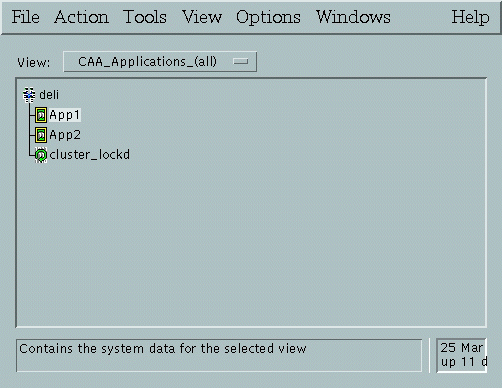
The SysMan Station can be used to manage CAA resources. Figure 8-5 shows the SysMan Station CAA_Applications_(active) View. Figure 8-6 shows the SysMan Station CAA_Applications_(all) View. Select one of these views using the View menu at the top of the window. Selecting a cluster icon or cluster member icon makes the whole SysMan Menu available under the Tools menu, including CAA-specific tasks.
The icons for the application resources represent the resource state.
In these two figures
App1
and
App2
are currently offline and
cluster_lockd
is online.
Figure 8-5: SysMan Station CAA_Applications_(active) View
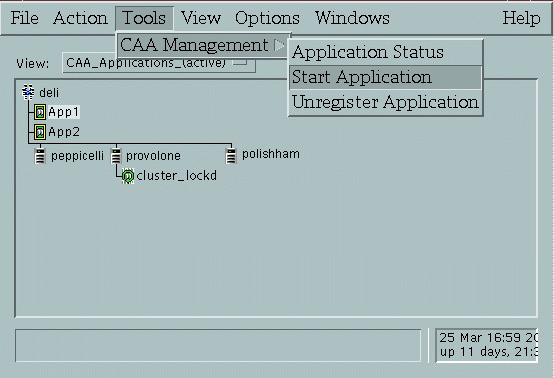
Figure 8-6: SysMan Station CAA_Applications_(all) View
8.8.2.1 Starting an Application with SysMan Station
To start applications in either the CAA_Applications_(active) view
(Figure 8-5) or the CAA_Applications_(all) View (Figure 8-6), select the application name under the cluster
icon, click the right mouse button or click on the Tools Menu and select CAA
Management => Start Application.
8.8.2.2 Resource Setup with SysMan Station
To set up resources using SysMan Station, select either the cluster
icon or a cluster member icon.
Click the right mouse button or click on the
Tools menu, and select
CAA Management => CAA Setup.
See
Figure 8-7.
The rest of the steps are the same
as for SysMan Menu and are described in detail in the Tasks section of
the online help.
Figure 8-7: SysMan Station CAA Setup Screen
8.9 CAA Considerations for Startup and Shutdown
The CAA daemon needs to read the information for every resource from the database. Because of this, if many are registered, your cluster members might take a long time to boot.
CAA may display the following message during a member boot:
Cannot communicate with the CAA daemon.
This message may or may not be preceded by the following message:
Error: could not start up CAA Applications
Cannot communicate with the CAA daemon.
These messages indicate that you did not register the TruCluster Server license. When the member finishes booting, enter the following command:
# lmf list
If
the TCS-UA license is not active, register it as described in the
Cluster Installation
manual and start the CAA daemon (caad) as follows:
#/usr/sbin/caad
When you shut down a cluster, CAA notes for each application resource
whether it is
ONLINE
or
OFFLINE.
On
restart of the cluster, applications that were
ONLINE
are
restarted.
Applications that were
OFFLINE
are not restarted.
Applications that were marked as
UNKNOWN
are considered
to be stopped.
If an application was stopped because of an issue that the
cluster reboot resolves, use the
caa_start
command to start
the application.
Any applications that have
AUTO_START
set to 1 will also start when the cluster is reformed.
If you want to choose placement of applications before shutting down
a cluster member, determine the state of resources and relocate any applications
from the member to be shut down to another member.
Reasons for relocating
applications are listed in
Section 8.3.
8.10 Managing caad
Normally you do not need to manage the CAA daemon (caad).
The CAA daemon is started at boot time and stopped at shutdown on every cluster
member.
However, if there are problems with the daemon, you may need to intervene.
If one of the commands
caa_stat,
caa_start,
caa_stop, or
caa_relocate
responds with "Cannot communicate with the CAA daemon!", the
caad
daemon is probably not running.
If there was an error with the
CAA daemon, the Essential Services Monitor daemon will attempt to restart
the CAA daemon.
After waiting a few seconds you can try one of the CAA commands
again.
If it succeeds, the daemon has been restarted and all features of CAA
should function correctly again.
To determine manually whether the daemon
is running, see
Section 8.10.1.
8.10.1 Determining Status of the Local CAA Daemon
To determine the status of the CAA daemon, enter the following command:
# ps ax | grep -v grep | grep caad
If
caad
is running, output similar
to the following is displayed:
545317 ?? S 0:00.38 caad
If nothing is displayed,
caad
is not running.
You can determine the status of other
caad
daemons
by logging in to the other cluster members and running the
ps ax
|grep -v grep | grep caad
command.
If the
caad
daemon is not running, CAA is no longer
managing the application resources that were started on that machine.
You
cannot use
caa_stop
to stop the applications.
After the
daemon is restarted as described in
Section 8.10.2, the
resources on that machine are fully manageable by CAA.
8.10.2 Restarting the CAA Daemon
If the
caad
daemon ceases on one cluster member,
all application resources continue to run, but you will be temporarily unable
to manage them with the CAA subsystem.
The Essential Services Monitor daemon,
esmd, will restart the
caad
daemon automatically
and management capabilities will be returned.
If the Essential Services Monitor
daemon is unable to restart the caad daemon, it will post high priority events
to
syslog.
For more information see
esmd(8)
You can attempt to manually restart the daemon by entering the
/usr/sbin/caad
command.
Do not use the startup script
/sbin/init.d/clu_caa
to restart the CAA daemon.
Use this script only to start
caad
when a cluster member is booting up.
8.10.3 Monitoring CAA Daemon Messages
You can view information about changes to the state of resources by
looking at events that are posted to EVM by the CAA daemon.
For details on
EVM messages, see
Section 8.11.
8.11 Using EVM to View CAA Events
CAA posts events to Event Manager (EVM). These may be useful in troubleshooting errors that occur in the CAA subsystem.
Note
Some CAA actions are logged via syslog to
/var/cluster/members/{member}/adm/syslog.dated/[date]/daemon.log. When trying to identify problems, it may be useful to look in both thedaemon.logand EVM for information. EVM has the advantage of being a single source of information for the whole cluster whiledaemon.loginformation is specific to each member. Some information is available only in thedaemon.logfiles.
You can access EVM events either by using the SysMan Station or the EVM commands at the command line. For detailed information on how to use SysMan Station, see the Tru64 UNIX System Administration manual. See the online help for information on how to perform specific tasks.
Many events that CAA generates are defined in the EVM configuration
file,
/usr/share/evm/templates/clu/caa/caa.evt.
These
events all have a name in the form of
sys.unix.clu.caa.*.
CAA also creates some events that have the name
sys.unix.syslog.daemon.
Events posted by other daemons are also posted with this name,
so there will be more than just CAA events listed.
For detailed information on how to get information from the EVM Event
Management System, see
EVM(5)evmget(1)evmshow(1)8.11.1 Viewing CAA Events
To view events related to CAA that have been sent to EVM, enter the following command:
# evmget -f "[name *.caa.*]" | evmshow
CAA cluster_lockd was registered
CAA cluster_lockd is transitioning from state ONLINE to state OFFLINE
CAA resource sbtest action script /var/cluster/caa/script/foo.scr (start): success
CAA Test2002_Scale6 was registered
CAA Test2002_Scale6 was unregistered
To get more verbose event detail from EVM, use the -d option as follows:
# evmget -f "[name *.caa.*]" | evmshow -d | more
============================ EVM Log event ===========================
EVM event name: sys.unix.clu.caa.app.registered

    This event is posted by the Cluster Application Availability
    subsystem (CAA) when a new application has been registered.

======================================================================

Formatted Message:
    CAA a was registered

Event Data Items:
    Event Name        : sys.unix.clu.caa.app.registered
    Cluster Event     : True
    Priority          : 300
    PID               : 1109815
    PPID              : 1103504
    Event Id          : 4578
    Member Id         : 2
    Timestamp         : 18-Apr-2001 16:56:17
    Cluster IP address: 16.69.225.123
    Host Name         : provolone.zk4.dec.com
    Cluster Name      : deli
    User Name         : root
    Format            : CAA $application was registered
    Reference         : cat:evmexp_caa.cat

Variable Items:
    application (STRING) = "a"

======================================================================
The template script
/var/cluster/caa/template/template.scr
has been updated to create scripts that post events to EVM when
CAA attempts to start, stop, or check applications.
Any action scripts that
were newly created with
caa_profile
or SysMan will now
post events to EVM.
To view only these events, enter the following command
# evmget -f "[name sys.unix.clu.caa.action_script]" | evmshow -t "@timestamp @@"
CAA events can also be viewed by using SysMan Station. Click on the Status Light or Label Box for Applications in the SysMan Station Monitor Window.
To view other events that are logged by the
caad
daemon, as well as other daemons, enter the following command:
# evmget -f "[name sys.unix.syslog.daemon]" | \
evmshow -t "@timestamp @@"
To monitor CAA events with time stamps on the console, enter the following command:
# evmwatch -f "[name *.caa.*]" | evmshow "@timestamp @@"
As events that are related to CAA are posted to EVM, they are displayed on the terminal where this command is executed. An example of the messages is as follows:
CAA cluster_lockd was registered
CAA cluster_lockd is transitioning from state ONLINE to state OFFLINE
CAA Test2002_Scale6 was registered
CAA Test2002_Scale6 was unregistered
CAA xclock is transitioning from state ONLINE to state OFFLINE
CAA xclock had an error, and is no longer running
CAA cluster_lockd is transitioning from state ONLINE to state OFFLINE
CAA cluster_lockd started on member polishham
To monitor other events that are logged by the CAA daemon using the
syslog
facility, enter the following command:
# evmwatch -f "[name sys.unix.syslog.daemon]" | evmshow | grep CAA
8.12 Troubleshooting with Events
The error messages in this section may be displayed when showing events from the CAA daemon by entering the following command:
# evmget -f "[name sys.unix.syslog.daemon]" | evmshow | grep CAA
Action Script Has Timed Out
CAAD[564686]: RTD #0: Action Script \
/var/cluster/caa/script/[script_name].scr(start) timed out! (timeout=60)
First determine that the action script correctly starts the application
by running
/var/cluster/caa/script/[script_name].scr start.
If the action script runs correctly and successfully returns with no errors,
but it takes longer to execute than the
SCRIPT_TIMEOUT
value, increase the
SCRIPT_TIMEOUT
value.
If an application
that is executed in the script takes a long time to finish, you may want to
background the task in the script by adding an ampersand (&) to the line in the script that starts the application.
This will
however cause the command to always return a status of 0 and CAA will have
no way of detecting a command that failed to start for some trivial reason,
such as a misspelled command path.
Action Script Stop Entry Point Not Returning 0
CAAD[524894]: `foo` on member `provolone` has experienced an unrecoverable failure.
This message occurs when a stop entry point returns a value other than
0.
The resource is put into the
UNKNOWN
state.
The application
must be stopped by correcting the stop action script to return 0 and running
caa_stop
or
caa_stop
-f.
In
either case, fix the stop action script to return 0 before you attempt to
restart the application resource.
Network Failure
CAAD[524764]: `tu0` has gone offline on member `skiing`
A message like this for network resource
tu0
indicates
that the network has gone down.
Make sure that the network card is connected
correctly.
Replace the card, if necessary.
Lock Preventing Start of CAA Daemon
CAAD[526369]: CAAD exiting; Another caad may be running, could not obtain \
lock file /var/cluster/caa/locks/.lock-provolone.dec.com
A message similar to this is displayed when attempting to start a second
caad.
Determine whether
caad
is running as described
in
Section 8.10.1.
If the daemon is not running, remove
the lock file that is listed in the message and restart
caad
as described in
Section 8.10.2.
8.13 Troubleshooting a Command-Line Message
A message like the following indicates that CAA cannot find the profile for a resource that you attempted to register:
Cannot access the resource
profile file_name
For example, if no profile for
clock
exists, an attempt
to register
clock
fails as follows:
# caa_register clock
Cannot access the resource profile '/var/cluster/caa/profile/clock.cap'.
The resource profile is either not in the right location or does not exist. You must make sure that the profile exists in the location that is cited in the message.