This chapter describes the tools that you can use to manage TruCluster Server systems. The chapter discusses the following management tools and options:
Overview of the management tools available for both single-system and cluster management (Section 2.1)
Overview of cluster-specific configuration tools and related user interfaces (Section 2.2)
Overview of SysMan (Section 2.3)
Using SysMan Menu in a cluster (Section 2.4)
Using SysMan Station in a cluster (Section 2.5)
Using the SysMan Java applets in a cluster (Section 2.6)
Using the SysMan Java PC applications in a cluster (Section 2.7)
Using the SysMan command-line interface in a cluster (Section 2.8)
Using HP Insight Manager in a cluster (Section 2.9)
Using Tru64 UNIX configuration report (Section 2.10)
2.1 Overview of Available Management Tools and Interfaces
Tru64 UNIX offers a wide array of management tools for both single-system and cluster management. Whenever possible, the cluster is managed as a single system.
We realize that many systems are used in heterogeneous environments, where the system manager might expect to manage TruCluster Server systems from a PC, from a Tru64 UNIX workstation, from a character-cell terminal, or even from a laptop PC via dialup lines.
In recognition of this fact, Tru64 UNIX and TruCluster Server provide tools with Web-based, graphical, and command-line interfaces to perform management tasks. In particular, SysMan offers command-line, character-cell terminal, Java, X Windows, and Web-based Java applet interfaces to system and cluster management.
SysMan is not a single application or interface. Rather, SysMan is a suite of applications for managing Tru64 UNIX and TruCluster Server systems. SysMan has three main components: SysMan Menu, SysMan Station, and the SysMan command-line interface. Each of these components is described in this chapter.
You can choose the tools and user interfaces that meet your needs. Perhaps you are most comfortable with the power and flexibility of the traditional Tru64 UNIX command line. Or, if cluster management from a PC is important to you, you can use the Java standalone graphical interface to SysMan to perform administrative tasks from a PC running Windows.
Because there are numerous cluster management tools and interfaces that you can use, this chapter begins with a description of the various options. The features and capabilities of each option are briefly described in the following sections, and are discussed fully in the Tru64 UNIX System Administration manual.
Some cluster operations do not have graphical interfaces
and require that you use the command-line interface.
These operations and
commands are described in
Section 2.2.
2.1.1 Cluster Tools Quick Start
If you are already familiar with the tools for managing clusters
and want to start using them, see
Table 2-1.
This
table presents only summary information; additional
details are provided later in this chapter.
Table 2-1: Cluster Tools Quick Start
| Tool | User Interface | How to Invoke |
| SysMan Menu | X Windows | # /usr/sbin/sysman -menu [-display
display] |
| Character cell | # /usr/sbin/sysman -menu |
|
| Java applet | http://cluster_member_name:2301/SysMan_Home_Page |
|
| PC application | http://cluster_member_name:2301/SysMan_Home_Page |
|
| SysMan Station | X Windows | # /usr/sbin/sysman -station [hostname] [-display
display] |
| Java applet | http://cluster_member_name:2301/SysMan_Home_Page |
|
| PC application | http://cluster_member_name:2301/SysMan_Home_Page |
|
| SysMan -CLI | Command line | # /usr/sbin/sysman -cli |
| HP Insight Manager | Web interface | http://cluster_member_name:2301/ |
| HP Insight Manager XE | Web interface | http://xe_server_name:280/ |
2.1.2 HP Insight Manager Integration
HP Insight Manager and Web-based system management via SysMan are tightly coupled. HP Insight Management agents and subagents provide device and system information for all managed subsystems. The HP Insight Manager Web-based Simple Network Management Protocol (SNMP) agents allow you to gather and display information about the state of the system. The SNMP agents provide read-only information and do not allow you to manage the system.
HP Insight Manager also provides the Web-based management (WBEM) framework for SysMan. HP Insight Manager is available on each Tru64 UNIX system from the following URL:
http://cluster_member_name:2301/
From this site you can run SysMan Menu or
SysMan Station directly in a Web browser, or you can download a
PC client kit to install these applications locally.
2.1.3 HP Insight Manager XE Integration
/usr/sbin/clu_mibs
SNMP
subagent, which comes with the cluster software and starts
automatically.
clu_mibs
is an Extensible SNMP
subagent daemon for TruCluster Server systems that implements cluster MIB
support.
The daemon currently supports the Common Cluster MIB
(/usr/share/sysman/mibs/svrClu.mib) and the
TruCluster Server MIB (/usr/share/sysman/mibs/truClu.mib).
Through its Web interface,
2.1.4 Available Management Tools and Interfaces
This section describes which tools you can run from which
platform and via which interface.
The available management tools and
interfaces are listed in
Table 2-2.
Table 2-2: Available Management Tools and Interfaces
| Tool | X Windows | Character Cell | Tru64 UNIX Command Line | PC Application | Java Applet [Footnote 1] | Web Browser on Any Platform |
sysman -menu |
Yes | Yes | No | Yes | Yes | No |
sysman -station |
Yes | No | No | Yes | Yes | No |
sysman -cli |
No | No | Yes | No | No | No |
| HP Insight Manager | No | No | No | No | No | Yes |
| HP Insight Manager XE | No | No | No | No | No | Yes |
The interfaces are consistent in operation no matter which user environment you use. For example, SysMan Menu is similar whether you invoke it via the character-cell terminal interface, as an X Windows application through the Common Desktop Environment (CDE), or through the Java interface. However, there are navigational differences between the interfaces. For example, the SysMan Menu character-cell interface does not contain graphical elements such as icons. In contrast, the X Windows interface is designed to run in a windowing environment, such as CDE, and contains clickable buttons, drop-down lists, and so forth.
The HP Insight Manager Web-based SNMP
agents gather and display
information about the state of the system.
Use the other tools to
perform management tasks.
2.2 Cluster Configuration Tools and Related User Interfaces
Not all TruCluster management tools have SysMan interfaces. Table 2-3 presents the tools for managing cluster-specific tasks and indicates which tools are not available through SysMan Menu. In this table, NA means not available.
Table 2-3: Cluster Management Tools
| Command | Available in SysMan Menu | Function |
| sysman caa |
Manages highly avaliable applications with cluster application availability (CAA). |
cfsmgr(8) | sysman cfsmgr |
Manages the cluster file system. |
cluamgr(8) | sysman clu_aliases |
Creates and manages cluster aliases. |
clua_active(8) | Determines whether a cluster alias is active and reachable. | |
clu_add_member(8) | NA |
Adds a member to a cluster. |
clu_create(8) | NA |
Creates an initial cluster member on a Tru64 UNIX system. |
clu_check_config(8) | NA |
Verifies that the TruCluster Server has been properly installed, and that the cluster is correctly configured. |
clu_delete_member(8) | NA |
Deletes a member from a cluster. |
clu_get_info(8) | sysman hw_cluhierarchy
(approximate) |
Gets information about a cluster and its members. |
clu_quorum(8) | NA |
Configures or deletes a quorum disk, or adjusts quorum disk votes, member votes, or expected votes. |
drdmgr(8) | sysman drdmgr |
Manages distributed devices. |
imcs(1) | NA |
Reports the status of the Memory Channel application
programming interface (API) library,
libimc. |
imc_init(1) | NA |
Initializes and configures the Memory Channel API library,
libimc,
on the current host. |
mkcdsl(8) | NA |
Makes or verifies CDSLs. |
2.3 Overview of SysMan Components
This section introduces the SysMan management options.
For general
information about SysMan, see
sysman_intro(8)sysman(8)
SysMan provides easy-to-use interfaces for common system management tasks, including managing the cluster file system, storage, and cluster aliases. The interface options to SysMan provide the following advantages:
A familiar interface that you access from the Tru64 UNIX and Microsoft Windows operating environments.
Ease of management. There is no need to understand the command-line syntax or to manually edit configuration files.
SysMan has three main components: SysMan Menu,
SysMan Station, and the SysMan command-line interface.
The following sections describe these components.
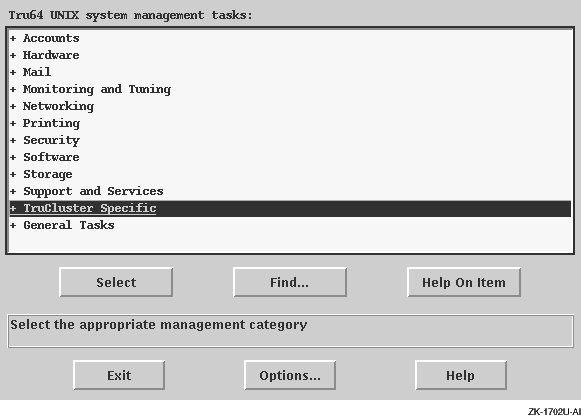
2.3.1 Introduction to SysMan Menu
SysMan Menu integrates most available
single-system and cluster administration utilities in a menu
system, as shown in
Figure 2-1.
Figure 2-1: SysMan Menu Hierarchy
SysMan Menu provides a menu of system management tasks in a tree-like hierarchy, with branches of management categories and leaves of actual tasks. Selecting a leaf invokes a task, which displays a dialog box for performing the task.
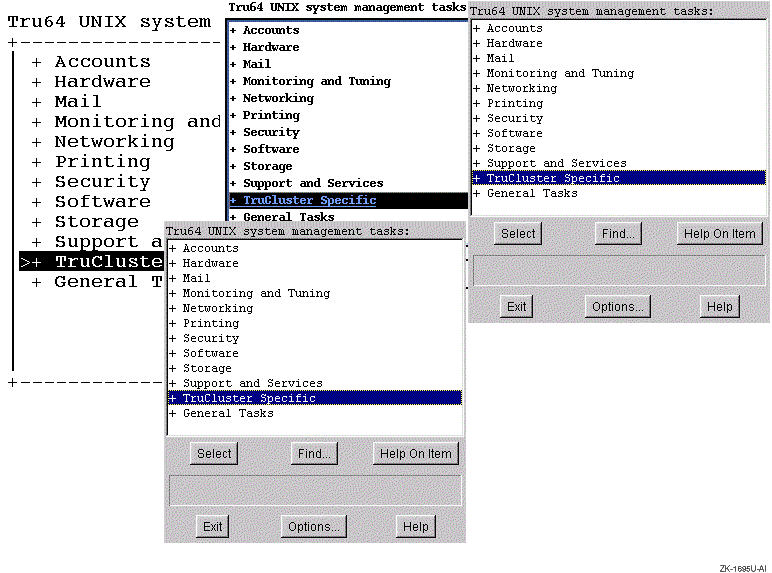
The SysMan Menu user interface is functionally equivalent no
matter how SysMan Menu is invoked.
For example,
Figure 2-2
shows a composite
of the character-cell, X Windows, Java, and Java applet user interfaces.
Figure 2-2: SysMan Menu Interfaces
2.3.2 Introduction to SysMan Station
SysMan Station is a graphical representation of a system (or cluster) that enables you to monitor system status down to the level of individual system components such as disks. You can also view and monitor logical groups, such as file systems or Advanced File System (AdvFS) domains, and create customized views. When viewing any system component, you can obtain detailed information on its properties or launch utilities that enable you to perform administrative tasks on the component. Unlike SysMan Menu, SysMan Station requires a graphics capability and cannot be run from the character-cell user environment.
Figure 2-3
shows an example
of the SysMan Station graphical interface.
Figure 2-3: SysMan Station Graphical Interface
Like SysMan Menu, the SysMan Station user interface is
functionally equivalent no matter how SysMan Station is
invoked.
2.3.3 Introduction to the SysMan Command Line
The
sysman -cli
command provides a generic
command-line interface to SysMan functions.
You can
use the
sysman -cli
command to view or modify
SysMan data.
You can also use it to
view dictionary-type information such as data descriptions, key
information, and type information of the SysMan data, as described in
sysman_cli(8)sysman -cli -list
components
command
to list all known components in the
SysMan data hierarchy.
2.4 Using SysMan Menu in a Cluster
This section describes using SysMan Menu in a cluster.
The
section begins with a discussion of focus and how it
affects SysMan Menu.
2.4.1 Getting in Focus
The range of effect of a given management operation is called its focus. In a TruCluster environment, there are four possibilities for the focus of a management operation:
Clusterwide — The operation affects the entire cluster.
Member-specific — The operation affects only the member that you specify. The operation requires a focus.
Both — The operation can be clusterwide or member-specific. The operation requires a focus.
None — The operation does not take focus and always operates on the current system.
For each management task, SysMan Menu recognizes which focus
choices are appropriate.
If the task supports both clusterwide and
member-specific operations, SysMan Menu lets you
select the cluster name or a specific member on which to
operate.
That is, if the cluster name and cluster members are
available as a selection
choice, the operation is
both; if only the
member names are available as a selection choice, the operation is
member-specific.
Focus information for a given
operation is displayed in the SysMan Menu title bar.
For example, when you are managing local users on a cluster,
which is a clusterwide
operation, the title bar might appear similar to the following.
In this
example,
provolone
is a cluster member and
deli
is the cluster alias.
Manage Local Users on provolone.zk3.dec.com managing
deli
2.4.2 Specifying a Focus on the Command Line
If an operation lets you specify a focus, the
SysMan Menu
-focus
option provides a way to
accomplish this from the command line.
Consider how specifying a focus on the command line
affects the
shutdown
command.
The
shutdown
command can be clusterwide or
member-specific.
If you start SysMan Menu from a cluster member with the
following command, the cluster name is the initial focus of the
shutdown
option:
# sysman -menu
However, if you start SysMan Menu from a cluster member
with the following command, the
provolone
cluster
member is the initial focus of the
shutdown
option:
# sysman -menu -focus provolone
Whenever you begin a new task
during a SysMan Menu session, the dialog box highlights your
focus choice from the previous task.
Therefore, if you have many management
functions to perform on one cluster member, you need to select that member
only once.
2.4.3 Invoking SysMan Menu
You can invoke SysMan Menu from a variety of interfaces,
as explained in
Table 2-4.
Table 2-4: Invoking SysMan Menu
| User Interface | How to Invoke |
Character-cell terminal |
Start a terminal session (or open a terminal window) on a cluster member and enter the following command:
If
an X Windows display is associated with this terminal window through
the
|
| CDE (or other X Windows display) | SysMan Menu is available in X Windows windowing environments. To launch SysMan Menu, enter the following command:
If you are using the CDE interface, you can launch SysMan Menu by clicking on the SysMan submenu icon on the root user's front panel and choosing SysMan Menu. If you click on the SysMan icon itself rather than on the submenu icon, SysMan Station is directly launched. You can also launch SysMan Menu from CDE by clicking on the Application Manager icon on the front panel and then clicking on the SysMan Menu icon in the System_Admin group. |
| Command line | SysMan Menu is not available
from the command line.
However, the SysMan command-line
interface,
|
| Web-based Java Applets | See Section 2.6.1. |
| Standalone Java Application | See Section 2.7.1. |
2.5 Using SysMan Station in a Cluster
SysMan Station is a client/server application consisting of a
daemon,
smsd(8)
Monitor the status of a system or cluster
Display detailed information about a system or cluster
Provide a single location for management activity
Display events and track events that lead to a problem
You might find it convenient to launch SysMan Station and then leave it running on your desktop. In particular, if you are new to Tru64 UNIX system management, you can manage a cluster through SysMan Station without having to first learn the syntax of the Tru64 UNIX commands.
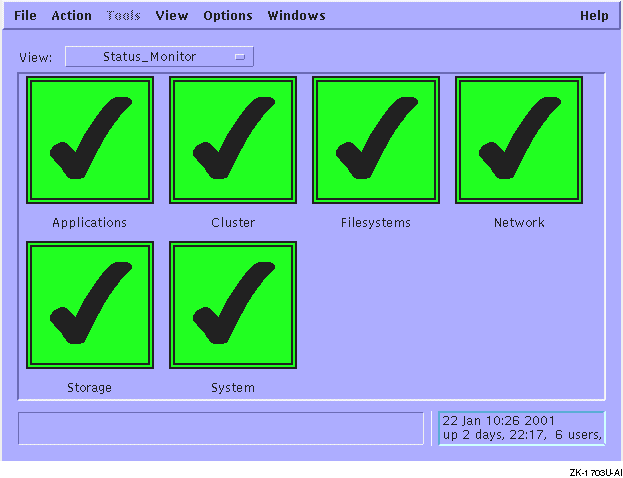
When you start SysMan Station from a cluster member, a
monitor window is displayed (Figure 2-4).
Figure 2-4: SysMan Station Initial Cluster View
The Monitor window displays the status of the following subsystems:
Applications
Cluster
Filesystems
Network
Storage
System
The status color and pattern indicates a failure or trouble condition, as follows:
Healthy status is green with a check mark
Trouble status is yellow with an exclamation point (!)
Failure status is red with an
x
You can click on the status indicator, or the label beneath it,
to view the events that are posted for a given subsystem.
With the exception
of events for which the
cluster_event
attribute is set to
true, events are identified by
the member on
which the event was generated.
For a list of cluster events,
see Appendix A.
The drop-down list shows the available views, including the following:
AdvFS_Filesystems
CAA_Applications_(active)
CAA_Applications_(all)
Hardware
Mounted_Filesystems
Physical_Filesystems
You can click on any of these views to open a new window
containing that view.
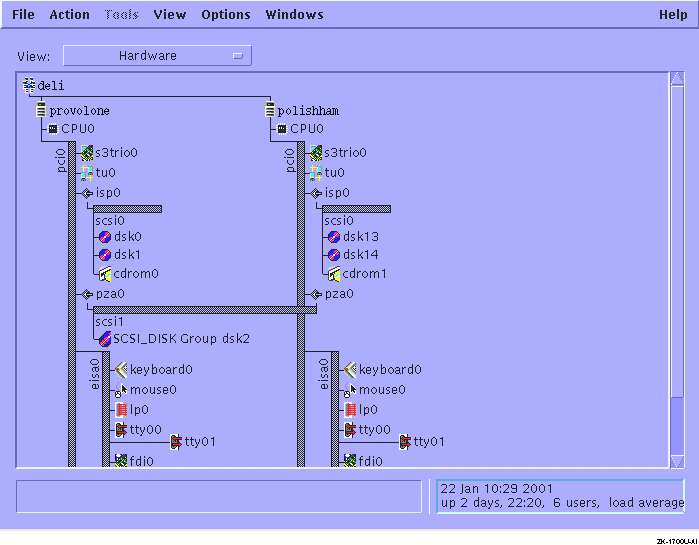
For example, if you click on the
Hardware view, a view of the cluster hardware is displayed.
An
example of this view is shown in
Figure 2-5.
Figure 2-5: Sample SysMan Station Cluster Hardware View
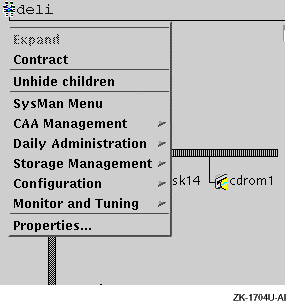
Objects in a view have actions that are based on their type; that is, objects such as the cluster or disk object have management actions associated with them, and the actions depend on the type of object. For example, a cluster object allows the following management actions:
SysMan Menu
Daily Administration
Storage Management
Configuration
Monitor and Tuning
CAA Management
Properties
Some selections may not have any management tasks associated with them. For example, a graphics card allows you to view its properties and associated events, but you cannot otherwise manage it.
To see which actions are available for a
given object, locate the cursor over the object and then
click and hold the right mouse button, as shown in
Figure 2-6.
Figure 2-6: Displaying Available Actions in SysMan Station
You can invoke SysMan Station from a variety of interfaces, as described in
Table 2-5.
Table 2-5: Invoking SysMan Station
| User Interface | How to Invoke |
| Character-cell terminal | SysMan Station is not available on a local or remote character cell terminal. |
| CDE (or other X Windows display) | SysMan Station is available in X Windows windowing environments. To launch SysMan Station, enter the following command:
If you are using the CDE interface, you can launch SysMan Station by clicking on the SysMan icon on the root user's front panel. You can also click on the Application Manager icon on the front panel and then click on the SysMan Station icon in the System_Admin group. |
| Command line | SysMan Station is not
available from the command line.
However, the SysMan command-line
interface,
See Section 2.8 for more information. |
| Web-based Java Applets | See Section 2.6.1. |
| Standalone Java Application | SeeSection 2.7.1. |
2.6 Using the SysMan Java Applets in a Cluster
Note
You can manage only the Tru64 UNIX system that is serving you the Web page. In a cluster, this means that you can manage only the cluster member that is serving you the Web page. Therefore, to manage a cluster, use the Java PC applications that are described in Section 2.7 instead.
HP Insight Manager provides the Web-based management (WBEM) framework for SysMan in the form of two Java applets.
The applets consist of two components: the applets themselves,
which run inside a Web browser, and the
SysMan Station daemon,
/usr/sbin/smsd, which
runs on the Tru64 UNIX system.
You use a browser to open the correct URL and launch one of the
applets.
The applets then communicate with the Tru64 UNIX system,
partially via the HP Insight Manager
http
server on port 2301.
Browser Requirement
See the following web page for information about supported browsers:
http://cluster_member_name:2301/SysMan_Home_Page
On the Tru64 UNIX system, the HP Insight Manager agents (daemons) are configured by default when you install the operating system and are automatically started when the system boots.
The HP Insight Manager Web agent is initialized during the
transition to run
level 3 by the
/sbin/rc3.d/S50insightd
script.
This script runs
/usr/sbin/insightd
and prints a
console boot-time message when the agent is successfully started.
The SNMP subagents
/usr/sbin/os_mibs
and
/usr/sbin/cpq_mibs
are also invoked during the
transition to
run level 3 by the
/sbin/rc3.d/S49snmpd
script.
To test that the system is properly configured, enter the
following commands:
# ps agx | grep insight
# ps agx | grep cpq
# ps agx | grep os_mib
Or, alternately:
# ps agx | grep -E "insight|cpq|os_mibs"
If you do not want to have the HP Insight Manager
Web Agent enabled
by default, perhaps because you do not plan to use it, you can disable it
through SysMan Menu or through the following
sysman imconfig
command:
# /usr/sbin/sysman imconfig
If you disable the HP Insight Manager Web Agent,
you will not be
able to use the online help from the SysMan PC
applications.
2.6.1 Invoking the SysMan Java Applets
For details on running the SysMan Java applets directly from a Web browser, go to the following location in a compatible Web browser:
http://cluster_member_name:2301/SysMan_Home_Page
If your browser is compatible, click on the link to SysMan Station or SysMan Menu to start the applet within the browser. It might take a few moments for the applet to start.
When the applet starts, it establishes a connection to the cluster member. Log in as root.
After you are familiar with running SysMan Menu and SysMan Station from a Web browser, you may find it more convenient to directly launch them from the following URLs:
To launch SysMan Menu:
http://cluster_member_name:2301/suit_applet.html
To launch SysMan Station:
http://cluster_member_name
:2301/sms_applet.html
2.7 Using SysMan Java PC Applications in a Cluster
SysMan Menu and SysMan Station are both available as Java standalone applications that run on a Windows PC. You install and run these applications just as you do any other PC application; they are not based on a Web browser.
Other than the fact that the applications run as Java run-time environment (JRE) applications, they look and function just like the character-cell and X Windows versions.
Unlike the SysMan Java applet, the standalone Java
applications are not dependent on the HP Insight Manager
daemons or
http
server.
The
smsd
daemon,
smsd(8)2.7.1 Invoking SysMan Java Applications on a PC
For details on downloading and running the standalone Java applications on a Windows PC, go to the following location in any Web browser:
http://cluster_member_name:2301/SysMan_Home_Page
The Managing Tru64 UNIX from a PC section describes how to
download, install, and run the SysMan
Station Java standalone applications.
2.8 Using SysMan Command-Line Interface in a Cluster
The
sysman -cli
command provides a generic
command-line interface to SysMan data.
You can
use the
sysman -cli
command to view or modify
SysMan data.
You can also use it to
view dictionary-type information such as data descriptions, key
information, and type information of the SysMan data, as described in
sysman_cli(8)
Use the
-focus
option to specify the focus; that is,
the range of effect of a given management task, which can be the cluster as
a whole or a specific cluster member.
Use the
sysman -cli -list
component
command
to list all known components in the
SysMan data hierarchy.
An example
sysman -cli
command is shown in
Example 2-1.
This command shows the attributes
of the
clua
component for the cluster member
named
amember.
Example 2-1: Example
sysman Output
# sysman -cli -focus amember -list attributes -comp clua

Component: clua
  Group: cluster-aliases
    Attribute(s):
      aliasname
      memberlist
  Group: clua-info
    Attribute(s):
      memberid
      aliasname
      membername
      selw
      selp
      rpri
      joined
      virtual
  Group: componentid
    Attribute(s):
      manufacturer
      product
      version
      serialnumber
      installation
      verify
  Group: digitalmanagementmodes
    Attribute(s):
      deferredcommit
      cdfgroups
2.9 Using HP Insight Manager in a Cluster
HP Insight Manager allows you to use any current Web browser to display a wide array of Tru64 UNIX configuration information. You can use a Web browser on your Tru64 UNIX system, or a Web browser that is running on a Windows PC; the choice is up to you.
As implemented for Tru64 UNIX, HP Insight Manager
is a Web-based interface that uses a combination of a private
http
server
(listening on port 2301) on the Tru64 UNIX system and Tru64 UNIX SNMP
subagents to display configuration information for cluster members.
That is, the SNMP subagents
/usr/sbin/os_mibs
and
/usr/sbin/cpq_mibs
can get, but not set,
attributes.
The HP Insight Manager Web agent is initialized
during transition to run
level 3, and the initialization script is located in
/sbin/rc3.d/S50insightd.
This script runs
/usr/sbin/insightd
and prints a
boot-time message at the console when the agent is successfully started.
The SNMP subagents
/usr/sbin/os_mibs
and
/usr/sbin/cpq_mibs
are also invoked during transition to
run level 3 and are invoked by the
/sbin/rc3.d/S49snmpd
script.
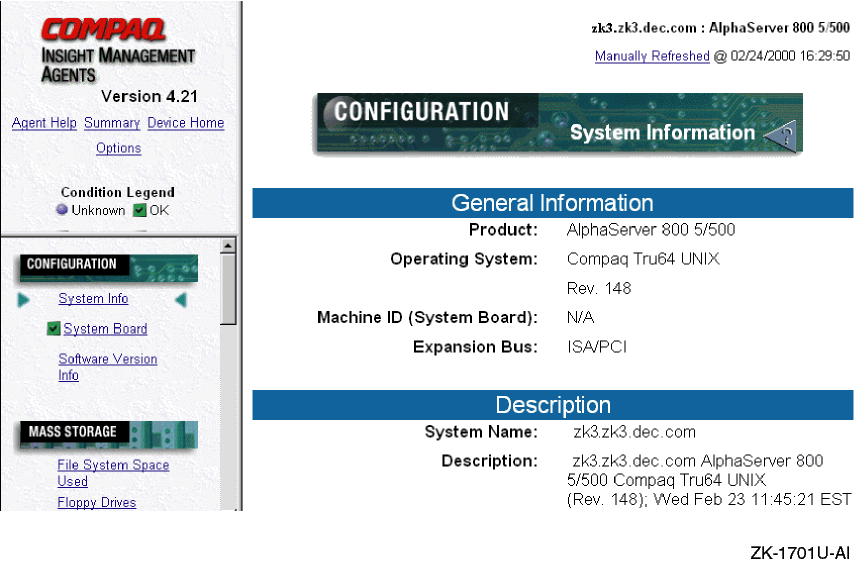
The HP Insight Management agents are not cluster-aware, but they provide useful device and status information about the cluster member you specify. In particular, you might find that the HP Insight Management agents allow less-experienced help and support staff to gather system and device information, such as the capacity and serial number of a given disk device, without having to use the Tru64 UNIX command-line interface.
A sample HP Insight Manager display is shown in
Figure 2-7.
Figure 2-7: HP Insight Manager Display
See
insight_manager(5)2.9.1 Invoking HP Insight Manager
To invoke HP Insight Manager, open the following URL on the cluster member that you want to manage and navigate to the HP Insight Management Agents section:
http://cluster_member_name
:2301
The Navigation frame lists all the subcomponents for which data can be obtained and any associated data items. It provides status data on hardware, such as network interface (NIC) cards, and also data on general system status, such as CPU utilization. The content of this frame depends on what device data is available to HP Insight Manager. Typical categories include the following:
Configuration
Mass storage
NIC
Utilization
Recovery
2.10 Using Tru64 UNIX Configuration Report
In addition to the features that are provided by HP
Insight Manager,
you can use your Web browser to run a system check on a cluster member.
This
system check runs the
sys_check
command for you,
and requires the same privileges as
sys_check
run from
the command line.
If you generate a new report, the browser launches the SysMan Menu Java applet for you. For this to work correctly, you need to use a compatible browser, as described in Section 2.6.
You can use any browser to view the resulting report.
To launch the Configuration Report, open the following URL on the cluster member that you want to manage:
http://cluster_member_name:2301/ConfigReport
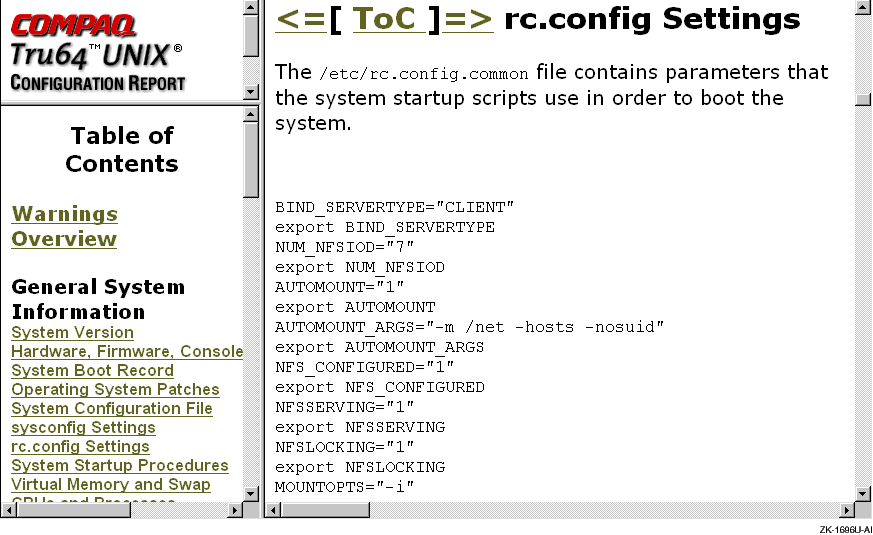
A sample Configuration Report display is shown in
Figure 2-8.
Figure 2-8: Sample Configuration Report Display
To generate a new system configuration report, click on Create New Report at the bottom of the Web page. This launches the SysMan Menu Java applet in your browser, which allows you to specify the type of information that you want to see in the report before creating it.
To view this new report from the browser, make sure that you select the Export To Web option.