This chapter describes how to prepare the systems for a TruCluster Server cluster when there is a need to access shared SCSI storage using the old method of external termination.
This chapter does not provide detailed information about installing devices; it describes only how to set up the hardware in the context of the TruCluster Server product. Therefore, you must have the documentation that describes how to install the individual pieces of hardware. That documentation typically arrives with the hardware.
All systems in the cluster must be connected via the
cluster interconnect (either the Memory Channel or a private LAN).
Not
all members must be connected to a shared bus.
We recommend
placing the clusterwide root (/),
/usr, and
/var
file
systems, all member boot disks, and the quorum disk (if provided)
on shared buses.
All configurations covered in this manual
assume the use of a shared bus.
Before proceeding further, review
Section 4.1,
Section 4.2, and the first two
paragraphs of
Section 4.3.
10.1 TruCluster Server Hardware Installation Using PCI SCSI Adapters
The following sections describe how to install the KZPSA-BB or KZPBA host bus adapters and configure them into TruCluster Server clusters using the old method of external termination.
The descriptions are based on the assumption that you will configure and cable your storage subsystems as described in Chapter 11 after installing the host bus adapters, cluster interconnect, and network adapters. When the system hardware (KZPSA-BB or KZPBA host bus adapters, cluster interconnect, including Memory Channel hubs or Ethernet hubs or switches, cables, and network adapters) have been installed, you can connect your host bus adapter to the storage subsystem.
Follow the steps in Table 10-1 to start the TruCluster Server hardware installation procedure. You can save time by installing the cluster interconnect hardware, redundant network adapters (if applicable), and KZPSA-BB or KZPBA SCSI adapters all at the same time.
Follow the directions in the referenced documentation, or the steps in the referenced tables for the particular SCSI host bus adapter, returning to the appropriate table when you have completed the steps in the referenced table.
After you complete installing host bus adapters, cluster interconnect hardware, and network adapters, see Chapter 11 and connect your cluster member systems to shared storage.
Caution
Static electricity can damage modules and electronic components. We recommend using a grounded antistatic wrist strap and a grounded work surface when handling modules.
Table 10-1: Configuring TruCluster Server Hardware for Use with a PCI SCSI Adapter
| Step | Action | Refer to |
| 1 | Install the cluster interconnect hardware: | — |
| Install the Memory Channel modules, cables, and hubs (if a hub is required). | Chapter 5 [Footnote 63] | |
| Install the Ethernet adapters, and hubs or switches for the private LAN | Chapter 6 | |
| 2 | Install Ethernet or FDDI network adapters. | User's guide for the applicable Ethernet or FDDI adapter, and the user's guide for the applicable system |
| Install ATM adapters if using ATM. | See the documentation that came with the ATM adapter | |
| 3 | Install a KZPSA-BB PCI SCSI adapter or KZPBA UltraSCSI adapter for each shared SCSI bus in each member system: | Section 10.1.1 and Table 10-2 |
10.1.1 Installing a KZPSA-BB or KZPBA for Use with the Old Method of External Termination
Use the steps in
Table 10-2
to set up
a KZPSA-BB or KZPBA for a TruCluster Server cluster using the old method of
external termination and Y cables.
Table 10-2: Installing a KZPSA-BB or KZPBA for Use with External Termination
| Step | Action | Refer to |
| 1 | Remove the KZPSA-BB internal termination resistors, Z1, Z2, Z3, Z4, and Z5. | Section 10.1.3.4, Figure 10-1, and KZPSA PCI-to-SCSI Storage Adapter Installation and User's Guide |
| Remove the eight KZPBA internal termination resistor SIPs, RM1-RM8. | Section 4.3.3.3, Figure 4-1, and KZPBA-CB PCI-to-Ultra SCSI Differential Host Adapter User's Guide | |
| 2 | Power down the member system. Install a KZPSA-BB PCI-to-SCSI bus adapter or KZPBA UltraSCSI host adapter in the PCI slot corresponding to the logical bus to be used for the shared bus. Ensure that the number of adapters is within limits for the system, and that the placement is acceptable. | KZPSA PCI-to-SCSI Storage Adapter Installation and User's Guide and KZPBA-CB PCI-to-Ultra SCSI Differential Host Adapter User's Guide |
| 3 | Install a BN21W-0B Y cable on each KZPSA-BB or KZPBA host adapter. | — |
| 4 | Install an H879-AA terminator on one leg of the BN21W-0B Y cable of the member system that will be on the end of the shared bus. | — |
| 5 | Power up the system, and update the system SRM console firmware and KZPSA-BB host bus adapter firmware from the latest Alpha Systems Firmware Update CD-ROM. | Firmware release notes for the system (Section 4.2) and Section 10.1.3.5 |
|
||
| 6 | Use the
show config
and
show device
console
commands to display the installed devices and information about the
KZPSA-BBs or KZPBAs on the AlphaServer systems.
Look for
KZPSA
or
pk*
in the
display to determine which devices are KZPSA-BBs.
Look for
QLogic
ISP10x0
in the
show config
display and
pk
or
isp
in the
show
device
display to determine which devices
are KZPBAs.
|
Section 10.1.2 and Example 10-1 through Example 10-4 |
| 7 | Use the
show pk*
or
show isp*
console commands to determine the status of the KZPSA-BB or KZPBA
console environment variables, and then use the
set
console command to set the KZPSA-BB bus speed to fast, termination power
to on, and the KZPSA or KZPBA SCSI bus ID. |
Section 10.1.3.1 through Section 10.1.3.3 and Example 10-6 through Example 10-9 |
|
||
| 8 | Repeat steps 1 through 7 for any other KZPSA-BBs or KZPBAs to be installed on this shared bus on other member systems. | — |
| 9 | Install the remaining SCSI bus hardware needed for storage (DWZZA(B), RAID array 3000, storage shelves, cables, and terminators). | Section 11.4 |
| BA350 storage shelf | Section 11.3.1, Section 11.4.1.1, and Section 11.4.3.1 | |
| Non-UltraSCSI BA356 storage shelf | Section 11.3.2.1, Section 11.4.1.2, and Section 11.4.3.2 | |
| UltraSCSI BA356 storage shelf | Section 11.3.2.2, Section 11.4.1.3, and Section 11.4.3.3 | |
| RAID Array 3000 | Section 11.4.4 | |
| 10 | Install the tape device hardware and cables on the shared bus as follows: | Chapter 9 |
| TL891 MiniLibrary | Section 9.1 | |
| TL890 with TL891 MiniLibrary | Section 9.2 | |
| TL894 | Section 9.3 | |
| TL895 | Section 9.4 | |
| TL893/TL896 | Section 9.5 | |
| TL881/TL891 DLT MiniLibraries | Section 9.6 | |
| StorageWorks ESL9326D Enterprise Library | Section 9.7 | |
|
||
10.1.2 Displaying KZPSA-BB and KZPBA Adapters with the show Console Commands
Use the
show config
and
show
device
console commands to display system configuration.
Use the output to determine which devices are KZPSA-BBs or KZPBAs, and to
determine their SCSI bus IDs.
Example 10-1
shows the output from the
show config
console command on an AlphaServer 4100 system.
Example 10-1: Displaying Configuration on an AlphaServer 4100
P00>>> show config
                      Compaq Computer Corporation
                           AlphaServer 4x00

Console V5.1-3  OpenVMS PALcode V1.19-14, Tru64 UNIX PALcode V1.21-22

Module                          Type     Rev    Name
System Motherboard              0        0000   mthrbrd0
Memory   64 MB SYNC             0        0000   mem0
Memory   64 MB SYNC             0        0000   mem1
Memory   64 MB SYNC             0        0000   mem2
Memory   64 MB SYNC             0        0000   mem3
CPU (4MB Cache)                 3        0000   cpu0
CPU (4MB Cache)                 3        0000   cpu1
Bridge (IOD0/IOD1)              600      0021   iod0/iod1
PCI Motherboard                 8        0000   saddle0

Bus 0  iod0 (PCI0)
Slot   Option Name              Type     Rev    Name
1      PCEB                     4828086  0005   pceb0
2      S3 Trio64/Trio32         88115333 0000   vga0
3      DECchip 21040-AA         21011    0024   tulip0
4      DEC KZPSA                81011    0000   pks1
5      DEC PCI MC               181011   000B   mc0

Bus 1  pceb0 (EISA Bridge connected to iod0, slot 1)
Slot   Option Name              Type     Rev    Name

Bus 0  iod1 (PCI1)
Slot   Option Name              Type     Rev    Name
1      NCR 53C810               11000    0002   ncr0
2      NCR 53C810               11000    0002   ncr1
3      QLogic ISP1020           10201077 0005   isp0
4      QLogic ISP1020           10201077 0005   isp1
5      DEC KZPSA                81011    0000   pks0
Example 10-2
shows the output from the
show device
console command entered on an
AlphaServer 4100 system.
Example 10-2: Displaying Devices on an AlphaServer 4100
P00>>> show device
polling ncr0 (NCR 53C810) slot 1, bus0 PCI, hose 1 SCSI Bus ID 7
dka500.5.0.1.1    Dka500             RRD45    1645
polling ncr1 (NCR 53C810) slot 2, bus0 PCI, hose 1 SCSI Bus ID 7
dkb0.0.0.2.1      DKb0               RZ29B    0007
dkb100.1.0.2.1    DKb100             RZ29B    0007
polling isp0 (QLogic ISP1020) slot 3, bus 0 PCI, hose 1  SCSI Bus ID 7
dkc0.0.0.3.1      DKc0               HSZ80    V83Z
dkc1.0.0.3.1      DKc1               HSZ80    V83Z
dkc2.0.0.3.1      DKc2               HSZ80    V83Z
dkc3.0.0.3.1      DKc3               HSZ80    V83Z
dkc4.4.0.3.1      DKc4               HSZ80    V83Z
dkc5.0.0.3.1      DKc5               HSZ80    V83Z
dkc6.0.0.3.1      DKc6               HSZ80    V83Z
dkc100.1.0.3.1    DKc100             RZ28M    0568
dkc200.2.0.3.1    DKc200             RZ28M    0568
dkc300.3.0.3.1    DKc300             RZ28     442D
polling isp1 (QLogic ISP1020) slot 4, bus 0 PCI, hose 1  SCSI Bus ID 7
dkd0.0.0.4.1      DKd0               HSZ80    V83Z
dkd1.0.0.4.1      DKd1               HSZ80    V83Z
dkd2.0.0.4.1      DKd2               HSZ80    V83Z
dkd100.1.0.4.1    DKd100             RZ26N    0568
dkd200.1.0.4.1    DKd200             RZ26     392A
dkd300.1.0.4.1    DKd300             RZ26N    0568
polling kzpsa0 (DEC KZPSA) slot 5, bus 0 PCI, hose 1  TPwr 1 Fast 1 Bus ID 7
kzpsa0.7.0.5.1    dke TPwr 1 Fast 1 Bus ID 7 L01 A11
dke100.1.0.5.1    DKe100             RZ28     442D
dke200.2.0.5.1    DKe200             RZ26     392A
dke300.3.0.5.1    DKe300            RZ26L     442D
polling floppy0 (FLOPPY) pceb IBUS hose 0
dva0.0.0.1000.0   DVA0               RX23
polling kzpsa1 (DEC KZPSA) slot 4, bus 0 PCI, hose 0  TPwr 1 Fast 1 Bus ID 7
kzpsa1.7.0.4.1    dkf TPwr 1 Fast 1 Bus ID 7 E01 A11
dkf100.1.0.5.1    DKf100             RZ26     392A
dkf200.2.0.5.1    DKf200             RZ28     442D
dkf300.3.0.5.1    DKf300             RZ26     392A
polling tulip0    (DECchip 21040-AA) slot 3, bus 0 PCI, hose 0
ewa0.0.0.3.0      00-00-F8-21-0B-56  Twisted-Pair
Example 10-3
shows the output from the
show config
console command entered on an AlphaServer
8200 system.
Example 10-3: Displaying Configuration on an AlphaServer 8200
>>> show config
        Name            Type    Rev    Mnemonic
TLSB
 4++    KN7CC-AB        8014    0000    kn7cc-ab0
 5+     MS7CC           5000    0000    ms7cc0
 8+     KFTIA           2020    0000    kftia0

 C0  Internal PCI connected to kftia0   pci0
 0+  QLogic ISP1020 10201077    0001    isp0
 1+  QLogic ISP1020 10201077    0001    isp1
 2+  DECchip 21040-AA  21011    0023  tulip0
 4+  QLogic ISP1020 10201077    0001    isp2
 5+  QLogic ISP1020 10201077    0001    isp3
 6+  DECchip 21040-AA  21011    0023  tulip1

 C1  PCI connected to kftia0
 0+  KZPAA             11000    0001  kzpaa0
 1+  QLogic ISP1020 10201077    0005    isp4
 2+  KZPSA             81011    0000  kzpsa0
 3+  KZPSA             81011    0000  kzpsa1
 4+  KZPSA             81011    0000  kzpsa2
 7+  DEC PCI MC       181011    000B     mc0
Example 10-4
shows the output from the
show device
console command entered on an AlphaServer
8200 system.
Example 10-4: Displaying Devices on an AlphaServer 8200
>>> show device
polling for units on isp0, slot0, bus0, hose0...
polling for units on isp1, slot1, bus0, hose0...
polling for units on isp2, slot4, bus0, hose0...
polling for units on isp3, slot5, bus0, hose0...
polling for units kzpaa0, slot0, bus0, hose1...
pke0.7.0.0.1      kzpaa4        SCSI Bus ID 7
dke0.0.0.0.1      DKE0                RZ28    442D
dke200.2.0.0.1    DKE200              RZ28    442D
dke400.4.0.0.1    DKE400              RRD43   0064

polling for units isp4, slot1, bus0, hose1...
dkf0.0.0.1.1      DKF0               HSZ80    V83Z
dkf1.0.0.1.1      DKF1               HSZ80    V83Z
dkf2.0.0.1.1      DKF2               HSZ80    V83Z
dkf3.0.0.1.1      DKF3               HSZ80    V83Z
dkf4.0.0.1.1      DKF4               HSZ80    V83Z
dkf5.0.0.1.1      DKF5               HSZ80    V83Z
dkf6.0.0.1.1      DKF6               HSZ80    V83Z
dkf100.1.0.1.1    DKF100             RZ28M    0568
dkf200.2.0.1.1    DKF200             RZ28M    0568
dkf300.3.0.1.1    DKF300             RZ28     442D

polling for units on kzpsa0, slot 2, bus 0, hose1...
kzpsa0.4.0.2.1    dkg     TPwr 1 Fast 1 Bus ID 7   L01 A11
dkg0.0.0.2.1      DKG0               HSZ80    V83Z
dkg1.0.0.2.1      DKG1               HSZ80    V83Z
dkg2.0.0.2.1      DKG2               HSZ80    V83Z
dkg100.1.0.2.1    DKG100             RZ26N    0568
dkg200.2.0.2.1    DKG200             RZ28     392A
dkg300.3.0.2.1    DKG300             RZ26N    0568

polling for units on kzpsa1, slot 3, bus 0, hose1...
kzpsa1.4.0.3.1    dkh     TPwr 1 Fast 1 Bus ID 7   L01 A11
dkh100.1.0.3.1    DKH100             RZ28     442D
dkh200.2.0.3.1    DKH200             RZ26     392A
dkh300.3.0.3.1    DKH300            RZ26L     442D

polling for units on kzpsa2, slot 4, bus 0, hose1...
kzpsa2.4.0.4.1    dki     TPwr 1 Fast 1 Bus ID 7   L01 A10
dki100.1.0.3.1    DKI100             RZ26     392A
dki200.2.0.3.1    DKI200             RZ28     442C
dki300.3.0.3.1    DKI300             RZ26     392A
10.1.3 Displaying Console Environment Variables and Setting the KZPSA-BB and KZPBA SCSI ID
The following sections explain how to use the
show
console command to display the
pk*
and
isp*
console
environment variables and set the KZPSA-BB and KZPBA SCSI ID on
various AlphaServer systems.
Use these examples as guides for
your system.
The console environment variables used
for the SCSI options vary from system to system.
Also, a class of
environment variables (for example,
pk*
or
isp*) may show both internal and external options.
Compare the following examples with the devices shown in the
show config
and
show dev
examples to determine which devices are KZPSA-BBs or KZPBAs on the
shared bus.
10.1.3.1 Displaying KZPSA-BB and KZPBA pk* or isp* Console Environment Variables
To determine the console environment variables to use, execute the
show pk*
and
show isp*
console
commands.
Example 10-5
shows the
pk
console environment variables for an AlphaServer 4100.
Example 10-5: Displaying the pk* Console Environment Variables on an AlphaServer 4100 System
P00>>>show pk*
pka0_disconnect         1
pka0_fast               1
pka0_host_id            7

pkb0_disconnect         1
pkb0_fast               1
pkb0_host_id            7


pkc0_host_id            7
pkc0_soft_term          diff


pkd0_host_id            7
pkd0_soft_term          on


pke0_fast               1
pke0_host_id            7
pke0_termpwr            1

pkf0_fast               1
pkf0_host_id            7
pkf0_termpwr            1
Compare the
show pk*
command display in
Example 10-5
with the
show config
command in
Example 10-1
and the
show dev
command in
Example 10-2.
Example 10-1
shows KZPSA-BBs
pks0
(PCI1 slot 5) and
pks1
(PCI0 slot 4).
Example 10-2 shows:
The NCR 53C810 SCSI controllers as
ncr0
and
ncr1
with disk
DKa
and
DKb
(pka
and
pkb)
The Qlogic ISP1020 devices (KZPBAs) as
isp0
and
isp1
with disks
DKc
and
DKd
(pkc
and
pkd)
The KZPSA-BBs with disks
DKe
and
DKf
(pke
and
pkf)
Example 10-5
shows two
pk*0_soft_term
environment variables;
pkc0_soft_term
which
is
on, and
pkd0_soft_term
which is
diff.
The
pk*0_soft_term
environment variable applies to systems using the QLogic ISP1020 SCSI
controller, which implements the 16-bit wide SCSI bus and uses dynamic
termination.
The QLogic ISP1020 module has two terminators, one for the 8 low bits
and one for the high 8 bits.
There are five possible values for
pk*0_soft_term:
off
— Turns off both the low 8 bits and high 8 bits
low
— Turns on the low 8 bits and turns
off the high 8 bits
high
— Turns on the high 8 bits and
turns off the low 8 bits
on
— Turns on both the low 8 bits and high 8 bits
diff
— Places the bus in differential mode
The KZPBA is a Qlogic ISP1040 module, and its termination is
determined by the presence or absence of internal termination resistor
SIPs RM1-RM8.
Therefore, the
pkc0_soft_term
and
pkd0_soft_term
environment variable has no
meaning and it may be ignored.
Example 10-6
shows the use of the
show
isp
console command to display the
console environment variables for KZPBAs on an AlphaServer 8x00.
Example 10-6: Displaying Console Variables for a KZPBA on an AlphaServer 8x00 System
P00>>> show isp*
isp0_host_id      7
isp0_soft_term    on

isp1_host_id      7
isp1_soft_term    on

isp2_host_id      7
isp2_soft_term    on

isp3_host_id      7
isp3_soft_term    on

isp5_host_id      7
isp5_soft_term    diff
Both
Example 10-3
and
Example 10-4
show five
isp
devices;
isp0,
isp1,
isp2,
isp3, and
isp4.
In
Example 10-6, the
show isp*
console command shows
isp0,
isp1,
isp2,
isp3, and
isp5.
The console code that assigns console environment variables counts
every I/O adapter including the KZPAA, which is the device after
isp3, and therefore
logically
isp4
in the
numbering scheme.
The
show isp
console command
skips over
isp4
because
the KZPAA is not a QLogic 1020/1040 class module.
Example 10-3
and
Example 10-4
show that
isp0,
isp1,
isp2, and
isp3
are on the internal KFTIA PCI bus
and not on a shared bus.
Only
isp5, the KZPBA, is on a shared
SCSI bus.
The other three shared buses use KZPSA-BBs.
Example 10-7
shows the use of the
show
pk
console command to display the
console environment variables for KZPSA-BBs on an AlphaServer 8x00.
Example 10-7: Displaying Console Variables for a KZPSA-BB on an AlphaServer 8x00 System
P00>>> show pk*
pka0_fast         1
pka0_host_id      7
pka0_termpwr      on

pkb0_fast         1
pkb0_host_id      7
pkb0_termpwr      on

pkc0_fast         1
pkc0_host_id      7
pkc0_termpwr      on
10.1.3.2 Setting the KZPBA SCSI ID
After you determine the console environment variables for the
KZPBAs on the shared bus, use the
set
console command to set the SCSI ID.
For a TruCluster Server cluster,
you will most likely have to set the SCSI ID for all KZPBA
UltraSCSI adapters except one.
If you are using a DS-DWZZH-05
with fair arbitration enabled, you will have to set the SCSI IDs for
all KZPBA UltraSCSI adapters.
Note
You will have problems if you have two or more SCSI adapters at the same SCSI ID on any one SCSI bus.
If you are using a DS-DWZZH-05, you cannot use SCSI ID 7 for a KZPBA UltraSCSI adapter; SCSI ID 7 is reserved for DS-DWZZH-05 use.
If DS-DWZZH-05 fair arbitration is enabled, the SCSI ID of the host adapter must match the SCSI ID assigned to the hub port. Mismatching or duplicating SCSI IDs will cause the hub to hang.
Use the
set
console command as shown in
Example 10-8
to set the KZPBA SCSI ID.
In this example, the SCSI ID is set for KZPBA
pkd
on the AlphaServer 4100 shown in
Example 10-5.
Example 10-8: Setting the KZPBA SCSI Bus ID
P00>>> show pkd0_host_id
7
P00>>> set pkd0_host_id 6
P00>>> show pkd0_host_id
6
10.1.3.3 Setting KZPSA-BB SCSI Bus ID, Bus Speed, and Termination Power
If the KZPSA-BB SCSI ID is not correct, or if it was reset to 7
by the firmware update utility, or you need to change the KZPSA-BB
speed, or enable termination power, use the
set
console command.
Note
Make sure to enable all KZPSA-BB host bus adapters to generate termination power.
Set the SCSI bus ID with the
set
command as
shown in the following example:
>>> set pkn0_host_id #
The
n
specifies which KZPSA-BB the
environment variables apply to.
You obtain the
n
value from the
show
device
and
show pk*
console commands.
The number
sign (#) is the SCSI bus ID for the KZPSA.
Set the bus speed with the
set
command as shown
in the following example:
>>> set pkn0_fast #
The number sign (#) specifies the bus speed. Use a 0 for slow and a 1 for fast.
Enable SCSI bus termination power with the
set
command as shown
in the following example:
>>> set pkn0_termpwr on
Example 10-9
shows how to determine the present
SCSI ID, bus speed, and the status of termination power, and then set
the KZPSA-BB SCSI ID to 6 and bus speed to fast for
pkb0.
Example 10-9: Setting KZPSA-BB SCSI Bus ID and Speed
P00>>> show pkb*
pkb0_fast 0
pkb0_host_id 7
pkb0_termpwr on
P00>>> set pkb0_host_id 6
P00>>> set pkb0_fast 1
P00>>> show pkb0_host_id
6
P00>>> show pkb0_fast
1
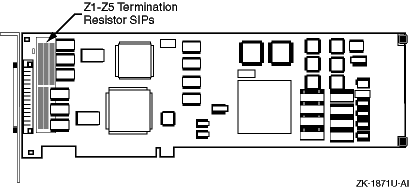
10.1.3.4 KZPSA-BB and KZPBA Termination Resistors
The KZPSA-BB internal termination is disabled by removing termination
resistors Z1 through Z5, as shown in
Figure 10-1.
Figure 10-1: KZPSA-BB Termination Resistors
The KZPBA internal termination is disabled by removing the termination
resistors RM1-RM8 as shown in
Figure 4-1.
10.1.3.5 Updating the KZPSA-BB Adapter Firmware
You must make sure the system and host bus adapter firmware is up-to-date. Read the firmware release notes from the AlphaSystems Firmware Update CD-ROM for the applicable system/SCSI adapter.
If the System Reference Manual (SRM) console or KZPSA-BB
firmware is not current, boot the Loadable Firmware Update (LFU)
utility from the Alpha Systems Firmware Update CD-ROM.
Choose the
update
entry from the list of LFU commands.
LFU
can update all devices or any particular device you select.
When you boot the Systems Firmware Update CD-ROM, you can
read the firmware release notes.
After booting has completed,
enter
read_rel_notes
at the
UPD>
prompt.
You can also copy and print the release notes as
shown in
Section 4.2.
To update the firmware, boot the LFU utility from the Alpha Systems Firmware Update CD-ROM.
You do not need to use the
-flag
option to the
boot
command.
Insert the Alpha
Systems Firmware Update CD-ROM and boot.
For example, to boot from
dka600:
P00>>> boot dka600
The boot sequence provides firmware update overview information. Use Return to scroll the text, or press Ctrl/C to skip the text.
After the overview information has been displayed, the name of the
default boot file is provided.
If it is the correct boot file, press
Return at the
Bootfile:
prompt.
Otherwise, enter the name of the file you want to boot from.
The firmware images are copied from the CD-ROM and the LFU help message shown in the following example is displayed:
      *****Loadable Firmware Update Utility*****

-------------------------------------------------------------
Function       Description
-------------------------------------------------------------
Display        Displays the system's configuration table.
Exit           Done exit LFU (reset).
List           Lists the device, revision, firmware name and
               update revision
Readme         Lists important release information.
Update         Replaces current firmware with loadable data
               image.
Verify         Compares loadable and hardware images.
? or Help      Scrolls this function table.
The
list
command indicates, in the
device
column,
which devices it can update.
Use the
update
command to update all firmware, or
you can designate a specific device to update; for example, KZPSA-BB
pkb0:
UPD> update pkb0
After updating the firmware and verifying this with the
verify
command, reset the system by cycling the power.