This chapter introduces the basic tasks for using the operating system. Before reading this chapter, familiarize yourself with your system's hardware components.
If you are familiar with the UNIX operating system or other operating systems, you may want to just skim this chapter. This manual discusses the use of the operating system from the command line. The system now has a number of Graphical User Interface (GUI) capabilities. These are discussed in separate manuals.
After completing this chapter, you will be able to:
Log in to the operating system (Section 1.1)
Log out of the operating system (Section 1.2)
Set and change your password (Section 1.5)
Execute commands (Section 1.3)
Stop command execution (Section 1.4)
View and display reference (man) pages (Section 1.6.1)
To use the operating system to its full capabilities, you must learn
how to create and modify files with a text editing program.
See
Chapter 2
for an overview of text editors and
Appendix A
and
Appendix B
for information on the
vi
and
ed
text
editors, respectively.
After you learn how to use a text editor, you should
have the basic skills necessary to start using the operating system.
Security Note
If your system is running the optional enhanced security, your login and password procedures may be different from the procedures documented in this manual. See your system administrator or the Security documentation for more information about enhanced security.
To use the operating system, your operating system must be installed and running and you must be logged in. Logging in identifies you as a valid system user and creates a work environment that belongs to you alone.
Before logging in, obtain your user name and password from the system administrator. A user name (typically your surname or initials) identifies you as an authorized user. A password (a group of characters that is easy for you to remember but difficult for others to guess) verifies your identity.
Think of your user name and password as electronic keys that give you access to the system. When you enter your user name and password during the login process, you identify yourself as an authorized user.
Your password is an important part of system security as it prevents unauthorized use of your data. For more information on passwords, see Section 1.5.2.
The first step in the login process is to display the login prompt. When your system is running and your workstation is on, the following login prompt appears on your screen:
login:
On some systems, you may have to press the Return key a few times to display the login prompt.
Your system's login prompt screen may be somewhat different. For example, in addition to the login prompt, the screen may display the system name and the version number of the operating system.
To log in, perform the following steps:
Enter your user name at the login prompt. If you make a mistake, use the Delete key or Backspace key to correct it.
For example, if your user name is larry, enter:
login: larry
The password prompt appears:
login: larry
Password:
Enter your password. For security reasons, the password does not display on the screen when you type it.
If you think you made a mistake while typing your password, press the Return key. If your password is incorrect, the system displays a message and prompts you to enter your user name and password again. On some systems, you may use the Delete key or the Backspace key to correct errors while typing your passwords.
After you enter your user name and password correctly, the system displays the following:
The date and time of the last successful and unsuccessful login:
Last successful login for juanita: date and time on tty03
Last unsuccessful login for juanita: date and time on tty03
Always check the successful and unsuccessful login information against your activity on the system. Any discrepancy means that someone has attempted to log in to your account (or did log in to your account). Report this activity immediately to your system administrator.
If your password is about to expire, the system displays a warning:
Your password will expire on date and time
See Section 1.5for information on setting your password.
The shell prompt, usually a dollar sign ($) prompt or a percent sign (%) prompt. Your system's shell prompt may be different.
Note
In this manual, the shell prompt display is a dollar sign ($).
The shell prompt display tells you that your login is successful and that the system is ready to go to work for you. The shell prompt is your signal that the shell is running. The shell is a program that interprets all commands you enter, runs the programs you have asked for and sends the results to your screen. For more information about commands and the shell prompt, see Section 1.3 and Chapter 7.
Caution
Never leave your terminal unattended when you are logged in. Someone can take advantage of an unattended terminal while you are logged in and run a program under your identity can cause great damage.
When you first log in, you automatically are placed in your login directory. This directory is often referred to as your home directory. See Chapter 2 for information about your login directory.
If your system does not display the shell prompt, you are not logged in. You may, for example, have entered your user name or your password incorrectly. Try to log in again. If you still cannot log in, see your system administrator. On some systems, for security reasons, the system rejects all attempts at logging in after some number of consecutive incorrect attempts. If your attempt at logging in is rejected, the only indication you receive, for security reasons, is the following:
Login incorrect
Note
Your system may not require you to have a password or you may have been assigned a password that is common to all new users. To ensure security in these cases, set your own password. For information on how to create or change a password, see Section 1.5.
Many systems display a welcome message and announcements whenever users
log in.
Example 1-1
is a typical login screen (your screen may
vary).
Example 1-1: Typical Login Screen
Welcome to the Operating System [1]
Fri Dec 7 09:48:25 EDT 19nn     [2]
Messages from the administrator [3]
You have mail                   [4]
$
The preceding announcement contains the following pieces of information:
A greeting [Return to example]
The date and time of your last login.
Note this information whenever you log in and tell your system administrator if you have not logged in at the time specified. A wrong date and time might indicate that someone has been breaking into your system. [Return to example]
Messages from the administrator
Your system administrator may set
messages that each user receives each time a login is accomplished.
These
messages may describe planned system updates, operational schedules or other
information of general interest.
These messages are called the
message of the day
and are stored in the file
/etc/motd.
You may redisplay these messages at any time by displaying this
file.
[Return to example]
Whether you have mail messages waiting to be read.
Briefly,
mail
is a program that lets you send
and receive electronic mail.
The system displays the message
You
have mail
when there are mail messages for you that are waiting
to be read.
If you have no mail messages, this line does not appear.
[Return to example]
An authorized user list can be created for a particular terminal. If such a list exists, your user name must appear in the list or you cannot log in at that terminal. In this case, the system displays the following message:
Not authorized for terminal access--see System Administrator
After a specified number of failed login attempts, the terminal can be disabled. This security precaution protects the system against break-in attempts by limiting the number of times someone can try to log in from a given terminal.
A terminal can also be explicitly locked by the system administrator. If the terminal is disabled or locked, the system displays the following message:
Terminal is disabled -- see Account Administrator
Your account can be disabled after a specified number of failed login attempts. Like disabling a terminal, this security precaution protects the system by limiting the number of times someone can try to guess your password. Your account is also disabled automatically if your password exceeds its lifetime defined by the system administrator.
Your account can also be explicitly disabled by the system administrator. If your account is disabled, the system displays the following message:
Account is disabled -- see Account Administrator
If any of these messages appear when you try to log in, report the occurrence
to your system administrator.
If the terminal or your account has been disabled,
the system administrator has to enable it again before you can log in.
1.2 Logging Out
When you are ready to end your work session, log out of the system. Logging out leaves the operating system running for other users and also ensures that no one else can use your work environment.
To log out, perform the following steps:
Make sure that the shell prompt is displayed.
Press Ctrl/D.
If Ctrl/D does not work, enter the
exit
command.
The system displays the login prompt or login screen. On some systems, a message may also be displayed.
At this point, you or another user may log in.
1.3 Using Commands
Operating system commands are programs that perform tasks on the operating system. The operating system has a large set of commands that are described in the remaining chapters of this manual and in the related reference pages.
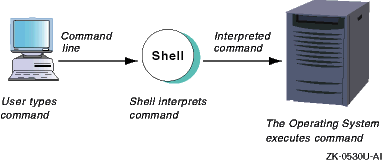
Entering a command is an interactive process. When you enter a command, the shell interprets that command and then gives an appropriate response — that is, the system either runs the program or displays an error message.
A shell reads every command you enter and directs the operating system to do what is requested. Therefore, the shell is a command interpreter.
The shell acts as a command interpreter in the following way:
The shell displays a shell prompt and waits for you to enter a command.
You enter a command, the shell analyzes it and locates the requested program.
The shell asks the system to run the program or it returns an error message.
When the program completes execution, control returns to the shell, which again displays the prompt.
Figure 1-1 shows the relationship between the user, the shell and the operating system. The shell interacts with both the user (to interpret commands) and with the operating system (to request command execution).
Figure 1-1: Shell Interaction with the User and the Operating System
The operating system supports four different shells: the C shell and the Bourne, Korn, and POSIX shells. Your system administrator determines which shell is active when you log in for the first time. For more information about shells, see Chapter 7.
When using the operating system, enter commands at the shell prompt on the command line. For example, to display today's date and time, enter:
$date
If you make a mistake while typing a command, use the Delete key or the Backspace key to erase the incorrect characters and then retype them.
An argument is a string of characters
that follows a command name.
An argument specifies the data the command uses
to complete its action.
For example, the
man
command gives
you information about operating system commands.
To display complete information
about the
date
command, enter:
$ man date
Commands can have options that modify the way a command works. These options are called flags and immediately follow the command name. Most commands have several flags. If you use flags with a command, arguments follow the flags on the command line.
For example, suppose that you use the
-f
flag
with the
man
command.
This flag displays a one-line description
of a specified command.
To display a one-line description of the
date
command, you would enter:
$ man -f date
While a command is running, the system does not display the shell prompt because the control passes to the program you are running. When the command completes its action, the system displays the shell prompt again, indicating that you can enter another command.
In addition to using the commands provided with the system, you can
also create your own personalized commands.
Refer to
Section 7.10.1
for information about creating these special commands.
1.4 Stopping Command Execution
If you enter a command and then decide that you do not want it to complete executing, enter Ctrl/C. The command stops executing and the system displays the shell prompt. You can now enter another command.
Depending upon the command, partial completion of the command
may have varied results (referred to as an unknown state).
To see the result
of stopping a command during execution, enter Ctrl/C after executing
commands such as
ls -l
to list files in a directory or
cat
filename
to view a file on the screen.
1.5 Setting Your Password
Your user name is public information and generally does not change. Your password, on the other hand, is private.
In most instances, when your system account is established, the system administrator assigns a password that is common to new users. On some systems, this new user password is valid for only one login, which will let you access the system and set your own password. After getting familiar with the system, select your own password to protect your account from unauthorized access. In addition, change your password periodically to protect your data from unauthorized access.
To set your password, use the
passwd
command.
If your account does not have a password, use the
passwd
command to set one.
For information on
passwd
procedures, see
Section 1.5.4.
If your system is part of a networked
system, you must use the
yppasswd
command to establish
or change your password.
The system administrator can select a number of options to determine how passwords are created, issued, changed, and revoked. These options control the following items:
Whether you can change your password under any circumstances.
Whether you have previously used a specific password.
Whether you can choose your own password.
What type of password the system generates for you if you cannot choose your own.
When you are allowed to change your password and when you must change your password.
If you are not allowed to change your password and you run
passwd, the system displays the following message:
Password request denied.
Reason: you do not have any password changing options.
In this case, you must contact your system administrator and arrange
to have your password changed.
1.5.1 Password Aging
The system enforces a minimum change time, expiration time, and lifetime for each password. Passwords cannot be changed until the minimum change time has passed. This prevents you from changing your password and then immediately changing it back so that you do not have to learn a new password. If you try to change your password too soon, the system responds with the following message:
Password cannot be changed.
Reason: minimum time between changes has not elapsed.
A password is valid until its expiration time is reached. Once a password has expired, you must change that password before the system allows you to log in again. You will usually see a message at login time if your password is about to expire. You should change it when you see the message. If you are logged out when your password expires, you can change it as part of the login process when you next log in.
If the lifetime passes, the account is disabled.
If you try to log in
to a disabled account, the system displays an appropriate message.
In this
case, you must ask your system administrator to reenable your account, and
you must change your password when you next log in.
1.5.2 Password Guidelines
The identification (user name) and authentication (password) procedure is one of the most important security tools the system uses to guard against unauthorized access. Knowing a password and having physical access to a terminal or remote access through the network are all that an unauthorized user needs to gain access to a system.
Once such a user has logged on, he or she can steal data and corrupt the system in subtle ways. The amount of damage a penetrator can do increases as the account accessed has greater power on the system.
A penetrator's actions can be traced only to your account, and you will be held accountable. It is your responsibility to ensure that your password is not compromised. Protect your password by following these guidelines:
Never share your password. When you tell someone your password and let them log in to your account, the system loses its ability to hold individual users accountable for their own actions.
Do not write down your password. Many system penetrations occur simply because a user wrote his or her password on a terminal. If a password must be recorded, keep it under lock and key.
Never type a password while someone is watching. It is possible to steal a password simply by watching someone type it. Be especially careful if you are using a workstation in a public area.
Change your password frequently, especially if you think it might have been compromised.
Do not put your password in e-mail.
If you are allowed to change your password, your account can be set
up to allow you to select your password or to have the system generate one.
These options determine the dialog the system starts when you invoke
passwd.
First, the system prompts you for your current password:
Old password:
Type in your old password. If you type it correctly, the system displays password change times:
Last successful password change for user:
date and time

Last unsuccessful password change for user: date and time
Always check these dates and times. Although you might not remember exactly when you last changed your password, you should at least be able to decide if the times are reasonable.
The system administrator can allow you to choose one or more of the following password types for your account:
System-generated random pronounceable syllables
System-generated random characters, including punctuation marks and digits
System-generated random letters
Your own choice
The following example shows the prompt when all possible options are allowed:
Do you want (choose one option only):
     1  pronounceable passwords generated for you
     2  a string of characters generated for you
     3  a string of letters generated for you
     4  to pick your password


Select ONE item by number:
If you choose to pick your
own password, the system prompts for the new password twice to avoid mistypings.
1.5.3.1 Selecting a System-Generated Password
The following example shows the dialog for a system-generated pronounceable password:
Generating random pronounceable password for user.

The password, along with the hyphenated version, is shown.

Hit <RETURN> or <ENTER> until you like the choice.

When you have chosen the password you want, type it in.

Note: Type your interupt character or "quit" to abort at any time.


Password: saglemot     Hyphenation: sag-le-mot

Enter password:
The hyphenated version is shown to help you pronounce the password so you can remember it more easily. You do not enter the hyphens. If you do not like the first password, press Return to see another one. When the system generates one that you want, enter it.
If you decide not to change your password, you can enter
quit
or use your interrupt character (typically Ctrl/C).
The system
displays the following message:
Password cannot be changed. Reason: user stopped program.
The system also updates your last unsuccessful password change time.
The dialogue when you select one of the other system-generated password
types is similar.
1.5.3.2 Selecting Your Own Password
The following guidelines are useful in selecting a password:
Do not choose a word found in a dictionary.
Do not use personal information as your password or as a substring of it, such as your user name, names or nicknames (yours, your family's, your company's, your pet's), initials or the make or model of your car.
Do not use birthdays, Social Security or bank account numbers, employee identification numbers, telephone numbers or other similar information as a password or as the numeric portion of a password.
Do not use the default password you received with your account.
Do not use old passwords or the same prefix or suffix you used in previous passwords. This rule also applies to any passwords you may have used in previous jobs.
Do not use the same password on all systems when you have access to several different systems.
Do not choose a password that is easy to guess (includes all of the above options) even if you reverse their spelling. Choose a password that is hard to guess, not hard to remember.
Do not choose passwords shorter than six characters in length. The maximum length of your password depends on the security conventions in force on your system. (Password length is measured in bytes, rather than characters, but we can regard these terms as the same, for now.)
Use a mixture of uppercase and lowercase letters in your password
if possible.
You also should include any combination of numbers, punctuation
marks or underscores (
On most systems, you can change your password as often or seldom as you like. However, to protect system security, your system administrator may set limits on how often you should change your password, the length of time your password remains valid or the nature of changes you can make. Some typical password restrictions could be the following:
Character restrictions
Minimum number of alphabetic characters
Minimum number of other characters, such as punctuation or numbers
Minimum number of characters in a new password that must be different from the old password
Maximum number of consecutive duplicate characters allowed in a password
Time restrictions
Maximum number of weeks before your password expires
Number of weeks before you can change a password
See your system administrator for more information
about password restrictions.
There are several levels of security and access
control that may be installed or activated on your system.
See the
Security
manual for additional information about access control.
1.5.4 Password Procedures
To set or change your password, follow these steps:
Enter the
passwd
command:
$ passwd
The system displays the following message (identifying you as the user) and prompts you for your old password:
Changing password for username
Old password:
If you do not have an old password, the system does not display this prompt. Go to step 3.
Enter your old password. For security reasons, the system does not display your password as you enter it.
After the system verifies your old password, it is ready to accept your new password and displays the following prompt:
New password:
Enter your new password at the prompt.
Remember that your new password entry does not appear on the screen. Finally, to verify the new password (since you cannot see it as you enter), the system prompts you to enter the new password again:
Retype new password:
Enter your new password again. As before, the new password entry does not appear on the screen. When the shell prompt returns to the screen, your new password is in effect.
If you attempt to change your password and the new password does not conform to password regulations, you receive a message stating the specific problem and the restrictions in effect for the system. The exact messages and the level of detail in the descriptions provided are determined by the security and access control mechanisms in effect on your system.
Note
Try to remember your password because you cannot log in to the system without it. If you forget your password, see your system administrator.
This manual discusses the entry and execution of commands from the command line. If you are using any of the numerous graphical user interfaces (GUIs) that are available, see the users instructions that accompany your window manager or see your system administrator.
Many of the basic operating system commands needed for your work are described in this manual. If you want to learn more about these and other commands, see the reference pages. The reference pages are provided in several formats:
On line (see Section 1.6.1)
In hard copy (see Related Documentation)
In Hypertext Markup Language (HTML) format
Ask your system administrator what optional formats are installed on your system. When the hard copy documents and HTML are unavailable, you quickly can access online command documentation by using the following commands:
The following sections describe these features.
1.6.1 Displaying and Printing Online Reference Pages (man)
Online reference pages contain information about commands.
To view a
reference page on line, use the
man
command.
Example 1-2
shows how to view the reference page for the
date
command
(your screen display may vary):
Example 1-2: Reference Page for date Command
$ man date

date(1)                                                               date(1)

NAME
 date - Displays or sets the date

SYNOPSIS

  Without Superuser Authority - Displays the Date

  date [-u] [+field_descriptor ...]

  With Superuser Authority - Sets the Date

  date [-nu] [MMddhhmm.ssyy|alternate_date_format] [+field_descriptor ...]

  Using XPG4-UNIX - Sets or Displays the Date

  date [-u] mmddHHMM[yy]

  date [-u] [+field_descriptor ...]

  Using the Century Field Provided by HP - Sets the Date

  date mmddHHMM[[cc]yy][.ss]

  date [[cc]yy]mmddHHMM[.ss]

  date mmddHHMM[.ss[[cc]yy]]

STANDARDS

  Interfaces documented on this reference page conform to industry standards
  as follows:

  date:  XPG4, XPG4-UNIX

  Refer to the standards(5) reference page for more information about indus-
  try standards and associated tags.
manaabima (7%)
The symbol
manaabima (7%)
at the bottom of the page
indicates that 7% of the reference page is currently displayed.
At this point,
you can press the Space bar to display the next screen of information, press
the Return key to display one more line of information or enter
q
to quit and return to the shell prompt.
Use the following command format to print a reference page:
man
manpage | lpr -Pprinter_name
For example, to print the reference page for the
date
command on a specific printer, enter:
$ man date | lpr -Pprinter_name
The reference page for the date command is now queued for printing on
printer_name.
See
Section 3.3
for more information
about the
lpr
command.
To
display a brief, one-line description of a command, use the
man -f
command.
For example, to display a brief description of
the
who
command, enter:
$ man -f who
who (1)    - Identifies users currently logged in
$
For complete information on the
man
command and its options, you can display the reference page by entering the
following:
$ man man
1.6.2 Locating Commands Using Descriptive Keywords
The
apropos
command and the
man -k
command are useful tools if you forget a command name.
Note
The
aproposand theman -kcommands require access to thewhatisdatabase. This database is available if your system manager loaded the defaultwhatisdatabase when the operating system was installed or created the database later using thecatmancommand.
The
apropos
and
man -k
commands
perform the same function.
These commands let you enter a command description
in the form of keywords.
The commands then list all the reference pages that
contain any of the keywords.
As shown in the example, if a command description contains more than one word, the words must be enclosed in single quotes (' ') or double quotes (" "). If the command description contains only one word, it is not necessary to enclose the descriptive word in quotes.
Assume that you cannot remember the name of the command that displays who is logged in to the system. To display the names and descriptions of all reference pages that have something to do with displaying users who are logged in, enter one of the following:
$ apropos "logged in"
or
$ man -k 'logged in'
The system displays the following:
rusers (1) - Displays a list of users who are logged in to a remote machine
rwho (1)   - Shows which users are logged in to hosts on the local network.
who (1)    - Identifies users currently logged in
Note
The numbers enclosed in parentheses refer to the section numbers of the reference pages. See the
reference page for a discussion of the structure of the reference page files. man(1)
After using the
apropos
or
man -k
commands, you now know that several commands:
rwho,
rusers
and
who
can be used to display the users
who are logged into the system.
You can then use the
man
command to get information on using any of these commands.