When entering Chinese or Korean text, you have the option of entering individual characters and words or a string that identifies a phrase. The operating system supports phrase input in the following ways:
The
dxim
Input Server is a multilingual
input server with a menu interface that allows users to activate and use simplified
Chinese, traditional Chinese, Korean, and Phrase input methods.
The Phrase
Input Server provided by
dxim
is different from the operating
system Phrase Utility described in this appendix.
The
dxim
Phrase Input Server uses a different database and a different user interface.
See
dxim(5)dxim
Input Server online help for
a description of the
dxim
Phrase Input Server.
The
dxhanyuim,
dxhanziim,
and
dxhangulim
Input Servers (traditional and simplified
Chinese and Korean, respectively) each provide a Phrase Input Method that
uses the database created by the operating system Phrase Utility.
See
dxhanziim(5)dxhanyuim(5)dxhangulim(5)
This appendix describes the operating system Phrase Utility
used by
dxhanyuim,
dxhanziim, and
dxhangulim
and includes information on creating and using a phrase
database.
See the
dxim
Input Server online help for information
on creating and using a phrase database with the
dxim
Phrase
Input Method.
The Chinese and Korean Input Servers support phrase input by means of a phrase database and one of the following:
The Software Phrase Input Method (SIM) service
The SIM service, which is enabled through
the
-adec
option of the
stty
command, extends
support of phrase input to traditional and simplified Chinese terminals.
The
SIM service loads phrases dynamically to the terminal; therefore, the size
of the phrase database is not limited by the memory restrictions of terminal
hardware.
When using a terminal supported by the SIM service, you press a
user-defined key sequence to toggle in and out of phrase input mode.
Entering
phrase input mode shifts the site of user input to the 26th line of the terminal
screen, where you are prompted to enter phrase codes.
The phrase input mechanism available in the desktop environment
Because terminal emulation windows do not implement the 26th line of a terminal screen, the SIM service does not work correctly in these windows. In a windows desktop environment, phrase input, along with other kinds of input methods, is supported by the input method server for the Chinese and Korean languages. Therefore, you enter phrases by invoking the Input Method application and selecting the phrase item.
Using the Chinese and Korean input method servers, you can enter individual phrases and their codes for conversion and reuse as described in the Technical Reference manuals for those languages. You can also use the Phrase Utility to create and maintain a phrase database as described in this appendix.
Table B-1 lists and describes basic terms associated with phrase input.
Table B-1: Phrase Input Definitions
| Term | Description |
| Phrase | The string for the phrase that you want to retrieve. Each phrase is a string of any characters in the codeset of the current locale and can be a maximum of 80 bytes in length. |
| Phrase code | The keyword that you enter to retrieve a phrase. Each phrase code is a string of up to 8 ASCII alphanumeric characters. |
| Class | A group of logically related phrases. Each class has an identifier that is a string of up to 8 ASCII characters. |
| Database | A set of two files: the phrase data
file
There are two types of phrase databases: system and user. The system database is shared by all users on the system and is maintained by the system administrator. User databases are defined and maintained by individual users. Pathnames for
the system and user phrase database directories are set in the
Phrase database files are locale specific and reside in locale directories subordinate to the default path. For example, an individual user might create and maintain the following sets of files to support two different locales: $HOME/.sim/zh_TW.big5/phrase.dat $HOME/.sim/zh_TW.big5/class.dat $HOME/.sim/zh_TW.dechanyu/phrase.dat $HOME/.sim/zh_TW.dechanyu/class.dat
|
Table B-2
describes the
stty
command
options that enable and set certain characteristics for Chinese phrase input
through traditional and simplified Chinese terminals.
These options do not
apply to terminal emulation windows, which use mechanisms other than SIM and
support Chinese and Korean Input Server phrase input.
Table B-2: The stty Options Used for the SIM Service
| stty Option | Description |
sim |
Enables the SIM service. |
-sim |
Disables the SIM service. |
simall |
Displays current SIM service settings. |
simclass
class |
Sets the current class name for locating the appropriate
phrase in the phrase database.
Classes identify subsets of information in
the phrase database and are defined by using the
Phrase
Utility. |
simdb
path |
Sets the path for the phrase database. |
simkey
key |
Sets the toggle key for entering phrase input mode. |
simmode
dmode |
Sets the display location for the phrase.
The two supported settings are
offspot
(the default) and
onspot.
Use
onspot
with terminal emulators, such
as
xterm
and
dxterm, that do not support
the 26th display line. |
B.2 Creating and Maintaining a Phrase Database
You can create or maintain a phrase database by using the Phrase Utility. On workstations, you invoke this utility with the following command:
% phrase
If you are a nonprivileged user,
the
phrase
command assumes that you are using a private
phrase database.
If you are superuser, the
phrase
command
assumes that you are using the system-wide phrase database.
You can change
these defaults by using the Phrase Utility Menu interface.
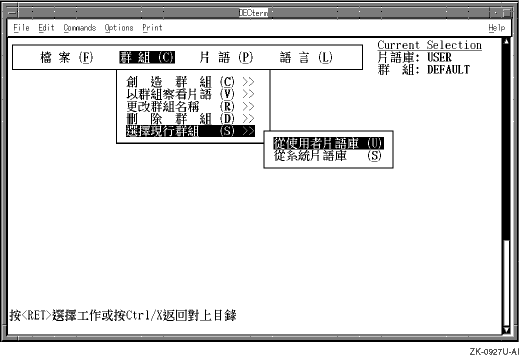
On startup, the Phrase Utility displays a full-screen,
menu-driven interface.
(Figure B-1
illustrates
the display as it would appear on an Asian language system.)
Figure B-1: User Interface Screen of the Phrase Utility
The Phrase Utility is a
curses
application.
To navigate the Phrase Utility user interface, use the following
guidelines:
To select a menu and menu items, use the arrow keys.
To activate the selected menu or menu item, press either the Return key or the space bar.
To select and activate in one operation, press the key for the underlined letter in the name of a menu or menu item, depending on your current level in the menu hierarchy.
To return to a higher level of the menu hierarchy without activating a selection, press Ctrl/x.
If you press Ctrl/x when a menu is not activated, the Phrase Utility exits.
The Phrase Utility screen includes the following:
A menu bar (upper-left corner of the screen)
An area that specifies the current phrase database and class (to the right of the menu bar)
Two lines for warning and informational messages (bottom of screen)
A large area for menu expansion and user dialog (center of screen)
The following list describes the Phrase Utility menus and the operations they perform. The list is followed by guidelines and restrictions on the use of these menus.
File Menu
Override the default path for the phrase database with which you want to work.
Exit from the Phrase Utility and save any changes made to the database.
Class Menu
Create a class.
View phrases in the selected class.
Rename a class.
Delete a class.
Choose (change) the current class.
Phrase Menu
Create a phrase within the selected class. If you do not explicitly choose a class, the Default class is assumed.
Modify a phrase.
Delete a phrase.
Language Menu
Choose the language in which screen text and messages appear.
The following guidelines and restrictions apply to the use of the Phrase Utility:
Creating and maintaining phrases
Phrases are maintained within the context of a phrase class. If you do not choose a class, the phrase is assumed to be in class Default. Otherwise, the phrase applies to the last class name you chose.
When you choose options that manipulate phrase definitions, a two-part window appears. The left side of the window displays phrase codes, while the right side of the window displays phrases.
You enter phrase names and definitions in an area below the two-part display window.
Choose your phrase name carefully. The phrase name is the code that the system uses to invoke the phrase. After you define a phrase name, you cannot modify it. To redefine a phrase name, you must delete and reenter the entire phrase definition. Phrase names must be unique within a given class, but you can use the same phrase name in different phrase classes.
The phrase itself can contain up to 80 bytes of data, which
correspond roughly to 80 columns on the screen.
All 80 bytes of data appear
in the user input area; however, the display window provides fewer than 80
columns to display the phrase.
As a result, long phrase definitions are truncated
at the right boundary of the display window.
In such cases, the right angle
bracket (>) appears in the rightmost position to indicate
that the phrase definition contains more data.
This truncation is a restriction
of the display window and does not apply to the phrase when it is invoked.
Creating and maintaining classes
Classes are created and maintained within the context of a particular database. If you have not explicitly specified a database, the class operation applies to your default database.
Class names must be unique within a database.
Creating a new class causes that class to be the selected class and then automatically invokes the function to create new phrases for the class.
There are no restrictions on the number of phrases in a class when phrases are retrieved through Asian terminals or through the input method window in the CDE environment.
Using multiple phrase databases
Phrase databases are locale specific.
You cannot invoke the
Phrase Utility without setting the
LANG
environment variable
to a locale; however, you can create phrase databases for any locale.
Be sure that the
LANG
environment variable is set
to the locale you want to create phrases for before invoking the Phrase Utility.
Otherwise, you will be working with (or creating) phrase databases for a locale
different from the one you want.
You can copy phrase definitions to your private database from the system-wide database and from databases of other users (assuming their file protections allow you read access). If you choose to copy phrases from another user's database, you are prompted for the absolute path of the database from which you want to copy. If the specified database is accessible to you, all its phrase definitions are listed and you choose the ones you want to copy.
You must own a database to create, delete, or modify classes in that database.
Nonprivileged users can perform write operations on their private databases. Only the superuser can perform write operations on the system-wide database.
How you use a phrase database depends on whether you are using
the hardware input method or the SIM service.
B.3.1 Phrase Input Supported Through the SIM Service
You use the SIM service on the traditional and simplified Chinese terminals or in a terminal emulation window on a workstation.
Before you can use a phrase database through SIM service, you must use
the
stty
command to perform the following tasks:
Make sure your locale is set to one that supports the appropriate
Asian codeset and that your terminal line discipline is set to
adec
Start the SIM service with the following command
% stty sim
Define the key sequence for toggling in and out of phrase input mode
The following example sets this key sequence to be Ctrl/b:
% stty simkey [Ctrl/b]
Define a key sequence that you do not already use at the command line or in other applications. For example, do not define the key sequence to be Ctrl/c (abort operation) or Ctrl/z (suspend operation).
If you do not want to use phrases from the class Default or from your
default phrase database, use the
stty
command to peform
the following tasks:
Specify the phrase class that the SIM service or specialized terminal software will use to interpret phrase codes. For example:
% stty simclass CORP
Specify the database that specialized terminal software will access
The SIM service always searches your private phrase database first for a phrase name and, if the name is not found, then searches the system-wide phrase database. However, terminals that support the hardware phrase input method can load phrases from only one database at a time. Therefore, a nonprivileged user using the terminal hardware input method might enter the following command:
% stty simdb /var/i18n/sim
When the terminal setup is complete, you can perform the following actions to retrieve a phrase:
Press the key sequence specified for the
simkey
option of the
stty
command, for example Ctrl/b.
At the bottom of your screen, you are prompted to enter a phrase code.
Type the phrase code and press either the Return key or the space bar.
The phrase is returned to the screen or, if the phrase code was not found, an error message is displayed.
When you want to exit from phrase input mode, press the
simkey
key sequence again.
While in phrase input mode, the characters that you enter are subject to the following rules:
Phrase codes must be uppercase letters or numbers. If you enter lowercase characters, they are converted to uppercase.
A space or Return character that is entered when the phrase code buffer is empty is sent directly to the application from which you entered phrase input mode.
This behavior means that you do not have to exit from phrase mode to enter a space or new line between phrases.
If you enter printable characters other than alphanumeric ones, the bell rings to signal that they are invalid characters for a phrase code.
Control key sequences other than the one used to toggle in and out of phrase mode are sent directly to the application from which you entered phrase input mode.
This behavior means that control sequences such as Ctrl/z and Ctrl/c are handled as you would expect for the system command line, editor, or other application in which the phrases are being entered.
Pressing a function or arrow key produces undefined results.
B.3.2 Phrase Input from the Input Options Application
When phrase input is supported by your language setting and the associated input method server is running, your desktop environment includes an Input Options window. Click on the Options button in this window to perform the following tasks:
Choose the phrase database (user or system)
Choose the phrase class within the database
Start phrase input
To start phrase input, choose Input Method Customization from the Input Options Menu and, in the pop-up dialog box, choose Phrase.