To tune for better file-system performance, you must understand how your applications and users perform disk I/O, as described in Section 1.8, and how the file system you are using shares memory with processes, as described in Chapter 12. Using this information, you might improve file-system performance by changing the value of the kernel subsystem attributes described in this chapter.
This chapter describes how to tune:
Caches used by file systems (Section 11.1)
The Advanced File System (AdvFS) (Section 11.2)
The UNIX file system (UFS) (Section 11.3)
Network file system (NFS) (Section 11.4 and Chapter 5)
The kernel caches (temporarily stores) in memory recently accessed data. Caching data is effective because data is frequently reused and it is much faster to retrieve data from memory than from disk. When the kernel requires data, it checks if the data was cached. If the data was cached, it is returned immediately. If the data was not cached, it is retrieved from disk and cached. File-system performance is improved if data is cached and later reused.
Data found in a cache is called a cache hit, and the effectiveness of cached data is measured by a cache hit rate. Data that was not found in a cache is called a cache miss.
Cached data can be information about a file, user or application data, or metadata, which is data that describes an object (for example, a file). The following list identifies the types of data that are cached:
A file name and its corresponding vnode is cached in the namei cache (Section 11.1.2).
UFS user and application data and AdvFS user and application data and metadata are cached in the Unified Buffer Cache (UBC) (Section 11.1.3).
UFS file metadata is cached in the metadata buffer cache (Section 11.1.4).
AdvFS open file information is cached in access structures (Section 11.1.5).
11.1.1 Monitoring Cache Statistics
Table 11-1
describes the commands you can
use to display and monitor cache information.
Table 11-1: Tools to Display Cache Information
| Tools | Description | Reference |
|
Displays namei cache statistics. | |
|
Displays virtual memory statistics. | |
|
Displays metadata buffer cache statistics. |
The virtual file system (VFS) presents to applications a uniform kernel interface that is abstracted from the subordinate file system layer. As a result, file access across different types of file systems is transparent to the user.
The VFS uses a structure called a
vnode
to store
information about each open file in a mounted file system.
If an application
makes a read or write request on a file, VFS uses the vnode information to
convert the request and direct it to the appropriate file system.
For example,
if an application makes a
read()
system call request on
a file, VFS uses the vnode information to convert the system call to the appropriate
type for the file system containing the file:
ufs_read()
for UFS,
advfs_read()
for AdvFS, or
nfs_read()
call if the file is in a file system mounted through NFS, then
directs the request to the appropriate file system.
The VFS caches a recently accessed file name and its corresponding vnode in the namei cache. File-system performance is improved if a file is reused and its name and corresponding vnode are in the namei cache.
The following list describes the
vfs
subsystem attributes
that relate to the namei cache:
Related Attributes
vnode_deallocation_enable
— Specifies
whether or not to dynamically allocate vnode according to system demands.
Disabling causes the operating system to use a static vnode pool. For the best performance, do not disable dynamic vnode allocation.
name_cache_hash_size
— Specifies
the size, in slots, of the hash chain table for the namei cache.
vnode_age
— Specifies the amount
of time, in seconds, before a free vnode can be recycled.
namei_cache_valid_time
— Specifies
the amount of time, in seconds, that a namei cache entry can remain in the
cache before it is discarded.
Note
If you use increase the values of namei cache-related attributes, consider increasing file system attributes that cache file and directory information. If you use AdvFS, see Section 11.1.5 for more information. If you use UFS, see Section 11.1.4 for more information.
When to Tune
You can check namei cache statistics to see if you should change the
values of namei cache related attributes.
To check namei cache statistics,
enter the
dbx print
command and specify a processor number
to examine the
nchstats
data structure.
For example:
# /usr/ucb/dbx -k /vmunix /dev/mem
(dbx) print processor_ptr[0].nchstats
Information similar to the following is displayed:
struct {
        ncs_goodhits = 18984
        ncs_neghits = 358
        ncs_badhits = 113
        ncs_falsehits = 23
        ncs_miss = 699
        ncs_long = 21
        ncs_badtimehits = 33
        ncs_collisions = 2
        ncs_unequaldups = 0
        ncs_newentry = 697
        ncs_newnegentry =  419
        ncs_gnn_hit = 1653
        ncs_gnn_miss = 12
        ncs_gnn_badhits = 12
        ncs_gnn_collision = 4
        ncs_pad = {
            [0] 0
        }
}
Table 11-2
describes when you might change the values
of namei cache related attributes based on the
dbx
print
output:
Table 11-2: When to Change the Values of the Namei Cache Related Attributes
| If | Increase |
The value of
|
The value of either the
maxusers
attribute or the
name_cache_hash_size
attribute |
The value of the
ncs_badtimehits
is more than 0.1 percent of the
ncs_goodhits |
The value of the
namei_cache_valid_time
attribute and the
vnode_age
attribute |
You cannot modify the values of the
name_cache_hash_size
attribute, the
namei_cache_valid_time
attribute, or the
vnode_deallocation_enable
attribute without rebooting the system.
You can modify the value of the
vnode_age
attribute without
rebooting the system.
See
Chapter 3
for information
about modifying subsystem attributes.
11.1.3 Tuning the UBC
The Unified Buffer Cache (UBC) shares with processes the memory that is not wired to cache UFS user and application data and AdvFS user and application data and metadata. File-system performance is improved if the data and metadata is reused and in the UBC.
Related Attributes
The following list describes the
vm
subsystem attributes
that relate to the UBC:
vm_ubcdirtypercent
— Specifies the
percentage of pages that must be dirty (modified) before the UBC starts writing
them to disk.
ubc_maxdirtywrites
— Specifies the
number of I/O operations (per second) that the
vm
subsystem
performs when the number of dirty (modified) pages in the UBC exceeds the
value of the
vm_ubcdirtypercent
attribute.
ubc_maxpercent
— Specifies the maximum
percentage of physical memory that the UBC can use at one time.
ubc_borrowpercent
— Specifies the
percentage of memory above which the UBC is only borrowing memory from the
vm
subsystem.
Paging does not occur until the UBC has returned all
its borrowed pages.
ubc_minpercent
— Specifies the minimum
percentage of memory that the UBC can use.
The remaining memory is shared
with processes.
vm_ubcpagesteal
— Specifies the minimum
number of pages to be available for file expansion.
When the number of available
pages falls below this number, the UBC steals additional pages to anticipate
the file's expansion demands.
vm_ubcseqpercent
— Specifies the
maximum amount of memory allocated to the UBC that can be used to cache a
single
vm_ubcseqstartpercent
— Specifies
a threshold value that determines when the UBC starts to recognize sequential
file access and steal the UBC LRU pages for a file to satisfy its demand for
pages.
This value is the size of the UBC in terms of its percentage of physical
memory.
Note
If the values of the
ubc_maxpercentandubc_minpercentattributes are close, you may degrade file system performance.
When to Tune
An insufficient amount of memory allocated to the UBC can impair file
system performance.
Because the UBC and processes share memory, changing the
values of UBC-related attributes might cause the system to page.
You can use
the
vmstat
command to display virtual memory statistics
that will help you to determine if you need to change values of UBC-related
attributes.
Table 11-3
describes when you might change
the values UBC-related attributes based on the
vmstat
output:
Table 11-3: When to Change the Values of the UBC-Related Attributes
| If vmstat Output Displays Excessive: | Action: |
| Paging but few or no page outs | Increase the value of the
|
| Paging and swapping | Decrease the
ubc_maxpercent
attribute.
|
| Paging | Force the system to reuse pages in the UBC instead of
from the free list by making the value of the
ubc_maxpercent
attribute greater than the value of the
vm_ubseqstartpercent
attribute, which it is by default, and that the value of the
vm_ubcseqpercent
attribute is greater than a referenced file.
|
| Page outs | Increase the value of the
ubc_minpercent
attribute.
|
See
Section 12.3.1
for information on the
vmstat
command.
See
Section 12.1.2.2
for information about
UBC memory allocation.
You can modify the value of any of the UBC parameters described in this section without rebooting the system. See Chapter 3 for information about modifying subsystem attributes.
Note
The performance of an application that generates a lot of random I/O is not improved by a large UBC, because the next access location for random I/O cannot be predetermined.
11.1.4 Tuning the Metadata Buffer Cache
At boot time, the kernel wires a percentage of memory for the metadata buffer cache. UFS file metadata, such as superblocks, inodes, indirect blocks, directory blocks, and cylinder group summaries are cached in the metadata buffer cache. File-system performance is improved if the metadata is reused and in the metadata buffer cache.
Related Attributes
The following list describes the
vfs
subsystem attributes
that relate to the metadata buffer cache:
bufcache
— Specifies the size, as
a percentage of memory, that the kernel wires for the metadata buffer cache.
buffer_hash_size
— Specifies the
size, in slots, of the hash chain table for the metadata buffer cache.
You cannot modify the values of the
buffer_hash_size
attribute or the
bufcache
attribute without rebooting the
system.
See
Chapter 3
for information about modifying
kernel subsystem attributes.
When to Tune
Consider increasing the size of the
bufcache
attribute
if you have a high cache miss rate (low hit rate).
To determine if you have a high cache miss rate, use the
dbx
print
command to display the
bio_stats
data structure.
If the miss rate (block misses divided by the sum of the block misses and
block hits) is more than 3 percent, consider increasing the value of the
bufcache
attribute.
See
Section 11.3.2.3
for more
information on displaying the
bio_stats
data structure.
Note that increasing the value of the
bufcache
attribute
will reduce the amount of memory available to processes and the UBC.
11.1.5 Tuning AdvFS Access Structures
At boot time, the system reserves a portion of the physical memory that is not wired by the kernel for AdvFS access structures. AdvFS caches information about open files and information about files that were opened but are now closed in AdvFS access structures. File-system performance is improved if the file information is reused and in an access structure.
AdvFS access structures are dynamically allocated and deallocated according to the kernel configuration and system demands.
Related Attribute
AdvfsAccessMaxPercent
— specifies,
as a percentage, the maximum amount of pageable memory that can be allocated
for AdvFS access structures.
You can modify the value of the
AdvfsAccessMaxPercent
attribute without rebooting the system.
See
Chapter 3
for information about modifying kernel subsystem attributes.
When to Tune
If users or applications reuse AdvFS files (for example, a proxy server),
consider increasing the value of the
AdvfsAccessMaxPercent
attribute to allocate more memory for AdvFS access structures.
Note that increasing
the value of the
AdvfsAccessMaxPercent
attribute reduces
the amount of memory available to processes and might cause excessive paging
and swapping.
You can use the
vmstat
command to display
virtual memory statistics that will help you to determine excessive paging
and swapping.
See
Section 12.3.1
for information on the
vmstat
command
Consider decreasing the amount of memory reserved for AdvFS access structures if:
You do not use AdvFS.
Your workload does not frequently open, close, and reopen the same files.
You have a large-memory system (because the number of open files does not scale with the size of system memory as efficiently as UBC memory usage and process memory usage).
This section describes how to tune Advanced File System (AdvFS) queues, AdvFS configuration guidelines, and commands that you can use to display AdvFS information.
See the
AdvFS Administration
manual for information about AdvFS features
and setting up and managing AdvFS.
11.2.1 AdvFS Configuration Guidelines
The amount of I/O contention on the volumes in a file domain is the most critical factor for fileset performance. This can occur on large, very busy file domains. To help you determine how to set up filesets, first identify:
Frequently accessed data
Infrequently accessed data
Specific types of data (for example, temporary data or database data)
Data with specific access patterns (for example, create, remove, read, or write)
Then, use the previous information and the following guidelines to configure filesets and file domains:
Configure filesets that contain similar types of files in
the same file domain to reduce disk fragmentation and improve performance.
For example, do not place small temporary files, such as the output from
cron
and from news, mail, and Web cache servers, in the same file
domain as a large database file.
For applications that perform many file create or remove operations, configure multiple filesets and distribute files across the filesets. This reduces contention on individual directories, the root tag directory, quota files, and the frag file.
Configure filesets used by applications with different I/O access patterns (for example, create, remove, read, or write patterns) in the same file domain. This might help to balance the I/O load.
To reduce I/O contention in a multivolume file domain with more than one fileset, configure multiple domains and distribute the filesets across the domains. This enables each volume and domain transaction log to be used by fewer filesets.
Filesets with a very large number of small files can affect
vdump
and
vrestore
commands at times.
Using multiple
filesets enables the
vdump
command to be run simultaneously
on each fileset, and decreases the amount of time needed to recover filesets
with the
vrestore
command.
Table 11-4
lists additional AdvFS configuration
guidelines and performance benefits and tradeoffs.
See the
AdvFS Administration
manual for more information about AdvFS.
Table 11-4: AdvFS Configuration Guidelines
| Benefit | Guideline | Tradeoff |
| Data loss protection | Use LSM or RAID to store data using RAID1 (mirror data) or RAID5 (Section 11.2.1.1) | Requires LSM or RAID |
| Data loss protection | Force synchronous writes or enable atomic write data logging on a file (Section 11.2.1.2) | Might degrade file system performance |
| Improve performance for applications that read or write data only once | Enable direct I/O (Section 11.2.1.3) | Degrades performance of applications that repeatedly access the same data |
| Improve performance | Use AdvFS to distribute files in a file domain (Section 11.2.1.4) | None |
| Improve performance | Stripe data (Section 11.2.1.5) | None if using AdvFS or requires LSM or RAID |
| Improve performance | Defragment file domains (Section 11.2.1.6) | None |
| Improve performance | Decrease the I/O transfer size (Section 11.2.1.7) | None |
| Improves performance | Move the transaction log to a fast or uncongested disk (Section 11.2.1.8) | Might require an additional disk |
The following sections describe these guidelines in more detail.
11.2.1.1 Storing Data Using RAID1 or RAID5
You can use LSM or hardware RAID to implement a RAID1 or RAID5 data storage configuration.
In a RAID1 configuration, LSM or hardware RAID stores and maintain mirrors (copies) of file domain or transaction log data on different disks. If a disk fails, LSM or hardware RAID uses a mirror to make the data available.
In a RAID5 configuration, LSM or hardware RAID stores parity information and data. If a disk fails, LSM or hardware RAID use the parity information and data on the remaining disks to reconstruct the missing data.
See the
Logical Storage Manager
manual for more information about LSM.
See
your storage hardware documentation for more information about hardware RAID.
11.2.1.2 Forcing a Synchronous Write Request or Enabling Persistent Atomic Write Data Logging
AdvFS
writes data to disk in 8-KB units.
By default, AdvFS asynchronous write requests
are cached in the UBC, and the
write
system call returns
a success value.
The data is written to disk at a later time (asynchronously).
AdvFS does not guarantee that all or part of the data will actually be written
to disk if a crash occurs during or immediately after the write.
For example,
if the system crashes during a write that consists of two 8-KB units of data,
only a portion (less than 16 KB) of the total write might have succeeded.
This can result in partial data writes and inconsistent data.
You can configure AdvFS to force the write request for a specified file
to be synchronous to ensure that data is successfully written to disk before
the
write
system call returns a success value.
Enabling persistent atomic write data logging for a specified file writes
the data to the transaction log file before it is written to disk.
If a system
crash occurs during or immediately after the
write
system
call, the data in the log file is used to reconstruct the
write
system call upon recovery.
You cannot enable both forced synchronous writes and persistent atomic
write data logging on a file.
However, you can enable atomic write data logging
on a file and also open the file with an
O_SYNC
option.
This ensures that the write is synchronous, but also prevents partial writes
if a crash occurs before the
write
system call returns.
To force synchronous write requests, enter:
# chfile -l on filename
A file that has persistent atomic write data logging enabled cannot
be memory mapped by using the
mmap
system call, and it
cannot have direct I/O enabled (see
Section 11.2.1.3).
To enable persistent atomic write data logging, enter:
# chfile -L on filename
A file that has persistent atomic write data logging will only be atomic if the writes are 8192 bytes or less. If the writes are greater than 8192 bytes, they are written in segments that are at most 8192 bytes in length with each segement an atomic-write.
To enable atomic-write data logging on AdvFS files that are NFS mounted, ensure that:
The NFS property list daemon,
proplistd,
is running on the NFS server and that the fileset is mounted on the client
by using the
mount
command and the
proplist
option.
The offset into the file is on an 8-KB page boundary, because NFS performs I/O on 8-KB page boundaries. In this case, only 8192 byte segment that start on 8-KB page boundaries can be automatically written.
See
chfile(8)11.2.1.3 Enabling Direct I/O
You can enable direct I/O to significantly improve disk I/O throughput for applications that do not frequently reuse previously accessed data. The following lists considerations if you enable direct I/O:
Data is not cached in the UBC and reads and writes are synchronous.
You can use the asynchronous I/O (AIO) functions (aio_read
and
aio_write) to enable an application to achieve an asynchronous-like
behavior by issuing one or more synchronous direct I/O requests without waiting
for their completion.
Although direct I/O supports I/O requests of any byte size, the best performance occurs when the requested byte transfer is aligned on a disk sector boundary and is an even multiple of the underlying disk sector size.
You cannot enable direct I/O for a file if it is already opened for
data logging or if it is memory mapped.
Use the
fcntl
system
call with the
F_GETCACHEPOLICY
argument to determine if
an open file has direct I/O enabled.
To enable direct I/O for a specific file, use the
open
system call and set the
O_DIRECTIO
file access flag.
A
file remains opened for direct I/O until all users close the file.
See
fcntl(2)open(2)11.2.1.4 Using AdvFS to Distribute Files
If the files in a multivolume domain are not evenly distributed, performance might be degraded. You can distribute space evenly across volumes in a multivolume file domain to balance the percentage of used space among volumes in a domain. Files are moved from one volume to another until the percentage of used space on each volume in the domain is as equal as possible.
To determine if you need to balance files, enter:
# showfdmn file_domain_name
Information similar to the following is displayed:
               Id     Date Created       LogPgs Version   Domain Name
3437d34d.000ca710  Sun Oct 5 10:50:05 2001  512       3   usr_domain
 Vol  512-Blks   Free % Used  Cmode Rblks  Wblks  Vol Name
  1L   1488716 549232    63%     on   128    128  /dev/disk/dsk0g
  2     262144 262000     0%     on   128    128  /dev/disk/dsk4a
     --------- -------  ------
       1750860 811232    54%
The
% Used
field shows the percentage of volume space
that is currently allocated to files or metadata (the fileset data structure).
In the previous example, the
usr_domain
file domain is
not balanced.
Volume 1 has 63 percent used space while volume 2 has 0 percent
used space (it was just added).
To distribute the percentage of used space evenly across volumes in a multivolume file domain, enter:
# balance file_domain_name
The
balance
command is transparent to users and applications,
and does not affect data availability or split files.
Therefore, file domains
with very large files may not balance as evenly as file domains with smaller
files and you might need to manually move large files into the same volume
in a multivolume file domain.
To determine if you should move a file, enter:
# showfile -x file_name
Information similar to the following is displayed:
    Id Vol PgSz Pages XtntType  Segs  SegSz  I/O  Perf  File
8.8002   1   16    11   simple    **     ** async  18%  src

             extentMap: 1
        pageOff    pageCnt     vol    volBlock    blockCnt
              0          1       1      187296          16
              1          1       1      187328          16
              2          1       1      187264          16
              3          1       1      187184          16
              4          1       1      187216          16
              5          1       1      187312          16
              6          1       1      187280          16
              7          1       1      187248          16
              8          1       1      187344          16
              9          1       1      187200          16
             10          1       1      187232          16
        extentCnt: 11
The file in the previous example is a good candidate to move to another
volume because it has 11 extents and an 18 percent performance efficiency
as shown in the
Perf
field.
A high percentage indicates
optimal efficiency.
To move a file to a different volume in the file domain, enter:
# migrate [-p pageoffset] [-n pagecount] [-s volumeindex_from] \
[-d volumeindex_to] file_name
You can specify the volume from which a file is to be moved, or allow the system to pick the best space in the file domain. You can move either an entire file or specific pages to a different volume.
Note that using the
balance
utility after moving
files might move files to a different volume.
See
showfdmn(8)migrate(8)balance(8)11.2.1.5 Striping Data
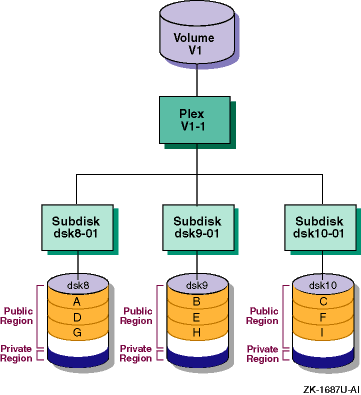
You can use AdvFS, LSM, or hardware RAID to stripe (distribute) data. Striped data is data that is separated into units of equal size, then written to two or more disks, creating a stripe of data. The data can be simultaneously written if there are two or more units and the disks are on different SCSI buses.
Figure 11-1
shows how a write request of 384
KB of data is separated into six 64-KB data units and written to three disks
as two complete stripes.
Figure 11-1: Striping Data
Use only one method to stripe data. In some specific cases, using multiple striping methods can improve performance, but only if:
Most of the I/O requests are large (greater than or equal to 1 MB)
The data is striped over multiple RAID sets on different controllers
The LSM or AdvFS stripe size is a multiple of the full hardware RAID stripe size
See
stripe(8)11.2.1.6 Defragmenting a File Domain
An extent is a contiguous area of disk space that AdvFS allocates to a file. Extents consist of one or more 8-KB pages. When storage is added to a file, it is grouped in extents. If all data in a file is stored in contiguous blocks, the file has one file extent. However, as files grow, contiguous blocks on the disk may not be available to accommodate the new data, so the file must be spread over discontiguous blocks and multiple file extents.
File I/O is most efficient when there are few extents. If a file consists of many small extents, AdvFS requires more I/O processing to read or write the file. Disk fragmentation can result in many extents and may degrade read and write performance because many disk addresses must be examined to access a file.
To display fragmentation information for a file domain, enter:
# defragment -vn file_domain_name
Information similar to the following is displayed:
 defragment: Gathering data for 'staff_dmn'
 Current domain data:
   Extents:                 263675
   Files w/ extents:        152693
   Avg exts per file w/exts:  1.73
   Aggregate I/O perf:         70%
   Free space fragments:     85574
                <100K   <1M   <10M   >10M
   Free space:   34%   45%    19%     2%
   Fragments:  76197  8930    440      7
Ideally, you want few extents for each file.
Although the
defragment
command does not affect data
availability and is transparent to users and applications, it can be a time-consuming
process and requires disk space.
Run the
defragment
command
during low file system activity as part of regular file system maintenance,
or if you experience problems because of excessive fragmentation.
There is little performance benefit from defragmenting a file domain that contains files less than 8 KB, is used in a mail server, or is read-only.
You can also use the
showfile
command to check a
file's fragmentation.
See
Section 11.2.2.4
and
defragment(8)11.2.1.7 Decreasing the I/O Transfer Size
AdvFS attempts to transfer data to and from the disk in sizes that are the most efficient for the device driver. This value is provided by the device driver and is called the preferred transfer size. AdvFS uses the preferred transfer size to:
Consolidate contiguous, small I/O transfers into a larger, single I/O of the preferred transfer size. This results in a fewer number of I/O requests, which increases throughput.
Prefetch, or read-ahead, as many subsequent pages for files being read sequentially up to the preferred transfer size in anticipation that those pages will eventually be read by the applicaton.
Generally, the I/O transfer size provided by the device driver is the most efficient. However, in some cases you may want to reduce the AdvFS I/O transfer size. For example, if your AdvFS fileset is using LSM volumes, the preferred transfer size might be very high. This could cause the cache to be unduly diluted by the buffers for the files being read. If this is suspected, reducing the read transfer size may alleviate the problem.
For systems with impaired
mmap
page faulting or with
limited memory, limit the read transfer size to limit the amount of data that
is prefetched; however, this will limit I/O consolidation for all reads from
this disk.
To display the I/O transfer sizes for a disk, enter:
# chvol -l block_special_device_name domain
To modify the read I/O transfer size, enter:
# chvol -r blocks block_special_device_name domain
To modify the write I/O transfer size, enter:
# chvol -w blocks block_special_device_name domain
See
chvol(8)
Each device driver has a minimum and maximum value for the I/O transfer
size.
If you use an unsupported value, the device driver automatically limits
the value to either the largest or smallest I/O transfer size it supports.
See your device driver documentation for more information on supported I/O
transfer sizes.
11.2.1.8 Moving the Transaction Log
Place the AdvFS transaction log on a fast or uncongested disk and bus; otherwise, performance might be degraded.
To display volume information, enter:
# showfdmn file_domain_name
Information similar to the following is displayed:
               Id              Date Created  LogPgs  Domain Name
35ab99b6.000e65d2  Tue Jul 14 13:47:34 2002     512  staff_dmn

  Vol   512-Blks        Free  % Used  Cmode  Rblks  Wblks  Vol Name
   3L     262144      154512     41%     on    256    256  /dev/rz13a
   4      786432      452656     42%     on    256    256  /dev/rz13b
      ----------  ----------  ------
         1048576      607168     42%
In the
showfdmn
command display, the letter
L
displays next to the volume that contains the transaction log.
If the transaction log is located on a slow or busy disk, you can:
Move the transaction log to a different disk.
Use the
switchlog
command to move the transaction
log.
Divide a large multivolume file domain into several smaller file domains. This will distribute the transaction log I/O across multiple logs.
To divide a multivolume domain into several smaller domains, create
the smaller domains and then copy portions of the large domain into the smaller
domains.
You can use the AdvFS
vdump
and
vrestore
commands to allow the disks being used in the large domain to be
used in the construction of the several smaller domains.
See
showfdmn(8)switchlog(8)vdump(8)vrestore(8)11.2.2 Monitoring AdvFS Statistics
Table 11-5
describes the commands you can use to display AdvFS information.
Table 11-5: Tools to Display AdvFS Information
| Tool | Description | Reference |
|
Displays AdvFS performance statistics. | |
|
Displays disks in a file domain. | |
|
Displays information about AdvFS file domans and volumes. | |
|
Displays AdvFS fileset information for a file domain. | |
|
Displays information about files in an AdvFS fileset. |
The following sections describe these commands in more detail.
11.2.2.1 Displaying AdvFS Performance Statistics
To display detailed information
about a file domain, including use of the UBC and namei cache, fileset vnode
operations, locks, bitfile metadata table (BMT) statistics, and volume I/O
performance, use the
advfsstat
command.
The following example displays volume I/O queue statistics:
# advfsstat -v 3 [-i number_of_seconds] file_domain
Information, in units of one disk block (512 bytes), similar to the following is displayed:
  rd   wr   rg  arg   wg  awg  blk ubcr flsh  wlz  sms  rlz  con  dev
   0    0    0    0    0    0   1M    0  10K 303K  51K  33K  33K  44K
You can use the
-i
option to display information
at specific time intervals, in seconds.
The previous example displays:
rd
(read) and
wr
(write)
requests
Compare the number of read requests to the number of write requests. Read requests are blocked until the read completes, but asynchronous write requests will not block the calling thread, which increases the throughput of multiple threads.
rg
and
arg
(consolidated
reads) and
wg
and
awg
(consolidated
writes)
The consolidated read and write values indicate the number of disparate reads and writes that were consolidated into a single I/O to the device driver. If the number of consolidated reads and writes decreases compared to the number of reads and writes, AdvFS may not be consolidating I/O.
blk
(blocking queue),
ubcr
(ubc request queue),
flsh
(flush queue),
wlz
(wait queue),
sms
(smooth sync queue),
rlz
(ready queue),
con
(consol queue), and
dev
(device queue).
See
Section 11.2.3
for information on AdvFS
I/O queues.
If you are experiencing poor performance, and the number of I/O requests
on the
flsh,
blk, or
ubcr
queues increases continually while the number on the
dev
queue remains fairly constant, the application may be I/O bound to this device.
You might eliminate the problem by adding more disks to the domain or by striping
with LSM or hardware RAID.
To display the number of file creates, reads, and writes and other operations for a specified domain or fileset, enter:
# advfsstat [-i number_of_seconds] -f 2 file_domain file_set
Information similar to the following is displayed:
  lkup  crt geta read writ fsnc dsnc   rm   mv rdir  mkd  rmd link
     0    0    0    0    0    0    0    0    0    0    0    0    0
     4    0   10    0    0    0    0    2    0    2    0    0    0
     0    0    0    0    0    0    0    0    0    0    0    0    0
     0    0    0    0    0    0    0    0    0    0    0    0    0
    24    8   51    0    9    0    0    3    0    0    4    0    0
  1201  324 2985    0  601    0    0  300    0    0    0    0    0
  1275  296 3225    0  655    0    0  281    0    0    0    0    0
  1217  305 3014    0  596    0    0  317    0    0    0    0    0
  1249  304 3166    0  643    0    0  292    0    0    0    0    0
  1175  289 2985    0  601    0    0  299    0    0    0    0    0
   779  148 1743    0  260    0    0  182    0   47    0    4    0
     0    0    0    0    0    0    0    0    0    0    0    0    0
     0    0    0    0    0    0    0    0    0    0    0    0    0
See
advfsstat(8)11.2.2.2 Displaying Disks in an AdvFS File Domain
To search all devices and LSM disk groups for AdvFS domains.
To rebuild all or part of your
/etc/fdmns
directory if you deleted the
/etc/fdmns
directory, a directory
domain under
/etc/fdmns, or links from a domain directory
under
/etc/fdmns.
If you moved devices in a way that has changed device numbers.
To display AdvFS volumes on devices or in an LSM disk group, enter:
# advscan device | LSM_disk_group
Information similar to the following is displayed:
Scanning disks  dsk0 dsk5
Found domains:
usr_domain
          Domain Id       2e09be37.0002eb40
          Created         Thu Jun 26 09:54:15 2002
          Domain volumes          2
          /etc/fdmns links        2
          Actual partitions found:
                                  dsk0c
                                  dsk5c
To re-create missing domains on a device, enter:
# advscan -r device
Information similar to the following is displayed:
Scanning disks  dsk6
Found domains: *unknown*
          Domain Id       2f2421ba.0008c1c0
          Created         Mon Jan 20 13:38:02 2002
          Domain volumes          1
          /etc/fdmns links        0
          Actual partitions found:
                                  dsk6a*
*unknown*
         Domain Id       2f535f8c.000b6860
         Created         Tue Feb 25 09:38:20 2002
         Domain volumes          1
         /etc/fdmns links        0
         Actual partitions found:
                                 dsk6b*

Creating /etc/fdmns/domain_dsk6a/
        linking dsk6a
Creating /etc/fdmns/domain_dsk6b/
        linking dsk6b
See
advscan(8)11.2.2.3 Displaying AdvFS File Domains
To display information about a file domain, including the date created and the size and location of the transaction log, and information about each volume in the domain, including the size, the number of free blocks, the maximum number of blocks read and written at one time, and the device special file, enter:
# showfdmn file_domain
Information similar to the following is displayed:
               Id              Date Created  LogPgs  Version  Domain Name
34f0ce64.0004f2e0  Wed Mar 17 15:19:48 2002     512        4  root_domain

  Vol   512-Blks        Free  % Used  Cmode  Rblks  Wblks  Vol Name
   1L     262144       94896     64%     on    256    256  /dev/disk/dsk0a
For multivolume domains, the
showfdmn
command also
displays the total volume size, the total number of free blocks, and the total
percentage of volume space currently allocated.
See
showfdmn(8)11.2.2.4 Displaying AdvFS File Information
To display detailed information about files (and directories) in an AdvFS fileset, enter:
# showfile filename...
or
# showfile *
The
*
displays the AdvFS characteristics for all
of the files in the current working directory.
Information similar to the following is displayed:
         Id  Vol  PgSz  Pages  XtntType  Segs  SegSz  I/O   Perf  File
  23c1.8001    1    16      1    simple    **     **  ftx   100%  OV
  58ba.8004    1    16      1    simple    **     **  ftx   100%  TT_DB
         **   **    **     **   symlink    **     **   **     **  adm
  239f.8001    1    16      1    simple    **     **  ftx   100%  advfs
         **   **    **     **   symlink    **     **   **     **  archive
     9.8001    1    16      2    simple    **     **  ftx   100%  bin (index)
         **   **    **     **   symlink    **     **   **     **  bsd
         **   **    **     **   symlink    **     **   **     **  dict
   288.8001    1    16      1    simple    **     **  ftx   100%  doc
   28a.8001    1    16      1    simple    **     **  ftx   100%  dt
         **   **    **     **   symlink    **     **   **     **  man
  5ad4.8001    1    16      1    simple    **     **  ftx   100%  net
         **   **    **     **   symlink    **     **   **     **  news
   3e1.8001    1    16      1    simple    **     **  ftx   100%  opt
         **   **    **     **   symlink    **     **   **     **  preserve
         **   **    **     **     advfs    **     **   **     **  quota.group
         **   **    **     **     advfs    **     **   **     **  quota.user
     b.8001    1    16      2    simple    **     **  ftx   100%  sbin (index)
         **   **    **     **   symlink    **     **   **     **  sde
   61d.8001    1    16      1    simple    **     **  ftx   100%  tcb
         **   **    **     **   symlink    **     **   **     **  tmp
         **   **    **     **   symlink    **     **   **     **  ucb
  6df8.8001    1    16      1    simple    **     **  ftx   100%  users
See
showfile(8)11.2.2.5 Displaying the AdvFS Filesets in a File Domain
To display information about the filesets in a file domain, including the fileset names, the total number of files, the number of used blocks, the quota status, and the clone status, enter:
# showfsets
file_domain
Information similar to the following is displayed:
usr
        Id           : 3d0f7cf8.000daec4.1.8001
        Files        :    30469,  SLim=        0,  HLim=        0
        Blocks (512) :  1586588,  SLim=        0,  HLim=        0
        Quota Status : user=off group=off
        Object Safety: off
        Fragging     : on
        DMAPI        : off
The previous example displays that a file domain called
dmn1
has one fileset and one clone fileset.
See
showfsets(8)11.2.3 Tuning AdvFS Queues
For each AdvFS volume, I/O requests are sent to one of the following queues:
Blocking, UBC request, and flush queue
The blocking, UBC request, and flush queues are queues in which reads and synchronous write requests are cached. A synchronous write request must be written to disk before it is considered complete and the application can continue.
The blocking queue is used primarily for reads and for kernel synchronous
write requests.
The UBC request queue is used for handling UBC requests to
flush pages to disk.
The flush queue is used primarily for buffer write requests,
either through
fsync(),
sync(), or synchronous
writes.
Because the buffers on the blocking and UBC request queues are given
slightly higher priority than those on the flush queue, kernel requests are
handled more expeditiously and are not blocked if many buffers are waiting
to be written to disk.
Processes that need to read or modify data in a buffer in the blocking, UBC request, or flush queue must wait for the data to be written to disk. This is in direct contrast with buffers on the lazy queues that can be modified at any time until they are finally moved down to the device queue.
Lazy queue
The lazy queue is a logical series of queues in which asynchronous write requests are cached. When an asynchronous I/O request enters the lazy queue, it is assigned a timestamp. This timestamp is used to periodically flush the buffers down toward the disk in numbers large enough to allow them to be consolidated into larger I/Os. Processes can modify data in buffers at any time while they are on the lazy queue, potentially avoiding additonal I/Os. Descriptions of the queues in the lazy queue are provided after Figure 11-2.
All four queues (blocking, UBC request, flush, and lazy) move buffers to the device queue. As buffers are moved onto the device queue, logically contiguous I/Os are consolidated into larger I/O requests. This reduces the actual number of I/Os that must be completed. Buffers on the device queue cannot be modified until their I/O has completed.
The algorithms that move the buffers onto the device queue and favor taking buffers from the queues in the following order; blocking queue, UBC request queue, and then flush queue. All three are favored over the lazy queue. The size of the device queue is limited by device and driver resources. The algorithms that load the device queue use feedback from the drivers to know when the device queue is full. At that point the device is saturated and continued movement of buffers to the device queue would only degrade throughput to the device. The potential size of the device queue and how full it is, ultimately determines how long it may take to complete a synchronous I/O operation.
Figure 11-2
shows the movement of synchronous
and asynchronous I/O requests through the AdvFS I/O queues.
Figure 11-2: AdvFS I/O Queues
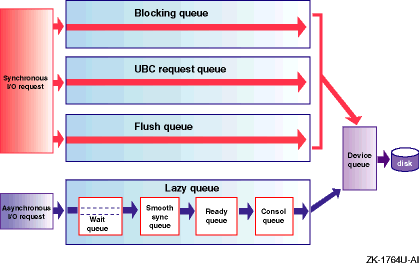
Detailed descriptions of the AdvFS lazy queues are as follows:
Wait queue — Asynchronous I/O requests that are waiting for an AdvFS transaction log write to complete first enter the wait queue. Each file domain has a transaction log that tracks fileset activity for all filesets in the file domain, and ensures AdvFS metadata consistency if a crash occurs.
AdvFS uses write-ahead logging, which requires that when metadata is modified, the transaction log write must complete before the actual metadata is written. This ensures that AdvFS can always use the transaction log to create a consistent view of the file-system metadata. After the transaction log is written, I/O requests can move from the wait queue to the smooth sync queue.
Smooth sync queue — Asynchronous I/O requests remain in the smooth sync queue for at least 30 seconds, by default. Allowing requests to remain in the smooth sync queue for a specified amount of time prevents I/O spikes, increases cache hit rates, and improves the consolidation of requests. After requests have aged in the smooth sync queue, they move to the ready queue.
Ready queue — Asynchronous I/O requests are sorted in the ready queue. After the queue reaches a specified size, the requests are moved the consol queue.
Consol queue — Asynchronous I/O requests are interleaved in the consol queue and moved to the device queue.
Related Attributes
The following list describes the
vfs
subsystem attributes
that relate to AdvFS queues:
smoothsync_age
— Specifies the amount
of time, in seconds, that a modified page ages before becoming eligible for
the smoothsync mechanism to flush it to disk.
The
smoothsync_age
attribute is enabled when the
system boots to multiuser mode and disabled when the system changes from multiuser
mode to single-user mode.
To permanently change the value of the
smoothsync_age
attribute, edit the following lines in the
/etc/inittab
file:
smsync:23:wait:/sbin/sysconfig -r vfs smoothsync_age=30 > /dev/null 2>&1
smsyncS:Ss:wait:/sbin/sysconfig -r vfs smoothsync_age=0 > /dev/null 2>&1
You can use the
smsync2
mount option to specify an
alternate smoothsync policy that can further decrease the net I/O load.
The
default policy is to flush modified pages after they have been dirty for the
smoothsync_age
time period, regardless of continued modifications
to the page.
When you mount a filesystem using the
smsync2
mount option, modified pages in nonmemory-mapped mode are not written to disk
until they have been dirty and idle for the
smoothsync_age
time period.
Note that AdvFS files in memory-mapped mode may not be flushed according
to
smoothsync_age.
AdvfsSyncMmapPages
— Specifies whether
or not to disable smoothsync for applications that manage their own
mmap
page flushing.
AdvfsReadyQLim
— Specifies the size
of the ready queue.
You can modify the value of the
AdvfsSyncMmapPages,
smoothsync_age, and the
AdvfsReadyQLim
attributes
without rebooting the system.
See
Chapter 3
for information
about modifying kernel subsystem attributes.
When to Tune
If you reuse data, consider increasing:
The amount of time I/O requests remain in the smoothsync queue to increase the possibility of a cache hit. However, doing so increases the chance that data might be lost if the system crashes.
Use the
advfsstat -S
command to show cache statistics
in the AdvFS smoothsync queue.
The size of the ready queue to increase the possibility that I/O requests will be consolidated into a single, larger I/O and improve the possibility of a cache hit. However, doing so is not likely to have much influence if smoothsync is enabled and can increase the overhead in sorting the incoming requests onto the ready queue.
This section describes UFS
configuration and tuning guidelines and commands that you can use to display
UFS information.
11.3.1 UFS Configuration Guidelines
Table 11-6
lists UFS configuration guidelines and
performance benefits and tradeoffs.
Table 11-6: UFS Configuration Guidelines
| Benefit | Guideline | Tradeoff |
| Improve performance for small files | Make the file system fragment size equal to the block size (Section 11.3.1.1) |
Wastes disk space for small files |
| Improve performance for large files | Use the default file system fragment size of 1 KB (Section 11.3.1.1) |
Increases the overhead for large files |
| Free disk space and improve performance for large files | Reduce the density of inodes on a file system (Section 11.3.1.2) |
Reduces the number of files that can be created |
| Improve performance for disks that do not have a read-ahead cache | Set rotational delay (Section 11.3.1.3) |
None |
| Decrease the number of disk I/O operations | Increase the number of blocks combined for a cluster (Section 11.3.1.4) |
None |
| Improve performance | Use a memory file system (MFS) (Section 11.3.1.5) |
Does not ensure data integrity because of cache volatility |
| Control disk space usage | Use disk quotas (Section 11.3.1.6) |
Might result in a slight increase in reboot time |
| Allow more mounted file systems | Increase the maximum number of UFS and MFS mounts (Section 11.3.1.7) |
Requires additional memory resources |
The following sections describe these guidelines in more detail.
11.3.1.1 Modifying the File System Fragment and Block Sizes
The UFS file system block size is 8 KB.
The default fragment size
is 1 KB.
You can use the
newfs
command to modify the fragment
size to 1024 KB, 2048 KB, 4096 KB, or 8192 KB when you create it.
Although the default fragment size uses disk space efficiently, it increases the overhead for files less than 96 KB. If the average file in a file system is less than 96 KB, you might improve disk access time and decrease system overhead by making the file-system fragment size equal to the default block size (8 KB).
See
newfs(8)11.3.1.2 Reducing the Density of inodes
An inode describes an individual file in the file system. The maximum number of files in a file system depends on the number of inodes and the size of the file system. The system creates an inode for each 4 KB (4096 bytes) of data space in a file system.
If a file system will contain many large files and you are sure that you will not create a file for each 4 KB of space, you can reduce the density of inodes on the file system. This will free disk space for file data, but also reduces the number of files that can be created.
To do this, use the
newfs -i
command to specify the
amount of data space allocated for each inode when you create the file system.
See
newfs(8)11.3.1.3 Set Rotational Delay
The UFS
rotdelay
parameter specifies
the time, in milliseconds, to service a transfer completion interrupt and
initiate a new transfer on the same disk.
It is used to decide how much rotational
spacing to place between successive blocks in a file.
By default, the
rotdelay
parameter is set to 0 to allocate blocks continuously.
It is useful to set
rotdelay
on disks that do not have
a read-ahead cache.
For disks with cache, set the
rotdelay
to 0.
Use either the
tunefs
command or the
newfs
command to modify the
rotdelay
value.
See
newfs(8)tunefs(8)11.3.1.4 Increasing the Number of Blocks Combined for a Cluster
The value of the UFS
maxcontig
parameter specifies the number of blocks that can be combined into a single
cluster (or file-block group).
The default value of
maxcontig
is 8.
The file system attempts I/O operations in a size that is determined
by the value of
maxcontig
multiplied by the block size
(8 KB).
Device drivers that can chain several buffers together in a single transfer
should use a
maxcontig
value that is equal to the maximum
chain length.
This may reduce the number of disk I/O operations.
Use the
tunefs
command or the
newfs
command to change the value of
maxcontig.
See
newfs(8)tunefs(8)11.3.1.5 Using MFS
The memory file system (MFS) is a UFS file system that resides only in memory. No permanent data or file structures are written to disk. An MFS can improve read/write performance, but it is a volatile cache. The contents of an MFS are lost after a reboot, unmount operation, or power failure.
Because no data is written to disk, an MFS is a very fast file system and can be used to store temporary files or read-only files that are loaded into the file system after it is created. For example, if you are performing a software build that would have to be restarted if it failed, use an MFS to cache the temporary files that are created during the build and reduce the build time.
See
mfs(8)11.3.1.6 Using UFS Disk Quotas
You can specify UFS file-system limits for user accounts and for groups by setting up UFS disk quotas, also known as UFS file system quotas. You can apply quotas to file-systems to establish a limit on the number of blocks and inodes (or files) that a user account or a group of users can allocate. You can set a separate quota for each user or group of users on each file system.
You may want to set quotas on file systems that contain home directories,
because the sizes of these file systems can increase more significantly than
other file systems.
Do not set quotas on the
/tmp
file
system.
Note that, unlike AdvFS quotas, UFS quotas may cause a slight increase
in reboot time.
See the
AdvFS Administration
manual for information about AdvFS
quotas.
See the
System Administration
manual for information about UFS quotas.
11.3.1.7 Increasing the Number of UFS and MFS Mounts
Mount structures are dynamically allocated when a mount request is made and subsequently deallocated when an unmount request is made.
Related Attributes
The
max_ufs_mounts
attribute specifies the maximum
number of UFS and MFS mounts on the system.
Value: 0 to 2,147,483,647
Default value: 1000 (file system mounts)
You can modify the
max_ufs_mounts
attribute without
rebooting the system.
See
Chapter 3
for information
about modifying kernel subsystem attributes.
When to Tune
Increase the maximum number of UFS and MFS mounts if your system will have more than the default limit of 1000 mounts.
Increasing the maximum number of UFS and MFS mounts enables you to mount
more file systems.
However, increasing the maximum number mounts requires
memory resources for the additional mounts.
11.3.2 Monitoring UFS Statistics
Table 11-7
describes the commands you can use to display UFS information.
Table 11-7: Tools to Display UFS Information
| Tools | Decription | Reference |
|
Displays UFS information. | |
|
Displays UFS clustering statistics. | |
|
Displays metadata buffer cache statistics. |
11.3.2.1 Displaying UFS Information
To display UFS information for a specified file system, including super block and cylinder group information, enter:
# dumpfs filesystem | /devices/disk/device_name
Information similar to the following is displayed:
 magic   11954   format  dynamic time   Tue Sep 14 15:46:52 2002
nbfree  21490   ndir    9       nifree  99541  nffree  60
ncg     65      ncyl    1027    size    409600  blocks  396062
bsize   8192    shift   13      mask    0xffffe000
fsize   1024    shift   10      mask    0xfffffc00
frag    8       shift   3       fsbtodb 1
cpg     16      bpg     798     fpg     6384    ipg     1536
minfree 10%     optim   time    maxcontig 8     maxbpg  2048
rotdelay 0ms    headswitch 0us  trackseek 0us   rps     60
The information contained in the first lines are relevant for tuning. Of specific interest are the following fields:
bsize
— The block size of the file
system, in bytes (8 KB).
fsize
— The fragment size of the
file system, in bytes.
For the optimum I/O performance, you can modify the
fragment size.
minfree
— The percentage of space
that cannot be used by normal users (the minimum free space threshold).
maxcontig
— The maximum number of
contiguous blocks that will be laid out before forcing a rotational delay;
that is, the number of blocks that are combined into a single read request.
maxbpg
— The maximum number of blocks
any single file can allocate out of a cylinder group before it is forced to
begin allocating blocks from another cylinder group.
A large value for
maxbpg
can improve performance for large files.
rotdelay
— The expected time, in
milliseconds, to service a transfer completion interrupt and initiate a new
transfer on the same disk.
It is used to decide how much rotational spacing
to place between successive blocks in a file.
If
rotdelay
is 0, then blocks are allocated contiguously.
11.3.2.2 Monitoring UFS Clustering
To display how the system is performing cluster read and write
transfers, use the
dbx print
command to examine the
ufs_clusterstats
data structure.
For example:
# /usr/ucb/dbx -k /vmunix /dev/mem
(dbx) print ufs_clusterstats
Information similar to the following is displayed:
struct {
    full_cluster_transfers = 3130
    part_cluster_transfers = 9786
    non_cluster_transfers = 16833
    sum_cluster_transfers = {
        [0] 0
        [1] 24644
        [2] 1128
        [3] 463
        [4] 202
        [5] 55
        [6] 117
        [7] 36
        [8] 123
        [9] 0
         .
         .
         .
       [33]

    }
}
(dbx)
The previous example shows 24644 single-block transfers, 1128 double-block transfers, 463 triple-block transfers, and so on.
You can use the
dbx print
command to examine cluster
reads and writes by specifying the
ufs_clusterstats_read
and
ufs_clusterstats_write
data structures respectively.
11.3.2.3 Displaying the Metadata Buffer Cache
To display statistics on the
metadata buffer cache, including superblocks, inodes, indirect blocks, directory
blocks, and cylinder group summaries, use the
dbx print
command to examine the
bio_stats
data structure.
For example:
# /usr/ucb/dbx -k /vmunix /dev/mem
(dbx) print bio_stats
Information similar to the following is displayed:
struct {
    getblk_hits = 4590388
    getblk_misses = 17569
    getblk_research = 0
    getblk_dupbuf = 0
    getnewbuf_calls = 17590
    getnewbuf_buflocked = 0
    vflushbuf_lockskips = 0
    mntflushbuf_misses = 0
    mntinvalbuf_misses = 0
    vinvalbuf_misses = 0
    allocbuf_buflocked = 0
    ufssync_misses = 0
}
The number of block misses (getblk_misses) divided
by the sum of block misses and block hits (getblk_hits)
should not be more than 3 percent.
If the number of block misses is high,
you might want to increase the value of the
bufcache
attribute.
See
Section 11.1.4
for information on increasing the value
of the
bufcache
attribute.
11.3.3 Tuning UFS for Performance
Table 11-8
lists UFS tuning guidelines and performance
benefits and tradeoffs.
Table 11-8: UFS Tuning Guidelines
| Benefit | Guideline | Tradeoff |
| Improve performance | Adjust UFS smoothsync and I/O throttling for asynchronous UFS I/O requests (Section 11.3.3.1) |
None |
| Free CPU cycles and reduce the number of I/O operations | Delay UFS cluster writing (Section 11.3.3.2) |
If I/O throttling is not used, might degrade real-time workload performance when buffers are flushed |
| Reduce the number of disk I/O operations | Increase the number of combined blocks for a cluster (Section 11.3.3.3) |
Might require more memory to buffer data |
| Improve read and write performance | Defragment the file system (Section 11.3.3.4) |
Requires down time |
The following sections describe these guidelines in more detail.
11.3.3.1 Adjusting UFS Smooth Sync and I/O Throttling
UFS uses smoothsync and I/O throttling to improve UFS performance and to minimize system stalls resulting from a heavy system I/O load.
Smoothsync allows each dirty page to age for a specified time period
before going to disk.
This allows more opportunity for frequently modified
pages to be found in the cache, which decreases the I/O load.
Also, spikes
in which large numbers of dirty pages are locked on the device queue are minimized
because pages are enqueued to a device after having aged sufficiently, as
opposed to getting flushed by the
update
daemon.
I/O throttling further addresses the concern of locking dirty pages on the device queue. It enforces a limit on the number of delayed I/O requests allowed to be on the device queue at any point in time. This allows the system to be more responsive to any synchronous requests added to the device queue, such as a read or the loading of a new program into memory. This can also decrease the amount and duration of process stalls for specific dirty buffers, as pages remain available until placed on the device queue.
Related Attributes
The
vfs
subsystem attributes that affect smoothsync
and throttling are:
smoothsync_age
— Specifies the amount
of time, in seconds, that a modified page ages before becoming eligible for
the smoothsync mechanism to flush it to disk.
update
daemon at 30-second intervals.
When to Tune
Increasing the value increases the chance of lost data if the system crashes, but can decrease net I/O load (improve performance) by allowing the dirty pages to remain cached longer.
The
smoothsync_age
attribute is enabled when the
system boots to multiuser mode and disabled when the system changes from multiuser
mode to single-user mode.
To change the value of the
smoothsync_age
attribute, edit the following lines in the
/etc/inittab
file:
smsync:23:wait:/sbin/sysconfig -r vfs smoothsync_age=30 > /dev/null 2>&1
smsyncS:Ss:wait:/sbin/sysconfig -r vfs smoothsync_age=0 > /dev/null 2>&1
You can use the
smsync2
mount option to specify an
alternate smoothsync policy that can further decrease the net I/O load.
The
default policy is to flush modified pages after they have been dirty for the
smoothsync_age
time period, regardless of continued modifications
to the page.
When you mount a UFS using the
smsync2
mount
option, modified pages are not written to disk until they have been dirty
and idle for the
smoothsync_age
time period.
Note that
memory-mapped pages always use this default policy, regardless of the
smsync2
setting.
io_throttle_shift
— Specifies a
value that limits the maximum number of concurrent delayed UFS I/O requests
on an I/O device queue.
io_throttle_shift
attribute only applies to file systems that you mount using the
throttle
mount option.
The greater the number of requests on an I/O device queue, the longer
it takes to process those requests and to make those pages and device available.
The number of concurrent delayed I/O requests on an I/O device queue can be
throttled (controlled) by setting the
io_throttle_shift
attribute.
The calculated throttle value is based on the value of the
io_throttle_shift
attribute and the device's calculated I/O completion
rate.
The time required to process the I/O device queue is proportional to
the throttle value.
The correspondences between the value of the
io_throttle_shift
attribute and the time to process the device queue
are:
| Value of the io_throttle_shift Attribute | Time (in seconds) to Process Device Queue |
| -4 | 0.0625 |
| -3 | 0.125 |
| -2 | 0.25 |
| -1 | 0.5 |
| 0 | 1 |
| 1 | 2 |
| 2 | 4 |
| 3 | 8 |
| 4 | 16 |
Consider reducing the value of the
io_throttle_shift
attribute if your environment is particularly sensitive to delays in accessing
the I/O device.
io_maxmzthruput
— Specifies whether
or not to maximize I/O throughput or to maximize the availability of dirty
pages.
Maximizing I/O throughput works more aggressively to keep the device
busy, but within the constraints of the
io_throttle_shift
attribute.
Maximizing the availability of dirty pages favors decreasing the
stall time experienced when waiting for dirty pages.
Value: 0 (disabled) or 1 (enabled)
Default value: 1 (enabled).
However, the
io_throttle_maxmzthruput
attribute only applies to file system that you mount using the
throttle
mount option.
When to Tune
Consider disabling the
io_maxmzthruput
attribute
if your environment is particularly sensitive to delays in accessing sets
of frequently used dirty pages or an environment in which I/O is confined
to a small number of I/O-intensive applications, such that access to a specific
set of pages becomes more important for overall performance than does keeping
the I/O device busy.
You can modify the
smoothsync_age,
io_throttle_static, and
io_throttle_maxmzthruput
attributes without
rebooting the system.
11.3.3.2 Delaying UFS Cluster Writing
By default, clusters of UFS pages are written asynchronously. You can configure clusters of UFS pages to be written delayed as other modified data and metadata pages are written.
Related Attribute
delay_wbuffers
— Specifies whether or not clusters
of UFS pages are written asynchronously or delayed.
delay_wbuffers_percent
attribute, the clusters will be written asynchronously,
regardless of the value of the
delay_wbuffers
attribute.
Delay writing clusters of UFS pages if your applications frequently write to previously written pages. This can result in a decrease in the total number of I/O requests. However, if you are not using I/O throttling, it might adversely affect real-time workload performance because the system will experience a heavy I/O load at sync time.
To delay writing clusters of UFS pages, use the
dbx patch
command to set the value of the
delay_wbuffers
kernel variable
to 1 (enabled).
See
Section 3.2
for information about using
dbx.
11.3.3.3 Increasing the Number of Blocks in a Cluster
UFS combines contiguous blocks into clusters to decrease I/O operations. You can specify the number of blocks in a cluster.
Related Attribute
cluster_maxcontig
— Specifies the number of
blocks that are combined into a single I/O operation.
If the specific file-system's rotational delay value is 0 (default),
then UFS attempts to create clusters with up to
n
blocks, where
n
is either the value of the
cluster_maxcontig
attribute or the value from device geometry, whichever
is smaller.
If the specific file-system's rotational delay value is nonzero, then
n
is the value of the
cluster_maxcontig
attribute,
the value from device geometry, or the value of the
maxcontig
file-system attribute, whichever is smaller.
When to Tune
Increase the number of blocks combined for a cluster if your applications can use a large cluster size.
Use the
newfs
command to set the file-system rotational
delay value and the value of the
maxcontig
attribute.
Use
the
dbx
command to set the value of the
cluster_maxcontig
attribute.
11.3.3.4 Defragmenting a File System
When a file consists of noncontiguous file extents, the file is considered fragmented. A very fragmented file decreases UFS read and write performance, because it requires more I/O operations to access the file.
When to Perform
Defragmenting a UFS file system improves file-system performance. However, it is a time-consuming process.
You can determine whether the files in a file system are fragmented
by determining how effectively the system is clustering.
You can do this by
using the
dbx print
command to examine the
ufs_clusterstats
data structure.
See
Section 11.3.2.2
for information.
UFS block clustering is usually efficient. If the numbers from the UFS clustering kernel structures show that clustering is not effective, the files in the file system may be very fragmented.
Recommended Procedure
To defragment a UFS file system, follow these steps:
Back up the file system onto tape or another partition.
Create a new file system either on the same partition or a different partition.
Restore the file system.
See the
System Administration
manual for information about backing up and
restoring data and creating UFS file systems.
11.4 Tuning NFS
The network file system (NFS) shares the Unified Buffer Cache (UBC) with the virtual memory subsystem and local file systems. NFS can put an extreme load on the network. Poor NFS performance is almost always a problem with the network infrastructure. Look for high counts of retransmitted messages on the NFS clients, network I/O errors, and routers that cannot maintain the load.
Lost packets on the network can severely degrade NFS performance. Lost packets can be caused by a congested server, the corruption of packets during transmission (which can be caused by bad electrical connections, noisy environments, or noisy Ethernet interfaces), and routers that abandon forwarding attempts too quickly.
For information about how to tune network file systems (NFS), see Chapter 5.